
Netflix & Paramount+ Error Codes (NW-2-5, 3005): Fixes
Netflix NW-2-5 means your device took too long to connect to Netflix. Paramount+ error code 3005 can interrupt playback with a message that the video is unavailable. The code alone does not confirm whether the cause is your app, browser, connection, or the service.
This guide to Netflix & Paramount+ Error Codes (NW-2-5, 3005) helps you find the next useful check, including what to do when restarting has not helped.
Check What Is Failing Before Changing Settings
Try another title in the same app, another app on the affected device, and the same service on another device. Keep both devices on your home network. A phone using cellular data does not provide the same comparison.
| What you notice | What to check next |
| Several apps fail on one device | That device’s connection |
| One service fails on several devices | Service notices and network issues |
| Only one episode fails | The same episode on another device |
| Your phone works but your TV does not | The TV app, software, and connection |
These results help you decide where to investigate. They do not prove a cause. For example, a working phone does not rule out weak wireless reception at your TV.
Check the Netflix Help Center or Paramount+ Help Center for current service information. An old forum discussion does not confirm an outage today.
How to Fix Netflix Error Code NW-2-5
Check the Connection and Restart Your Device
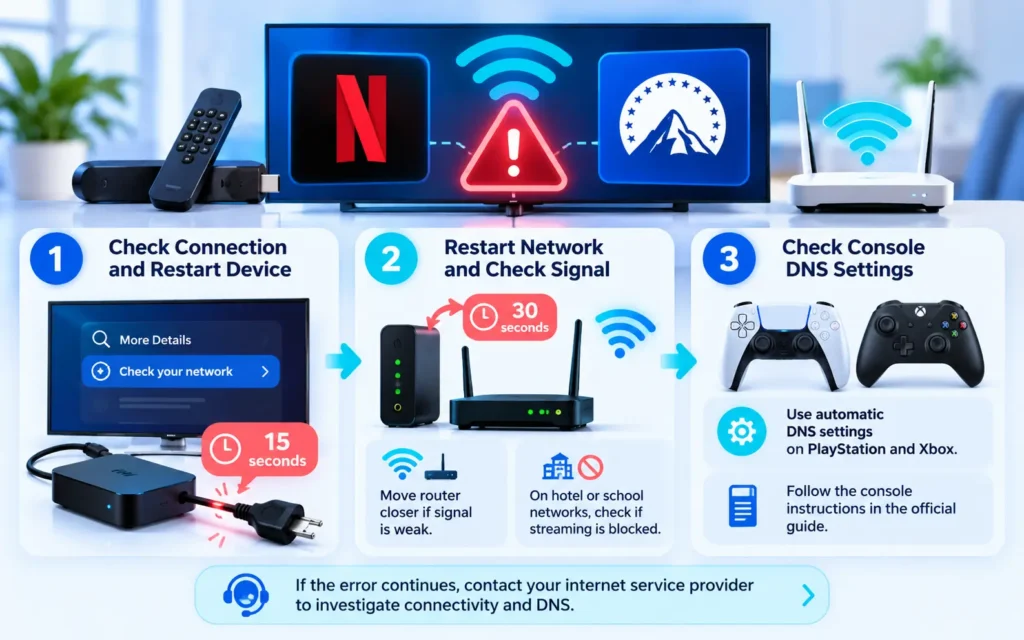
Select More Details > Check your network on the Netflix error screen, if available. If the test fails, investigate the connection first.
Unplug your streaming device for at least 15 seconds. For a cable box, Netflix specifies three minutes. Reconnect it and test playback.
Restart Your Network and Check the Signal
Turn off the streaming device. Unplug your modem and router for 30 seconds, then restore power. Wait until internet access returns before trying Netflix.
Move the router closer if the wireless signal is weak. On hotel or school networks, ask whether streaming is blocked.
These steps follow Netflix’s official NW-2-5 instructions.
Check Console DNS Settings
Netflix recommends automatic DNS settings on PlayStation and Xbox. DNS helps your device find an online service’s address.
Follow the console instructions in the Netflix NW-2-5 guide. Do not apply console menu steps to your TV or router.
If the error continues, ask your internet service provider to investigate connectivity and DNS.
How to Troubleshoot Paramount Plus Error Code 3005
Choose the section for your device. These steps include general Paramount+ streaming checks, which should not be treated as a confirmed repair for every 3005 failure.
Update and Compare Browsers
Update your supported browser, close it, and reopen Paramount+. Test the same title in another supported browser.
If playback works in the second browser, investigate the original browser before changing your network.
Paramount+ general streaming guidance includes browser updates, clearing browsing data, and checking ad blockers. Clearing cookies can sign you out, so have your login details ready.
Test Your Ad Blocker
Open your ad blocker’s controls and look for an option to pause blocking on Paramount+.
If that option is unavailable and you use Chrome:
- Open the three dot menu.
- Select Extensions > Manage extensions.
- Temporarily turn off the ad blocker.
- Reload Paramount+ and test the same video.
- Turn the extension back on after the comparison.
Google’s extension guidance explains these controls.
If playback only works while blocking is paused, check whether the extension offers a site exception. If nothing changes, restore the setting and move to the next check. Do not disable your antivirus or firewall for this test.
Compare Playback in a Private Window
Some users in this community discussion about error 3005 report that private browsing helped. Others still experienced failures.
Sign in through a private window and play the same title. If it works, something differs between the browser sessions, such as stored site data or active extensions.
Treat this as a diagnostic result. It does not identify one cause or guarantee a lasting repair. Chrome can also allow selected extensions in Incognito, so check their settings when comparing results.
On Fire TV or a Phone
Close and reopen Paramount+, then check for available app updates.
On Fire TV, open Settings > Applications > Manage Installed Applications > Paramount+. Select Force Stop, then Clear Cache, and test playback.
On a phone, confirm that Paramount+ has network access. Reinstallation is a later option if the app continues to fail. Keep your login details ready.
These steps come from Paramount+ streaming help. An iPhone does not have Fire TV’s cache menus.
Fix Playback Problems on Roku
Open Settings > Network > Check connection.
If the connection test fails, address that problem before reinstalling apps. If it passes, compare another title and another streaming service.
To restart Roku, open Settings > System > Power > System restart. If there is no Power menu, select System restart directly under System.
Highlight the affected app, press the Star button, and check for updates. Test playback again. See Roku’s playback troubleshooting instructions for these controls.
If one app still will not load, you may need to remove and reinstall a Roku app. Highlight it, press Star, and choose Remove app when available.
An active subscription billed through Roku can prevent removal. If the option is missing, review Roku’s app removal guidance before changing your subscription.
What to Do When Restarting Has Not Helped
Record which checks passed and which failed rather than repeating the same restart.
Suppose Paramount+ plays several shows, but one episode fails at the same point on two devices. Report the episode and playback timestamp. That pattern warrants investigation of the title; it does not prove your router is faulty.
If every app fails on the TV while your laptop works, investigate the TV’s connection. If Netflix alone fails across your home devices, share those results with your ISP and Netflix support.
Prepare these details before contacting support:
- Device model and software version.
- App or browser version.
- Exact error message.
- Affected titles and episodes.
- Failure time and time zone.
- Checks completed and their results.
- Do not include your password.
Common Troubleshooting Mistakes
- Changing several settings together: Test after each change so you can tell what helped.
- Confusing a restart with a factory reset: Unplugging power is different from pressing a router’s reset button.
- Treating one workaround as a universal fix: A browser workaround may have no relevance to a TV app.
- Resetting the TV too early: A reset can remove account or app settings. Complete connection and app checks first.
Frequently Asked Questions
What Does the NW-2-5 Netflix Code Mean?
It means your device took too long to connect to Netflix. With code NW-2-5, Netflix has identified a connection failure, but the message does not pinpoint the device, network equipment, or provider responsible.
How Do I Fix Netflix NW-2-5 on a Smart TV?
Check the TV’s network status, then fully restart the TV rather than leaving it in standby. Compare another app on that TV. If several apps fail, address the TV’s connection before changing Netflix settings.
Why Does NW-2-5 Appear When My Internet Is Fine?
A working website or phone connection does not confirm that your TV can reach Netflix. Your devices may use different connections or receive different signal strength. Compare Netflix on devices connected to the same home network.
How Do I Fix a Netflix Error Code NW-2-5?
Check connectivity, restart the streaming device, restart the home network, and test after each action. On a console, check automatic DNS settings if applicable. Contact your ISP when the connection error persists.
How Do I Fix Netflix NW-2-5 on a Samsung TV?
After checking the connection, try a cold boot. Hold the remote’s Power button until the TV turns off and back on, or unplug the TV for 30 seconds.
Check Settings > Support > Software Update > Update Now. Menus can vary by model. Samsung’s app troubleshooting guide explains these steps.
What Does Netflix Error Code NW-3-6 Mean?
A network issue is preventing the device from reaching Netflix. The official NW-3-6 guide includes device instructions and checks for connection settings that have been changed.
What Does Netflix Error Code NW-2-4 Mean?
It indicates a network issue blocking access to Netflix. Check whether your network permits streaming and whether the device is connected. Follow the NW-2-4 instructions for the exact code displayed.
How Do I Fix Netflix NW-2-5 and Paramount+ 3005 on Roku?
Run Settings > Network > Check connection, then restart Roku. If both services fail, investigate the shared connection. If only Paramount+ fails, compare titles and check its app updates before considering reinstallation.
If the Error Keeps Returning
Use your test results to choose who to contact. Your ISP can investigate network access and DNS. The streaming service can investigate repeatable playback failures. Share the exact code, affected device, and completed checks so support can continue from what you already know.


