

Gmail Groups & Rules: How to Create, Organize, and Automate Gmail
A crowded Gmail inbox can make simple tasks harder than they need to be. Important messages get buried, the same group of people has to be added to emails again and again, and routine messages take up space in the inbox.
Gmail gives you several ways to fix these problems, but the names can be confusing. A Gmail contact group, a Google Group, and a Gmail rule are three different things.
A contact group lets you email the same people without entering every address each time. A Google Group gives a team or community its own group email address. A Gmail rule, which Google calls a filter, automatically handles incoming messages based on conditions you choose.
This Gmail Groups & Rules: How to Create guide explains each option, when to use it, and how to set it up.
Quick Answer: Use a Google Contacts label when you want to email the same people repeatedly. Use Google Groups when a team needs a group email address and membership controls. Use Gmail filters when you want incoming messages to be organized or handled automatically.
What Are Gmail Groups and Rules?
A Gmail group is usually a set of contacts saved under a label in Google Contacts. For example, you could create a label called “Project Team” and add eight coworkers to it. When you compose an email, entering that label can add those contacts as recipients.
Google Groups works differently. It can give a team, class, organization, or community a group email address. Members can communicate through that address, and group owners can control who joins, posts, or views conversations.
Gmail rules handle email organization rather than recipients. Gmail calls these rules filters. A filter checks incoming mail against conditions you set and then performs an action, such as applying a label, archiving the message, starring it, deleting it, or forwarding it.
Are Gmail Rules the Same as Filters?
Yes. If you are looking for rules in Gmail, the feature you need is Filters.
Google uses the term “filters” in Gmail settings. Other email services may call similar features rules, which is why people often search for both terms.
Gmail Groups vs Google Groups vs Rules
Choosing the correct feature first can save you from setting up something you do not need.
| Feature | Main Purpose | Good Choice For | Shared Address |
| Contact label | Email several saved contacts | Family, clients, small teams | No |
| Google Group | Group communication | Teams, classes, organizations | Yes |
| Gmail filter | Handle incoming email automatically | Inbox organization | No |
- Use a contact label when you regularly send messages to the same people.
- Use Google Groups when the group itself needs an email address or when you need controls for membership, posting, conversation access, or moderation.
- Use a Gmail filter when you want messages matching certain conditions to be handled automatically.
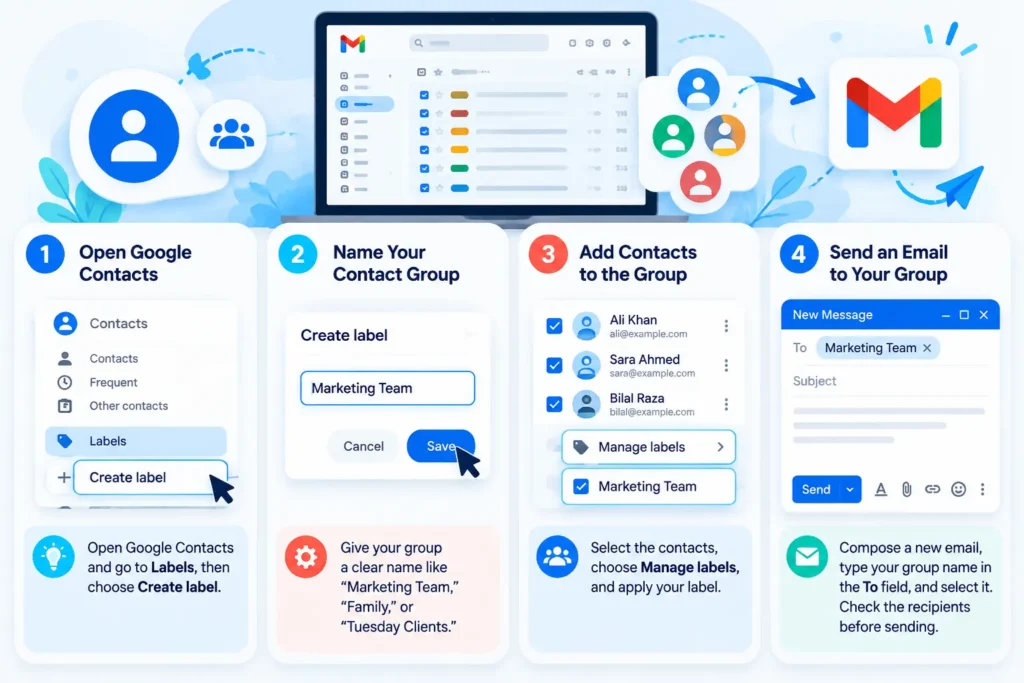
How to Create a Group in Gmail
If you want to create a group in Gmail for a recurring list of recipients, Google Contacts is usually the simplest option.
1. Open Google Contacts
Sign in to the Google account you use with Gmail and open Google Contacts.
Look for Labels in the left menu and choose the option to create a new label.
Screenshot suggestion: Google Contacts with the Labels area and Create label option visible.
Alt text: Google Contacts Create label option for a Gmail contact group
2. Name Your Contact Group
Give the label a name that tells you who belongs to it.
Names such as “Marketing Team,” “Family,” or “Tuesday Clients” are easier to recognize than vague names such as “Group 1.”
Save the label.
3. Add Contacts to the Group
Select the contacts you want to include.
Choose Manage labels, select the label you just created, and apply it.
One detail can matter here. If a person has several email addresses saved in Google Contacts, the email address associated with that contact should be checked before you use the group.
4. Send an Email to Your Group
Open Gmail and select Compose.
Start typing the contact label name in the To field. Select the group when Gmail suggests it. The contacts associated with that label will appear as recipients.
Check the recipient list before sending an important message, especially if people have recently joined or left the group.
For an external group whose members should not see each other’s email addresses, consider placing recipients in Bcc instead of To or Cc.
How to Create Groups in Gmail With Google Groups
Learning how to create groups in Gmail becomes slightly different when you need more than a personal contact list.
Google Groups can provide a group email address and settings for membership, conversations, posting, and privacy.
1. Create the Google Group
Sign in to Google Groups and select Create group.
Enter a clear group name and the required group information. Choose an email address that reflects the purpose of the group.
Screenshot suggestion: Google Groups Create group screen showing the group details fields.
Alt text: Google Groups Create group screen for setting up a group email
2. Review Privacy Settings
Do not rush through permissions.
Depending on your account and available settings, you may be able to control who can find the group, view conversations, post messages, or view members.
These choices matter when a group contains company, client, school, or other nonpublic communication.
3. Add or Invite Members
Add the people who should belong to the group.
Google Groups can support different roles, including members, managers, and owners. Owners have greater control over group settings, so assign that role only when needed.
4. Test the Group
Google advises waiting a few minutes after creating a new Google Group before sending to it.
Send a test message once the group becomes active. Confirm that the correct members receive it and that replies behave as expected.
How to Create Rules in Gmail
If your goal is automatic inbox organization, you need to know how to create rules in Gmail using filters.
Google’s current instructions create and manage these filters from Gmail on a computer.
1. Choose Your Filter Conditions
Open Gmail on your computer.
In the search box, select Show search options. You can then define which messages the rule should match.
Screenshot suggestion: Gmail search bar with Show search options open.
Alt text: Gmail Show search options used to create an email filter
Common conditions include:
- Sender
- Recipient
- Subject
- Words contained in the email
- Words the email does not contain
- Message size
- Attachments
Before creating the filter, run the search. This lets you see which existing emails match your conditions and can prevent an overly broad rule.
2. Choose an Automatic Action
Select Create filter after you are satisfied with the search criteria.
Gmail will ask what should happen to matching messages. Depending on the action, you can have Gmail apply a label, skip the inbox, mark a message as read, star it, delete it, or forward it.
Choose only the actions you actually need.
Screenshot suggestion: Gmail Create filter window showing available filter actions.
Alt text: Gmail filter actions for labeling and organizing incoming email
3. Save and Test the Rule
Create the filter and test it with a suitable message.
A small test is worth doing before relying on an important rule. A filter that is too broad could hide messages you wanted to see in the inbox.
Create a Rule From an Existing Email
You can also build a filter from a message already in Gmail.
Select the checkbox beside the email. Open More and choose Filter messages like these.
Review the criteria Gmail fills in, change them if necessary, and select Create filter. Then choose the action for future matching messages.
This method is useful when a real email already contains the sender or other information you want the rule to recognize.
Practical Gmail Rule Examples
Filters become easier to understand when you connect them to real inbox problems.
Organize Client Emails
Suppose a client always writes from the same domain.
Create a filter that recognizes messages from that sender or domain and applies a client label. You can then find related messages without searching through your whole inbox.
Separate Receipts and Invoices
If your receipts use predictable sender addresses or subject terms, create a filter that applies a Finance or Receipts label.
Avoid making the condition too broad. A generic word such as “payment” could match messages you did not intend to organize this way.
Reduce Newsletter Clutter
A newsletter you want to keep does not always need to sit in the main inbox.
You can filter messages from a known newsletter sender, apply a label, and skip the inbox. The emails remain available without competing with higher priority messages.
If you later need to find messages that no longer appear in the inbox, knowing where archived emails are in Gmail can make this setup easier to manage.
Highlight Important Senders
A rule can also help important messages stand out.
For example, you can create a filter for a manager, customer, or project contact and automatically star matching messages.
Gmail Labels Are Not Traditional Folders
People often search for a way to create a rule in Gmail to move email to a folder. Gmail works differently.
Labels are not traditional folders. A message can have a label while remaining in the inbox, and Gmail can apply labels without moving the message into a separate folder.
If you want matching messages to stay out of your inbox, a common setup is to apply a label and choose Skip the Inbox. The message is then archived rather than displayed in the inbox.
Be careful when cleaning up later. Understanding how to delete labels in Gmail separately from deleting email can help prevent mistakes.
Filter Emails From Multiple Addresses
You do not need a separate filter for every sender.
Gmail supports search operators, including OR, which can match one of several search conditions.
For example, suppose emails from Amy and David should receive the same project label. You can search:
from:amy@example.com OR from:david@example.com
You can also use braces:
{from:amy@example.com from:david@example.com}
Both approaches tell Gmail to find messages that match either sender.
Run the search before creating the filter. Check that the results contain the messages you expect. You can then use those search results to create a filter and apply the same action to messages from either address.
This is safer than creating a broad rule and discovering later that unrelated messages were included.
Edit or Delete Gmail Rules
Rules change as your inbox changes.
On a computer, open Gmail, select Settings, then See all settings. Open Filters and Blocked Addresses.
Screenshot suggestion: Gmail Filters and Blocked Addresses settings page.
Alt text: Gmail Filters and Blocked Addresses settings for editing rules
Find the filter you want to change.
Choose Edit to update it or Delete to remove it. If you edit the conditions, review them carefully before updating the filter.
This is also a good place to review old filters from projects, subscriptions, or senders that are no longer relevant.
Import and Export Gmail Filters
Gmail also lets you export filters.
Open Filters and Blocked Addresses, select the filter or filters you want, and choose Export. Gmail provides them in an XML file.
To restore saved filters, use the Import filters option and select the appropriate file.
This can be useful when you have spent time building a detailed set of rules and want a backup.
Manage Gmail Contact Groups
Contact groups need occasional maintenance too.
In Google Contacts, you can add new people to an existing label or remove contacts who no longer belong there. You can also edit or delete the group label.
Removing someone from a contact label does not mean deleting that person’s contact record. You are changing their membership in that label.
Review recipient groups before sending confidential or business information. Old group membership can create privacy problems if someone receives a message they should no longer see.
Gmail Groups and Rules on Mobile
Mobile support depends on what you are trying to do.
Google documents Gmail search operators on mobile, so you can still search for messages using criteria such as sender, recipient, subject, labels, and other supported operators.
Creating a Gmail filter is different. Google’s current instructions for creating and managing filters specify the computer workflow. If the Gmail app does not show the filter creation controls you need, use Gmail on a computer to create the rule.
This distinction matters for anyone searching for a create rule in Gmail app option. Searching and creating a saved filter are not the same task.
Google Workspace Groups for Businesses
A company or school using Google Workspace may have more options than a personal Gmail account.
Workspace administrators can create groups for teams, departments, distribution lists, collaboration, and certain service settings through the Google Admin console.
Organizations may also restrict who is allowed to create groups. If your work or school account says you do not have permission, the restriction may come from your administrator rather than an error in Gmail.
Common Gmail Group and Rule Mistakes
A few mistakes cause many Gmail organization problems.
- Using the wrong type of group: A contact label is fine for a personal recipient list. It is not a replacement for a shared Google Group with its own address and permissions.
- Creating a filter without testing the search: Check the matching messages before saving a rule.
- Using broad conditions: A common keyword can capture unrelated email.
- Ignoring group privacy: Review who can post, view conversations, and see members when setting up a Google Group.
- Forgetting old members: Check contact groups when staff, clients, or project members change.
- Expecting labels to act exactly like folders: Gmail labels and traditional folders are not the same thing.
Gmail Groups and Rules: Final Takeaway
The right setup depends on what you want Gmail to do.
Use a Google Contacts label when you repeatedly email the same people. Use Google Groups when a team or organization needs a group address and membership controls. Use Gmail filters when incoming messages should be sorted or handled automatically.
Start with one clear task rather than building many rules at once. Test each filter, check group membership, and review your settings when your work changes.
Once those basics are in place, Gmail becomes much easier to manage without hiding important messages or creating complicated systems you have to fix later.
Frequently Asked Questions
How do I create a group email in Gmail?
Open Google Contacts, create a label, and add the contacts you want in the group. Then open Gmail, compose a message, and type the label name into the recipient field. Select the suggested group to add its contacts.
How do I create a rule in Gmail to move to a folder?
Gmail uses labels instead of traditional folders. On a computer, create a filter for the messages you want, choose Apply the label, and select a label. If you also choose Skip the Inbox, matching messages are archived and can be accessed through the label.
Can I create a rule in the Gmail app?
Google’s current instructions for creating Gmail filters specify the computer workflow. You can use search operators in the Gmail mobile app, but use Gmail on a computer when you need to create or manage a filter.
How do I create a filter for multiple email addresses?
Combine sender criteria with Gmail’s OR operator. For example, search from:amy@example.com OR from:david@example.com. Check the results, then create a filter from that search and choose the action you want Gmail to perform.
How do I create a filter in Gmail mobile?
Google’s current filter creation instructions use Gmail on a computer. You can search Gmail on mobile with supported search operators, but for filter creation and management, use Gmail on a computer.
Are Gmail rules and filters the same thing?
Yes. Gmail calls the feature Filters. Filters work like email rules by checking messages against conditions and performing selected actions automatically.
Can Gmail automatically label emails from one sender?
Yes. Create a filter that matches the sender’s email address and choose Apply the label as the action. Test the filter criteria first so unrelated messages are not included.


