

How to Change Your Gmail Signature (Desktop, Android & iPhone Step-by-Step Guide)
A Gmail signature is a simple way to add your contact information automatically at the end of your emails. It can include your name, job title, company details, phone number, website, social media profiles, or a professional logo.
Changing your Gmail signature takes only a few minutes, but many users struggle to find the correct settings, especially when moving between desktop and mobile devices. You may need to update your signature after changing jobs, replacing your company logo, updating contact details, or creating a more professional email style.
This guide explains how to change your Gmail signature on desktop, Android, and iPhone. You will also learn how to edit an existing signature, add images, create professional email signatures, fix common problems, and manage Gmail signature settings effectively.
Quick Answer: How Do I Change My Gmail Signature?
To change your Gmail signature on a computer:
- Open Gmail and sign in to your account.
- Click the Settings gear icon.
- Select See all settings.
- Open the General tab.
- Find the Signature section.
- Edit your current signature or click Create new.
- Choose when the signature should appear.
- Click Save Changes.
Your updated signature will appear automatically in future emails according to your selected settings.
What Is a Gmail Signature?
A Gmail signature is a block of information that Gmail automatically adds to the bottom of your outgoing messages. Instead of typing your details every time you send an email, Gmail inserts your saved signature for you.
A typical email signature may include:
• Full name
• Job title
• Company name
• Phone number
• Website link
• Social media profiles
• Logo or profile image
For example:
Sarah Williams
Marketing Manager
Bright Solutions Inc.
www.example.com
(555) 123 4567
A Gmail signature is useful for professionals, freelancers, business owners, students, and anyone who regularly communicates through email.
A well-created signature helps recipients quickly identify who you are and how they can contact you.
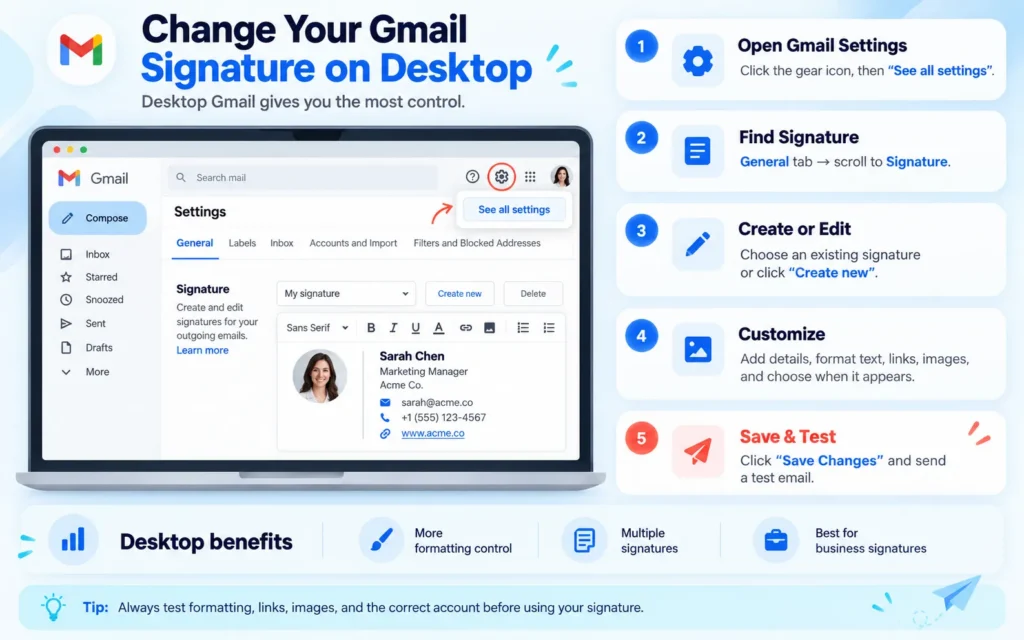
How to Change Your Gmail Signature on Desktop
The desktop version of Gmail provides the most customization options. You can add images, format text, create multiple signatures, and choose when each signature appears.
If you want full control over your email signature design, desktop Gmail is the best option.
Open Gmail Settings
First, open Gmail in your web browser and sign in to your account.
In the top-right corner, click the Settings gear icon.
A quick settings panel will appear. Select:
See all settings
This will open the complete Gmail settings page.
Find the Gmail Signature Settings
After opening Gmail settings:
- Select the General tab.
- Scroll down until you find the Signature section.
- Click your existing signature if you want to update it.
If you do not already have a signature, click:
Create new
Enter a name for your signature and start adding your information.
You can create different signatures for different situations, such as:
- Business emails
- Personal messages
- Customer communication
- Short reply emails
How to Edit an Existing Gmail Signature
Many users already have a signature but need to update specific information.
To edit an existing Gmail signature:
- Open Gmail Settings.
- Go to the Signature section.
- Select your current signature.
- Make the required changes.
- Save your settings.
You can update:
- Your name
- Job title
- Phone number
- Email address
- Website links
- Social media profiles
- Company information
- Images or logos
Keeping your signature updated prevents customers and contacts from receiving outdated information.
Format Your Gmail Signature
Gmail provides basic formatting tools inside the signature editor.
You can adjust:
- Font style
- Text size
- Bold and italic text
- Text color
- Links
- Alignment
For business emails, avoid using too many colors or complex designs. A clean signature is easier to read and works better across different email apps.
Choose When Your Gmail Signature Appears
Gmail allows you to control when your signature is automatically added.
You can select:
For new emails, use
Your signature appears whenever you create a new message.
On reply or forward, use
Your signature appears when responding to existing emails.
If you use multiple Gmail accounts, check that you are editing the correct account before saving changes.
Save Your Updated Gmail Signature
After making changes:
- Scroll to the bottom of the settings page.
- Click Save Changes.
- Send yourself a test email.
Testing your signature helps you confirm that:
- Formatting looks correct
- Links work properly
- Images appear correctly
- The signature is added to emails as expected
How to Change Email Signature in Gmail on Android
If you want to know how to change your email signature in Gmail, remember that Android Gmail settings work separately from desktop Gmail.
The Gmail Android app has its own mobile signature option.
Follow these steps:
- Open the Gmail app.
- Tap the three horizontal lines in the top left corner.
- Scroll down and select Settings.
- Choose the Gmail account you want to update.
- Tap Mobile Signature.
- Edit your signature.
- Tap OK or Save.
Your Android signature will now be used when sending emails from the Gmail app.
Remember that mobile signatures and desktop signatures are managed separately. A signature created on your computer may not automatically appear in the Gmail mobile app.
How to Change Your Signature on Gmail iPhone
The Gmail app on iPhone and iPad has a slightly different process.
To update your signature:
- Open the Gmail app.
- Tap the menu icon.
- Select Settings.
- Choose your email account.
- Open Signature Settings.
- Turn on the signature option.
- Edit your signature.
- Save your changes.
The Gmail iPhone app supports basic text signatures. If you need advanced formatting, logos, or detailed designs, editing your signature through desktop Gmail gives you more options.
Can You Change Gmail Signature Without a Computer?
Yes, you can change your Gmail signature without using a computer. The Gmail mobile app allows you to update your signature from Android and iPhone devices.
However, mobile Gmail signatures have fewer customization options compared with desktop Gmail.
Using the mobile app, you can update basic text information such as:
- Name
- Job title
- Contact details
If you want to add:
- Company logos
- Images
- Advanced formatting
- Multiple professional signatures
it is better to update your signature through Gmail on a computer.
How to Add a Logo or Image to Gmail Signature
A professional Gmail signature often includes a company logo, personal photo, or brand image.
Adding an image can make your emails look more recognizable, especially for business communication.
To add an image to your Gmail signature:
- Open Gmail settings.
- Go to the Signature section.
- Click inside the signature editor.
- Select the image icon.
- Upload an image from your computer or choose one from Google Drive.
- Adjust the image size.
- Save your changes.
After adding the image, send a test email to check how it appears for recipients.
Recommended Gmail Signature Image Size
A signature image should look clear without making your email heavy or difficult to read.
For best results:
- Keep logo width around 200 to 300 pixels
- Use PNG or JPG format
- Avoid large banner images
- Use a clear, high-quality logo
- Check the appearance on mobile devices
Large images can increase email loading time and may not display correctly on smaller screens.
A simple logo with clean text usually works better than a large graphic design.
How to Create a Professional Gmail Signature
A professional email signature should provide useful information without making the email look crowded.
A good signature usually includes:
Name and Job Title
Your name should be easy to find.
Example:
John Miller
Sales Consultant
Company Information
For business emails, include:
- Company name
- Website
- Business phone number
- Office location if needed
Example:
John Miller
Sales Consultant
Bright Solutions Inc.
www.example.com
Add Useful Links
You can include clickable links such as:
- Company website
- LinkedIn profile
- Portfolio page
- Booking page
Links help recipients quickly find additional information.
Keep the Design Simple
Avoid:
- Too many colors
- Large banners
- Excessive icons
- Multiple fonts
- Long paragraphs
A simple design looks professional and works better across Gmail, Outlook, Apple Mail, and mobile email apps.
Gmail Signature Examples
Different users need different signature styles. Here are some practical examples.
Business Gmail Signature Example
Emily Carter
Founder | Carter Digital Studio
www.carterdigital.com
LinkedIn Profile
Freelancer Gmail Signature Example
Michael Brown
Graphic Designer
Portfolio: www.example.com
Available for freelance projects
Student Gmail Signature Example
Alex Johnson
Computer Science Student
University Name
LinkedIn Profile
How to Create Multiple Gmail Signatures
Gmail allows users to create multiple signatures and choose different ones depending on the email type.
This feature is useful if you use Gmail for different purposes.
Examples:
- Formal business signature
- Short reply signature
- Personal email signature
- Customer support signature
To create multiple signatures:
- Open Gmail Settings.
- Go to the Signature section.
- Click Create new.
- Create another signature.
- Select the default signature for different situations.
You can switch between signatures while writing an email.
Common Gmail Signature Problems and Fixes
Even after creating a signature, some users face problems where it does not appear correctly. Below are common issues and solutions.
Why Is My Gmail Signature Not Working?
Your Gmail signature may not work because of:
- Signature settings not saved
- Wrong Gmail account selected
- Signature disabled
- Incorrect default signature selection
- Mobile and desktop signature differences
Try these fixes:
- Open Gmail settings.
- Check the Signature section.
- Confirm that your signature is selected for new emails or replies.
- Save changes again.
- Send a test email.
Why Isn’t My Gmail Signature Updating?
If your new signature is not appearing, check these issues:
Changes Were Not Saved
After editing your signature, you must click:
Save Changes
at the bottom of the settings page.
Wrong Gmail Account Is Selected
If you manage multiple Gmail accounts, make sure you update the correct one.
Default Signature Settings Were Not Updated
Creating a signature does not always mean Gmail will automatically use it.
Check:
- For new emails, use
- On reply or forward, use
Browser Changes Need Refreshing
Sometimes refreshing Gmail or signing out and back in can help apply changes.
Why Is My Gmail Signature Not Showing?
Common reasons include:
- Signature option is turned off
- No default signature selected
- You are using another Gmail account
- Mobile and desktop signatures are different
Check your signature settings and confirm that the correct signature is selected.
Why Does My Gmail Signature Look Different on Mobile?
Email signatures can appear different on mobile because screens are smaller and email apps handle formatting differently.
To improve mobile appearance:
- Keep text short
- Avoid large images
- Use simple formatting
- Test your signature on a smartphone
A responsive, simple signature works best across different devices.
Why Is My Gmail Signature Appearing Twice?
This usually happens when Gmail automatically adds your signature and you manually paste the same information into the email.
To fix it:
- Remove the manually added signature from your email.
- Keep only Gmail’s automatic signature.
- Send a test message.
Gmail Signature Best Practices
A good signature should be useful, readable, and easy to maintain.
Keep It Short
Most recipients only need your essential information.
Include:
- Name
- Position
- Contact method
- Website if relevant
Avoid adding unnecessary details.
Make It Mobile Friendly
Many people read emails on smartphones.
Your signature should:
- Fit smaller screens
- Load quickly
- Be easy to read
Update Your Information Regularly
Review your signature whenever you change:
- Job title
- Company details
- Phone number
- Website links
- Branding elements
An outdated signature can create confusion.
Use Professional Email Branding
A consistent email signature helps businesses maintain a recognizable style when communicating with customers and partners.
Gmail Signature Settings for Google Workspace Users
Gmail works differently for individual users and organizations using Google Workspace.
A personal Gmail user can create and manage their own signature from Gmail settings. However, businesses using Google Workspace can create consistent email signatures for employees across the organization.
Google Workspace administrators can manage email settings for company accounts and help maintain consistent branding in business communication.
This is useful for:
- Companies with multiple employees
- Customer support teams
- Sales departments
- Organizations that want consistent email branding
For example, a company may want every employee signature to include:
- Company logo
- Official website
- Business contact details
- Legal information
- Social media links
Individual users usually manage their own signatures, while larger organizations may use centralized email management solutions to control signatures across many accounts.
More Ways to Organize Your Gmail Inbox
After updating your Gmail signature, you may also want to improve the way you manage your emails.
Gmail includes several tools that help users organize messages and find important information faster.
Some useful features include:
- Managing Gmail labels to categorize messages
- Creating email groups for easier communication
- Finding where archived emails are stored when messages are removed from the main inbox
For users who receive many emails every day, learning Gmail organization features can make email management much easier.
Common Mistakes to Avoid With Gmail Signatures
Creating a signature is simple, but some mistakes can make it look unprofessional or create problems.
Adding Too Much Information
A signature should provide useful details, not a complete biography.
Avoid adding:
- Long paragraphs
- Too many links
- Unnecessary quotes
- Large promotional messages
Keep the important information only.
Using Low-Quality Images
A blurry logo or stretched image can make your emails look less professional.
Use:
- Clear images
- Proper sizing
- High-quality logos
Always check how the image appears before using the signature regularly.
Ignoring Mobile Appearance
A signature that looks good on a large computer screen may not work well on a phone.
Before finalizing your signature:
- Send a test email
- Open it on a smartphone
- Check spacing and image size
Forgetting to Update Old Information
Old phone numbers, outdated job titles, or broken website links can confuse recipients.
Review your signature whenever important information changes.
Frequently Asked Questions
How do I change my Gmail signature?
To change your Gmail signature, open Gmail settings, select See all settings, go to the Signature section, edit your existing signature, choose where it should appear, and click Save Changes.
How do I edit an existing email signature?
Open Gmail and go to:
Settings → See all settings → General → Signature
Select your existing signature, make the required changes, and save your settings.
You can update your name, contact details, links, formatting, or images.
Why isn’t my Gmail signature updating?
Your Gmail signature may not update because changes were not saved, the wrong Gmail account was selected, or signature defaults were not configured correctly.
Check:
- Signature selection for new emails
- Signature selection for replies
- Correct Gmail account
- Saved changes
Then send a test email to confirm the update.
How do I change my signature on Gmail on my iPhone?
Open the Gmail app on your iPhone:
- Tap the menu icon.
- Select Settings.
- Choose your email account.
- Open Signature Settings.
- Edit your signature.
- Save your changes.
How do I set up or change my Gmail signature on my mobile device?
Open the Gmail mobile app, go to Settings, select your account, choose the signature option, update your details, and save the changes.
Remember that mobile signatures are separate from desktop Gmail signatures.
How do I change my signature in Gmail on desktop?
Open Gmail in your browser, select Settings, click See all settings, open the General tab, find Signature, update your information, and save changes.
Can I have multiple Gmail signatures?
Yes. Gmail allows you to create multiple signatures for different purposes.
For example:
- A formal business signature
- A short reply signature
- A customer support signature
- A personal email signature
Can I add a logo to my Gmail signature?
Yes. You can add a logo or image through the Gmail signature editor on desktop.
For the best results, use a clear image, keep the size reasonable, and check how it appears on mobile devices.
Why does my Gmail signature look different on mobile?
Mobile screens and email apps handle formatting differently.
A simple signature with limited images and clean formatting usually works better across devices.
How do I remove an old Gmail signature?
To remove an old signature:
- Open Gmail settings.
- Go to the Signature section.
- Select the signature you want to remove.
- Delete the content or remove the signature.
- Save changes.
About This Guide
This guide was created to help Gmail users manage signature settings across desktop and mobile devices. It focuses on practical steps, common problems, and simple solutions that help users create and maintain a professional email signature.
The instructions are designed for everyday Gmail users, professionals, freelancers, and businesses that want clearer and more consistent email communication.
Conclusion
Changing your Gmail signature is a simple task that can improve the way your emails look and help recipients quickly identify your contact details.
Whether you need to update your job title, add a company logo, change contact information, or create a new professional signature, Gmail provides built-in tools to manage these settings.
The best Gmail signature is clear, useful, and easy to read on every device. Keep your information updated, avoid unnecessary design elements, and test your signature before using it for important emails.
With the right setup, your Gmail signature can make everyday communication more professional and organized.


