

How to Jailbreak a Firestick / Fire TV
If you want to learn how to jailbreak a Firestick / Fire TV, the first thing to check in 2026 is your exact device and operating system.
On compatible Fire OS devices, what people call a Firestick jailbreak usually means allowing apps from outside the Amazon Appstore. This process is better known as sideloading. You are not normally replacing Fire OS or rooting the device.
The process is no longer the same across every Fire TV product. Amazon now sells Fire TV Sticks that use Vega OS as well as models that use Fire OS. Some newer Fire TV devices also have different Developer Options support.
Information in this guide was checked against current Amazon documentation in October 2026.
How to Jailbreak a Fire Stick Quickly
If you have a compatible Fire OS device, the basic process is:
- Open Fire TV Settings.
- Go to My Fire TV.
- Open About.
- Confirm the device model and Fire OS version.
- Reveal Developer Options if your model supports them.
- Enable the installation method available on your device.
- Install a compatible app from a trusted source.
- Turn off permissions you no longer need.
Amazon uses the term sideloading for installing an app outside the Amazon Appstore. Amazon officially documents Android Debug Bridge, or ADB, as one method for sideloading apps onto supported Fire TV devices.
What Does It Mean to Jailbreak a Firestick?
The term Firestick jailbreak is informal.
On many Fire OS devices, users are simply enabling settings that let them install compatible Android apps that are not offered through the Amazon Appstore.
Fire OS is based on the Android Open Source Project. This Android base allows many Android apps to work on compatible Fire TV devices, although some apps need changes because Fire TV uses Amazon services instead of Google services.
Jailbreaking Is Not the Same as Rooting
Rooting gives a user deeper system-level access to an Android device.
That is not what this guide covers.
For most people searching how to jailbreak Firestick, the actual goal is to sideload an app while keeping the normal Fire TV operating system in place.
What Can You Do After Sideloading?
A compatible device may let you install legitimate media players, utilities, home media apps, development tools, and other software distributed outside the Amazon Appstore.
Sideloading does not automatically give you free access to Netflix, Hulu, Prime Video, Disney Plus, Max, sports channels, or other paid services.
The ability to install an app and the legal right to access content are two separate things.
Can You Jailbreak a Fire TV in 2026?
Yes, some Fire TV devices still support traditional Fire OS sideloading, but the answer now depends on the exact model and operating system.
Amazon currently uses both Fire OS and Vega OS across its Fire TV lineup.
Fire OS is Android-based. Vega OS is Amazon’s newer platform and does not use standard Android APK apps in the same way.
Amazon lists the 2026 Fire TV Stick HD as a Vega OS 1.1 device. Amazon also identifies the Fire TV Stick 4K third generation released in 2026 as a Vega OS 2.0 device.
Fire OS and Vega OS Compatibility
| Fire TV Model | Operating System | Traditional Android APK Method |
| Fire TV Stick 4K third generation, 2026 | Vega OS 2.0 | No traditional Android APK method |
| Fire TV Stick HD, 2026 | Vega OS 1.1 | No traditional Android APK method |
| Fire TV Stick 4K Select | Vega OS 1.1 | No traditional Android APK method |
| Fire TV Stick 4K Plus, 2025 | Fire OS 8 | Fire OS app development and ADB supported |
| Fire TV Stick 4K Max second generation | Fire OS 8 | Fire OS methods may apply |
| Fire TV Stick 4K second generation | Fire OS 8 | Fire OS methods may apply |
| Fire TV Stick HD, 2024 | Fire OS | Fire OS methods may apply |
Do not assume that two devices with similar names work the same way.
For example, a Fire TV Stick 4K second generation and a Fire TV Stick 4K third generation belong to different software platforms.
What About Fire OS 14?
Fire OS itself also needs attention.
Amazon’s current developer documentation states that Developer Options are not supported on Fire OS 14. Some 2026 Fire TV television models use Fire OS 14.
This means the traditional instructions used on Fire OS 7 or Fire OS 8 devices should not automatically be applied to every product that carries the Fire TV name.
Check the exact model and OS before following any tutorial.
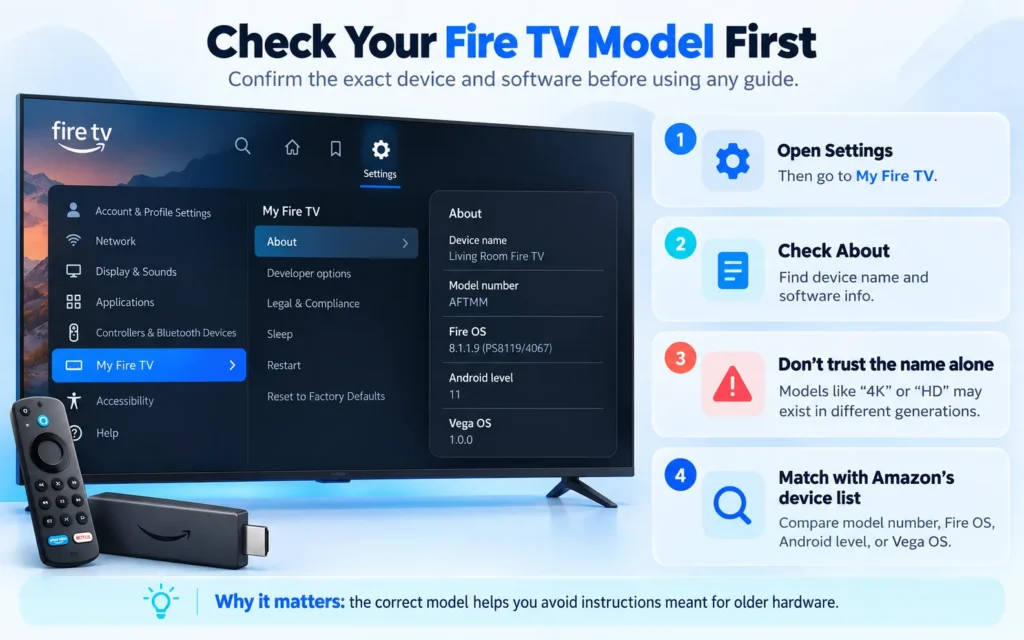
How to Check Your Fire TV Model
Open Settings, then select My Fire TV or the equivalent device settings section.
Open About.
Look for the device name and software information.
Do not rely only on names such as Fire TV Stick 4K or Fire TV Stick HD. Amazon has released several generations with different operating systems.
Amazon maintains a device identification list that includes model numbers, Android levels, Fire OS versions, and Vega OS versions.
Checking your model first can save you from following instructions that were written for older hardware.
What You Need Before You Start
For a compatible Fire OS device, you need:
- A working Fire TV device
- A stable internet connection
- A working Fire TV remote
- Enough free storage
- A trusted source for the app you want to install
If the remote is not responding correctly, pair your Firestick remote to the TV before changing device settings.
You should also know exactly where your APK file comes from.
Use the app developer’s own website when possible. Avoid random APK collections and unexplained download codes.
How to Jailbreak Firestick on Fire OS
These instructions apply only where your Fire OS model still provides the required settings.
Menu names can change with software updates.
Step 1: Open Fire TV Settings
Go to the Fire TV home screen.
Open Settings and select My Fire TV or Device and Software, depending on your interface.
Step 2: Open About
Select About.
Confirm the exact Fire TV model and OS version before continuing.
This is especially important if your device was released in 2025 or 2026.
Step 3: Check for Developer Options
Return to the device settings menu and look for Developer Options.
On Fire OS versions where the menu is hidden, highlighting the device name inside About and pressing the center remote button several times has historically revealed developer access.
However, do not assume this works on every current Fire TV device.
Amazon specifically states that Developer Options are not supported on Fire OS 14.
Vega OS also uses a different developer system.
Step 4: Choose an Available Installation Method
Older tutorials often tell users to install the Downloader app and use it for every Firestick.
That advice is no longer safe to present as universal.
Downloader availability has changed on some current Fire TV hardware.
In March 2026, Amazon Staff confirmed in an Amazon Forum discussion that Downloader had been removed from a Fire TV Stick 4K Plus case. Amazon support discussions also confirm that standard Android APK sideloading does not work normally on the Vega OS based Fire TV Stick 4K Select.
If Downloader is available on your compatible Fire OS device, you may use it with a trusted source.
If Downloader is not available, do not install imitation apps simply because they use a similar name.
Step 5: Use ADB When Appropriate
Amazon officially documents ADB as a method developers can use to sideload apps onto supported Fire TV devices.
ADB requires a computer and more technical setup than a normal Fire TV app.
The basic process is:
- Enable ADB debugging on a supported Fire OS device.
- Find your Fire TV IP address.
- Connect the computer and Fire TV through ADB.
- Use the official Android ADB installation command with your APK.
- Confirm that the application installs correctly.
Amazon’s documentation provides the command:
adb install <path-to-apk-file>
This method should only be used on supported devices where ADB debugging is available.
Step 6: Install Only a Trusted APK
Whether you use an available Fire TV installer or ADB, verify the APK source first.
Check:
- The developer name
- The official website
- The app version
- Fire TV compatibility
- Requested permissions
Avoid apps that promise unauthorized access to paid sports, movies, television channels, or subscription services.
Step 7: Open and Test the App
After installation, open the app and test it with your Fire TV remote.
Check that navigation, playback, permissions, and basic controls work.
A standard Android phone app may install but still fail to work well on a television because it was designed for touch controls.
Some Android apps also depend on Google Play Services. Fire OS uses Amazon services instead of Google’s service stack, so those apps may not work correctly.
What About Fire TV Stick 4K Select?
The Fire TV Stick 4K Select runs Vega OS, not Android-based Fire OS.
This means normal Android APK instructions do not apply.
An Amazon support discussion confirms that Android APKs will not work on this model through the traditional method and that sideloading access is limited to the Vega development environment for registered developers.
If installing Android APK files is important to you, check the operating system before buying a Fire TV Stick.
Is Firestick Jailbreaking Safe?
Changing a setting is not usually the biggest security concern.
The app you install afterward matters more.
An APK from an unknown source can contain unwanted code, collect information, request excessive permissions, or be an outdated copy of a legitimate app.
Use the developer’s official website whenever possible.
Do not install an app simply because a forum post or video provides a short download code.
If your device allows permission for individual installer apps, turn that permission off when you no longer need it.
Is Jailbreaking a Firestick Legal?
Sideloading an app and copyright infringement are different issues.
Amazon itself documents sideloading for Fire TV development.
The legal question usually depends on the software and content being used.
Installing a legitimate media player is different from accessing copyrighted movies or broadcasts without authorization.
The U.S. Copyright Office explains that unauthorized use of protected material may infringe copyright unless an applicable legal exception, such as fair use, applies. Fair use is evaluated case by case.
For U.S. users, use apps and content that you have a legal right to access.
Does Jailbreaking Void the Warranty?
Avoid claims that simply opening Developer Options automatically cancels every Fire TV warranty.
Amazon’s limited warranty covers defects in materials and workmanship during ordinary consumer use. It excludes hardware affected by causes such as misuse, neglect, external damage, alteration, or unauthorized repair.
That does not mean every software setting change automatically cancels all warranty coverage.
For a warranty issue, check the terms for your exact device and region.
Do You Need a VPN to Jailbreak Firestick?
No.
A VPN is not required to enable supported developer settings, use ADB, or install a legitimate app on a compatible Fire TV device.
A VPN changes how internet traffic is routed.
It does not enable Fire TV sideloading.
Choose a VPN only if you need its privacy or networking features.
Common Firestick Jailbreak Problems
Developer Options Are Missing
First check the Fire TV model and operating system.
If the device uses Fire OS 14, Amazon says Developer Options are not supported.
If the device uses Vega OS, traditional Fire OS instructions do not apply.
For an older supported Fire OS model, check Amazon’s current instructions for your exact software version.
Downloader Is Not Available
Do not assume this is an error.
Downloader availability has changed on some current Fire TV devices and accounts.
Amazon Staff confirmed its removal in at least one 2026 Fire TV Stick 4K Plus support case.
If it is missing, avoid lookalike apps that request unexpected fees or permissions.
ADB remains Amazon’s documented sideloading method for supported Fire TV development.
The APK Says App Not Installed
Possible causes include:
- Unsupported Android version
- Wrong processor architecture
- Conflict with an installed app
- Damaged APK file
- Insufficient storage
- Unsupported Fire TV model
Check the developer’s compatibility information rather than downloading random versions of the file.
The App Installs but Does Not Work
The app may have been designed for a touchscreen.
It may also depend on Google services that are not available on Fire OS.
Use apps that explicitly support Fire TV when possible.
Firestick Storage Is Full
Open Settings, then Applications, and review installed apps.
Remove apps you no longer use.
Delete unused installer files after confirming that the installed app works.
Common Mistakes to Avoid
Following an Old Tutorial
A guide from 2020 may still describe an older Fire OS model correctly, but its steps may be wrong for a 2026 device.
Check the operating system first.
Assuming Every Firestick Uses Fire OS
New Fire TV Stick models now use Vega OS.
The product name alone is no longer enough to identify the correct installation process.
Assuming Downloader Is Always Available
Downloader was widely used in older tutorials, but current availability has changed.
Check your device before building the entire setup around one app.
Enabling ADB Without a Reason
ADB is useful for supported Fire TV development and sideloading, but most users should enable it only when they actually need it.
Using Random APK Sites
Download software from its original developer whenever possible.
A popular APK filename does not prove that a file is genuine.
Buying a Preloaded Firestick
A seller may charge for settings you could configure yourself on a compatible device.
You also have less visibility into which apps or files were installed before you received the device.
How to Undo a Firestick Jailbreak
If you only enabled installation permissions, reversing the changes is usually simple.
Turn off any app installation permissions or ADB settings that you enabled.
Uninstall sideloaded apps you no longer need.
If you want to erase the entire device, use a factory reset as the final option.
A factory reset removes installed apps, account information, and local settings, so it is not necessary for every situation.
Frequently Asked Questions
How to Jailbreak a Firestick Fire TV for Free?
You do not need to pay someone simply to change supported Fire TV developer settings. Some apps and services may still require payment. Check your operating system first because current Fire TV models do not all support the same sideloading methods.
Can I Jailbreak My Fire Stick in 2026?
Some Fire OS devices still support app sideloading and development methods. Newer Fire TV Stick models may use Vega OS, so identify the exact model before following an older Firestick jailbreak guide.
How to Jailbreak a Firestick Fire TV 2020 Model?
Most 2020 Fire TV Stick models use Fire OS, so Fire OS instructions may apply. Menu locations can change after software updates, so check the device’s current OS before following an old 2020 tutorial.
How to Jailbreak a Fire Stick HD?
Check the release year first.
The Fire TV Stick HD released in 2026 uses Vega OS 1.1, so normal Android APK instructions do not apply to it. Amazon lists earlier Fire TV Stick HD hardware separately.
How to Jailbreak a Firestick 4K Select?
The Fire TV Stick 4K Select uses Vega OS. Traditional Android APK sideloading is not the same on this device, and Amazon support states that Android APK files do not work through the traditional Fire OS method.
How to Jailbreak Amazon Fire Stick 4K?
Identify the generation first.
The Fire TV Stick 4K second generation is a Fire OS device. The 2026 Fire TV Stick 4K third generation uses Vega OS 2.0, so the same Android APK instructions cannot be applied to both models.
Can You Jailbreak Firestick Without VPN?
Yes. A VPN is not required to use supported Fire TV developer or sideloading features. VPN use is a separate privacy and networking choice.
Can You Jailbreak a Fire TV?
Some Fire TV devices support Fire OS app sideloading, while Vega OS devices use a different application and development platform. Fire OS 14 devices also have a separate limitation because Amazon says Developer Options are not supported on that version.
Conclusion
Learning how to jailbreak a Firestick / Fire TV in 2026 starts with identifying the device, not with turning on a setting.
Older Fire OS devices may still support traditional Android app sideloading. Newer Fire TV Stick models increasingly use Vega OS, while some Fire OS 14 televisions do not support Developer Options.
Downloader should also no longer be treated as a universal Firestick installation method because availability has changed on current devices.
Check the model and operating system first, use trusted software sources, and enable only the settings your device actually supports.
That approach is safer, more accurate, and far more useful than following an old Firestick tutorial written for hardware that Amazon no longer sells.


