

Firestick Remote Pairing Issues: Best Ways to Fix a Remote That Won’t Connect
If your Firestick remote is not pairing, the problem is usually caused by weak batteries, a lost Bluetooth connection, software errors, or a removed pairing connection. In most cases, you can fix the issue by replacing the batteries, restarting your Fire TV Stick, and reconnecting the remote.
This guide covers the most common Firestick Remote Pairing Issues and explains how to fix connection problems on Fire TV Stick, Fire TV Stick 4K, Fire TV Stick 4K Max, and other Amazon Fire TV devices.
You will learn how to pair a new remote, reconnect a remote after a reset, fix a remote that is not detected, and solve problems where the remote connects but some buttons stop working.
Quick Fix for Firestick Remote Pairing Issues
Before trying advanced solutions, start with these common fixes:
| Problem | Quick Solution |
| Firestick remote is not detected | Replace batteries and restart Fire TV Stick |
| Remote keeps searching | Hold the Home button to pair again |
| New remote will not connect | Add it from Fire TV settings |
| Remote stopped after reset | Remove old pairing and reconnect |
| Remote light is flashing | Check batteries and restart the device |
What Are Firestick Remote Pairing Issues?
A Fire TV remote connects with your Firestick through Bluetooth instead of traditional infrared signals used by many older TV remotes.
When the Bluetooth connection fails, your Fire TV Stick may not recognize the remote or may lose control functions.
Common signs include:
• Remote does not respond
• Fire TV Stick cannot detect the remote
• Remote keeps searching for connection
• Orange light keeps flashing
• Buttons work randomly
• New remote does not connect
• Remote disconnects after working normally
Many users assume the remote is damaged immediately, but the actual problem is often a weak battery, a lost Bluetooth connection, or a temporary Fire TV software issue.
Why Is My Firestick Remote Not Pairing?
There are several reasons why a Fire TV remote may stop connecting. Finding the cause helps you choose the correct fix.
Weak or Incorrect Batteries
Low battery power is one of the most common reasons behind remote connection problems.
Even when the remote light turns on, the batteries may not provide enough power for a stable Bluetooth connection.
Try these steps:
- Remove the old batteries.
- Insert a fresh pair of alkaline batteries.
- Check that the positive and negative sides are placed correctly.
- Try pairing the remote again.
Avoid mixing old and new batteries because this can reduce performance.
Bluetooth Connection Problems
Your Firestick remote uses Bluetooth to communicate with your Fire TV device.
The connection can fail because of:
• Lost pairing information
• Temporary system errors
• Other nearby Bluetooth devices
• Fire TV software problems
Restarting the Fire TV Stick often refreshes the Bluetooth connection and allows the remote to pair again.
Fire TV Stick Software Glitches
Sometimes the Fire TV Stick stops recognizing the remote because of a temporary system issue.
This can happen after:
• Software updates
• Power interruptions
• Factory resets
• Long periods without restarting
A simple restart can restore the connection without requiring a new remote.
Too Many Connected Remotes
If multiple controllers or Bluetooth devices are saved on your Fire TV Stick, a new remote may fail to connect.
Removing unused devices from:
Settings → Controllers & Bluetooth Devices
can help solve pairing problems.
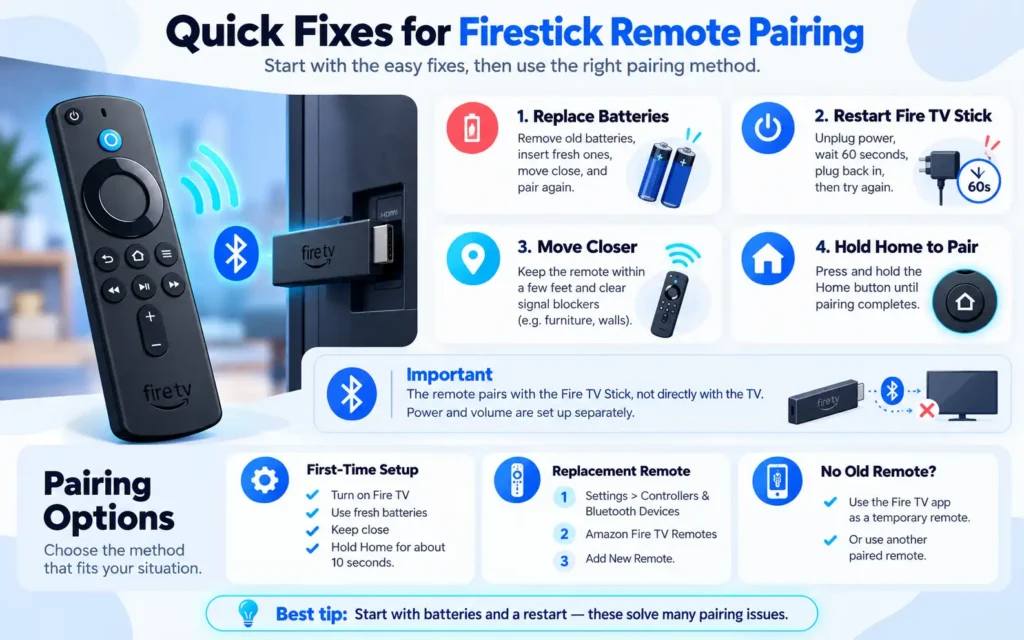
Quick Fixes for Firestick Remote Pairing Issues
Replace Your Firestick Remote Batteries
Start with the easiest solution first.
Follow these steps:
- Remove batteries from the remote.
- Wait a few seconds.
- Insert new batteries.
- Move close to your Fire TV Stick.
- Try pairing again.
Fresh batteries fix many cases where the firestick remote not pairing problem happens.
Restart Your Fire TV Stick
A restart clears temporary system errors and refreshes the Bluetooth connection.
To restart your Fire TV Stick:
- Unplug the Fire TV Stick from power.
- Wait around 60 seconds.
- Plug it back in.
- Wait until the home screen appears.
- Try connecting your remote again.
If you cannot use the remote, unplugging the device is the easiest method.
Move the Remote Closer During Pairing
Bluetooth works best when the remote is close to the Fire TV Stick.
During setup:
• Keep the remote within a few feet of the device
• Remove objects blocking the signal
• Avoid hiding the Firestick behind your television
Hold the Home Button to Pair Again
Most Amazon Fire TV remotes enter pairing mode when you press and hold the Home button.
Steps:
- Turn on your Fire TV Stick.
- Hold the Home button on the remote.
- Wait for the pairing message.
- Release the button after the connection is complete.
This simple step fixes many basic remote connection problems.
How to Pair Firestick Remote to TV
Many users search for pair firestick remote to tv because they want to control their Firestick and television with one remote. However, it is important to understand the difference between Fire TV remote pairing and TV control setup.
Your Firestick remote connects directly to the Amazon Fire TV Stick through Bluetooth. Features like volume control and power buttons are configured separately through equipment control settings, HDMI CEC, or infrared signals depending on your remote model and television.
How to Pair Firestick Remote to TV for the First Time
When setting up a Fire TV Stick for the first time, the remote usually pairs automatically. If it does not connect, follow these steps:
- Turn on your Fire TV Stick.
- Insert fresh batteries into the remote.
- Keep the remote close to the Fire TV device.
- Press and hold the Home button for about 10 seconds.
- Wait for the confirmation message on your screen.
If the remote does not connect, restart your Fire TV Stick and repeat the process.
How to Pair a Replacement Firestick Remote
A replacement remote may require manual pairing before it works.
Follow these steps:
- Open Settings on your Fire TV.
- Select Controllers & Bluetooth Devices.
- Choose Amazon Fire TV Remotes.
- Select Add New Remote.
- Press and hold the Home button on the new remote.
Your Fire TV Stick will search for the remote and complete the pairing process.
This method works with compatible Amazon Fire TV remotes, including many Alexa Voice Remote models.
How to Pair Firestick Remote to TV Without the Old Remote
Many users think they need their original remote to connect a replacement. However, there are other options.
Use the Amazon Fire TV App as a Temporary Remote
The Amazon Fire TV mobile app can work as a temporary controller when your physical remote is unavailable.
You can use it to:
• Navigate Fire TV settings
• Open the remote pairing menu
• Connect a replacement remote
• Control your Fire TV Stick during troubleshooting
Your smartphone and Fire TV Stick usually need to be connected to the same Wi Fi network.
This method is especially useful when your Firestick remote not pairing issue prevents you from accessing settings.
Use Another Paired Remote
If another Fire TV remote is already connected:
- Open Settings.
- Go to Controllers & Bluetooth Devices.
- Select Amazon Fire TV Remotes.
- Choose Add New Remote.
- Connect the new remote.
This is useful when replacing a lost, damaged, or older remote.
Firestick Remote Not Pairing After Reset? Try These Fixes
A factory reset or system reset can remove the previous remote connection. After resetting your Fire TV Stick, the remote may need to be paired again.
Reset Your Firestick Remote Properly
Try these steps:
- Remove the batteries from the remote.
- Unplug your Fire TV Stick.
- Wait about 60 seconds.
- Plug the Fire TV Stick back in.
- Insert the batteries again.
- Hold the Home button until the pairing message appears.
Give the device enough time to detect the remote before trying again.
Remove Old Remote Connections
Saved controllers can sometimes prevent a new remote from connecting.
To remove old devices:
- Open Settings.
- Select Controllers & Bluetooth Devices.
- Choose Amazon Fire TV Remotes.
- Remove unused remotes.
Then try pairing the new remote again.
Firestick Remote Light Meaning: Orange, Red, and No Light
The light on your Firestick remote can help identify the problem. The exact behavior can vary depending on the remote model.
| Remote Light | Possible Meaning | Solution |
| Orange flashing light | Remote is trying to pair or cannot complete pairing | Restart Fire TV and hold Home button |
| Red light | Battery or power issue | Replace batteries |
| No light | Remote may not be receiving power | Check batteries and contacts |
| Blue Alexa light | Voice feature activation | Normal operation |
If your Firestick remote shows an orange light but does not connect, restart your Fire TV Stick and try the pairing process again.
Firestick Remote Connected But Not Working
Sometimes the remote shows as connected but certain buttons stop responding. This usually means the Bluetooth connection is working, but another feature needs attention.
Buttons Not Responding
Try these steps:
• Remove and reinstall the batteries
• Restart your Fire TV Stick
• Check for stuck buttons
• Pair the remote again
Volume or Power Buttons Not Working
The Fire TV remote controls television functions separately from Firestick pairing.
To fix volume or power issues:
- Open Fire TV Settings.
- Select Equipment Control.
- Choose Manage Equipment.
- Run the setup process again.
This reconnects your remote with your television controls.
Alexa Voice Button Not Working
Alexa Voice Remote depends on the remote microphone and Fire TV software.
Try:
• Restarting your Fire TV Stick
• Installing fresh batteries
• Updating Fire TV software
• Pairing the remote again
Firestick Remote Compatibility Before Buying a New One
Before purchasing a replacement remote, check that it supports your Fire TV model.
Different Fire TV devices may use different remote versions.
| Fire TV Device | Remote Consideration |
| Fire TV Stick Lite | Compatible Alexa Voice Remote Lite |
| Fire TV Stick | Compatible Fire TV remote model |
| Fire TV Stick 4K | Check supported Alexa Voice Remote versions |
| Fire TV Stick 4K Max | Confirm latest remote compatibility |
| Fire TV Cube | Use compatible Alexa Voice Remote |
Buying an incompatible remote can create unnecessary pairing problems.
Firestick Remote Pairing Error Messages and What They Mean
Sometimes Fire TV Stick users see different messages during the pairing process. Understanding these messages can help you identify whether the issue is with the remote, Bluetooth connection, or Fire TV settings.
| Error Message | What It Usually Means | Solution |
| Searching for remote | Fire TV cannot find the remote | Keep the remote close and hold the Home button |
| Unable to connect remote | Pairing process failed | Restart Fire TV and try again |
| Remote not detected | Bluetooth connection problem | Replace batteries and reset pairing |
| Cannot add new remote | Too many saved controllers or compatibility issue | Remove old remotes from settings |
If the same message appears repeatedly, avoid pressing buttons continuously. Give the Fire TV Stick time to complete the pairing process.
Advanced Fixes When Firestick Remote Still Won’t Pair
If basic solutions do not solve the problem, try these advanced troubleshooting methods.
Restart Fire TV Stick From Settings
If you still have access to Fire TV menus using the app or another remote:
- Open Settings.
- Select My Fire TV.
- Choose Restart.
- Confirm the restart.
A system restart can refresh Fire OS and restore Bluetooth communication.
Check Fire TV Software Updates
Outdated software can sometimes create connection problems between your Fire TV Stick and remote.
To check updates:
- Open Settings.
- Select My Fire TV.
- Choose About.
- Select Check for Updates.
Keeping Fire OS updated can improve device stability and compatibility.
Factory Reset Your Fire TV Stick
A factory reset should only be used when other solutions fail.
A reset removes:
• Installed applications
• Amazon account information
• Personal settings
• Saved connections
Before resetting, make sure you remember your Amazon account details.
After the reset finishes, your Fire TV Stick will guide you through the remote pairing process again.
Check for Firestick Remote Hardware Problems
Sometimes the problem is not the connection. The remote itself may have a hardware issue.
Your remote may need replacement if:
• Buttons are physically damaged
• Battery contacts have corrosion
• The remote was exposed to water
• No light appears after installing new batteries
• The remote fails on another compatible Fire TV device
Before purchasing a new remote, test fresh batteries and try resetting the connection.
Firestick Remote Not Pairing With Different TVs
A common misunderstanding is that the Firestick remote pairs directly with the television.
The remote mainly connects with the Amazon Fire TV Stick. TV functions such as volume and power are controlled separately through equipment settings.
Firestick Remote Not Pairing With Samsung TV
For Samsung TVs:
- Check the HDMI connection.
- Enable HDMI CEC in TV settings.
- Run Fire TV equipment setup again.
Samsung calls HDMI CEC Anynet+.
Firestick Remote Not Pairing With LG TV
For LG televisions:
- Check the HDMI connection.
- Enable Simplink in TV settings.
- Restart both the TV and Fire TV Stick.
- Run equipment control setup again.
Firestick Remote Not Pairing With Vizio TV
For Vizio TVs:
- Check CEC settings.
- Confirm the correct HDMI input.
- Restart both devices.
- Reconfigure equipment control.
Many users confuse television control problems with Firestick pairing problems, but they are separate issues.
Common Mistakes That Prevent Firestick Remote Pairing
Avoiding these mistakes can save time and prevent unnecessary remote replacement.
Using Old Batteries
A remote may turn on but still fail to maintain a stable Bluetooth connection.
Always test with a fresh pair of batteries.
Pairing From Too Far Away
Trying to connect the remote from across the room or another area can prevent successful pairing.
Keep the remote close to the Fire TV Stick during setup.
Pressing Buttons Too Quickly
Some users repeatedly press buttons when the remote does not connect immediately.
The pairing process can take a few moments. Wait for the confirmation message before trying again.
Buying an Incompatible Remote
Not every Fire TV remote works with every Fire TV model.
Always check compatibility before buying a replacement remote.
Tips to Prevent Future Firestick Remote Problems
Simple maintenance can reduce future connection issues.
Follow these tips:
• Replace batteries before they completely drain
• Keep the remote away from moisture
• Restart your Fire TV Stick occasionally
• Remove unused Bluetooth devices
• Keep Fire OS updated
• Avoid blocking the Fire TV Stick behind the television
If you regularly use streaming services, keeping your device organized can also improve performance. For example, managing unnecessary apps and checking streaming app issues can help keep your Fire TV experience smooth.
Tested Firestick Remote Fixes
These troubleshooting steps cover common connection problems found on popular Amazon Fire TV devices, including Fire TV Stick, Fire TV Stick 4K, and Fire TV Stick 4K Max.
Starting with simple fixes such as replacing batteries, restarting the device, and reconnecting the remote can often solve the issue without buying a new controller.
Frequently Asked Questions
Why is my Fire Stick not detecting my remote?
Your Fire Stick may not detect the remote because of weak batteries, a lost Bluetooth connection, outdated software, or incorrect pairing steps. Replace the batteries, restart the Fire TV Stick, and hold the Home button to reconnect.
How do I reset my unresponsive Fire Stick remote?
Remove the batteries from your remote, restart your Fire TV Stick, reinstall the batteries, and hold the Home button to start pairing again. If it still does not work, check whether your remote model requires a specific reset process.
Why is my remote not pairing?
Your remote may not pair because of low battery power, lost Bluetooth information, another connected controller, software problems, or remote compatibility issues.
How do I resync my remote to my Fire Stick?
Keep the remote close to your Fire TV Stick, restart the device, and press and hold the Home button for about 10 seconds until the pairing message appears.
Why is my Firestick remote blinking orange but not pairing?
An orange flashing light usually means the remote is trying to enter pairing mode but cannot complete the connection. Restart your Fire TV Stick, install fresh batteries, and hold the Home button again.
How long does Firestick remote pairing take?
Most Fire TV remotes pair within a few seconds. If the process takes longer than a minute, restart the device and try pairing again.
Can I use my phone as a Firestick remote?
Yes. The Amazon Fire TV app can work as a temporary remote. Your phone and Fire TV Stick usually need to be connected to the same Wi Fi network.
Can I connect a new Firestick remote without the old one?
Yes. You can add a compatible replacement remote through Fire TV settings or use the Fire TV mobile app to access the pairing options.
Final Thoughts
Most Firestick Remote Pairing Issues are caused by simple problems such as weak batteries, Bluetooth connection errors, or temporary Fire TV software problems.
Before replacing your remote, try the basic fixes first:
• Install fresh batteries
• Restart your Fire TV Stick
• Keep the remote close
• Hold the Home button to pair again
If the remote still does not connect, check compatibility, remove old controllers, update Fire OS, or consider replacing the remote.
In most cases, a few troubleshooting steps are enough to restore your Fire TV remote connection.


