

Hulu Error Code P-DEV320: Fix Playback Problems
To troubleshoot Hulu error code p-dev320, close Hulu, restart your streaming device, and try another show. If playback still fails, test Hulu on another device before changing settings. That comparison helps you decide whether to focus on the app, your home network, or Hulu support.
Hulu specifically recommends a power cycle for this error. Unplug the affected equipment, wait a few minutes, then reconnect it and test playback. A restart may help, but the code alone does not prove where the problem began.
Find Out What Is Failing
Before deleting apps, try a different episode or channel. Then open Hulu on another supported device using the same Wi-Fi.
These results narrow your search. They do not confirm a cause.
For example, if Hulu works on your phone using the same Wi-Fi, start with the TV rather than resetting your router. If several apps fail across devices, check your internet connection first.
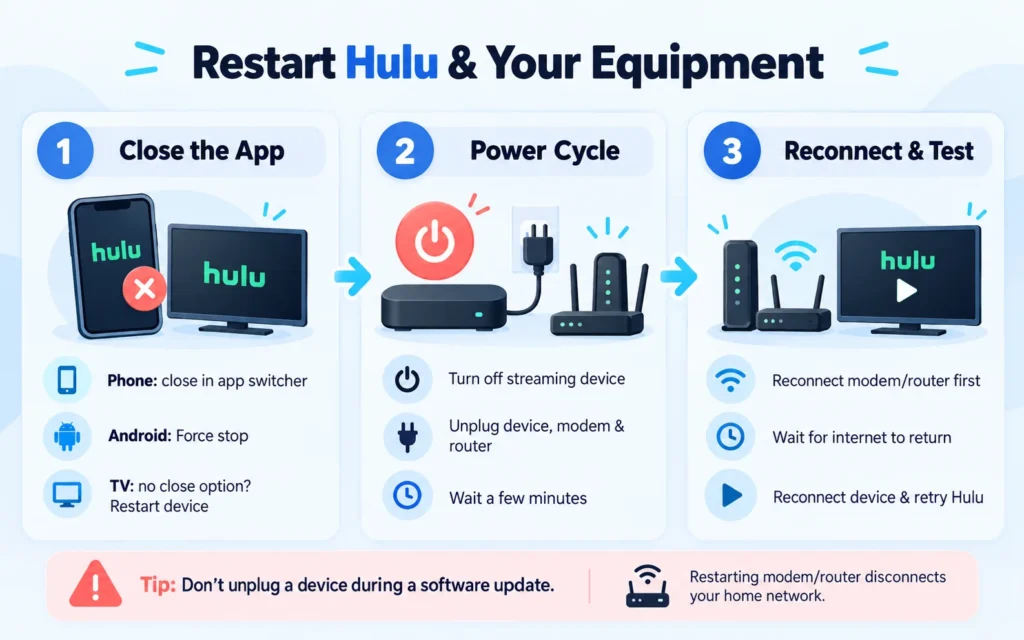
Restart Hulu and Your Equipment
Close the App Completely
On a phone, close Hulu through the app switcher. On Android, you can also open Settings, select Apps, choose Hulu, and select Force stop where available.
Returning to a TV home screen may leave an app running. If your device has no close option, restart the device instead. Open Hulu and retry the same video.
Perform a Power Cycle
Follow Hulu’s official power cycle guidance:
- Turn off your streaming device.
- Unplug the device, modem, and router where applicable.
- Wait a few minutes.
- Reconnect your modem and router. Let the internet connection return.
- Reconnect your streaming device and test Hulu.
A modem and router may be combined in one unit. Restarting them briefly disconnects everyone using your home network. Do not unplug a device while it is installing a software update.
Update Hulu and Your Device
Check your device’s app store for a Hulu update. Then check for system software updates. Hulu recommends keeping both current to receive improvements and bug fixes.
On Roku, open Settings, System, System update, then Check now. On Apple TV, open Settings, System, Software Updates, then Update Software.
For LG TVs running webOS 5.0 or later, LG lists Settings, All Settings, Support, Software Update, then Check for Updates. Older models use different menus. Let the update finish before testing Hulu.
Clear Stored Data or Reinstall Hulu
Cache stores temporary app files. Clearing it can help troubleshoot app problems, but it does not identify the cause. Clearing app data goes further and may require you to sign in again.
Fire TV and Android Devices
On Fire TV, open Settings, Applications, Manage Installed Applications, then Hulu. Select Clear cache and test playback before using Clear data.
On Android phones, open Settings, Apps, Hulu, then Storage or Storage & cache. Choose Clear cache first. Menu names vary by device.
Roku
Start with a system restart. Open Settings, System, Power, then System restart. If Power is not listed, select System restart directly under System.
If Hulu alone still fails, reinstall it where removal is available. Knowing how to delete apps on Roku helps you remove Hulu rather than changing unrelated settings.
Highlight Hulu on the Home screen, press the Star button, select Remove app, and confirm. Restart Roku, then install Hulu again through its app store.
If Remove app is missing, subscription restrictions may apply. Contact support before changing billing settings merely to troubleshoot playback.
iPhone, iPad, and Smart TVs
Update Hulu and restart your device first. If the issue continues, delete and reinstall Hulu where supported. Have your login details ready. Deleting the app may remove downloaded content or local settings.
On LG TVs, use the app list’s edit controls to delete Hulu, then find it through Apps or Search and reinstall it. LG also recommends checking User Agreements if smart apps fail. Samsung and other TVs have different controls, so follow your model’s instructions.
Check Your Connection Without Guessing
Test another streaming app on the affected device. If that app also struggles, move closer to your router or test Ethernet where supported. Run a connection test on the device showing the error, since your phone may receive a stronger signal.
Pause large downloads and test Hulu again. A fast speed test does not rule out brief connection drops.
If you use a VPN or proxy, turn it off and retry. Hulu’s U.S. service has location restrictions, and its support guidance says anonymous proxy services may need to be disabled.
If you installed a network filtering tool such as Pi-hole, briefly pause that filter for comparison, then restore it. Do not disable your firewall or change several router settings at once.
A phone hotspot can provide another comparison for on demand playback. Check mobile data charges first. Hulu + Live TV home network rules make a hotspot test unsuitable for confirming every Live TV problem.
When Hulu Works on Other Devices
If another device plays the same title, record that result. It gives support more useful information than saying your internet works.
For NVIDIA Shield, community discussions report mixed results from Ethernet connections and HDCP settings. HDCP protects video sent through HDMI. Those reports do not establish a universal P-DEV320 fix. Avoid changing developer options based on an unrelated device’s success.
For browser playback, update the browser and clear Hulu site data rather than deleting all browsing history. Temporarily disable relevant extensions for comparison, then restore them. Use a browser currently supported by Hulu.
Common Mistakes That Waste Time
Do not assume multiple affected devices prove Hulu is down. They may share a network problem.
Do not keep reinstalling Hulu if only one episode fails across devices. Report the title, season, and episode instead.
Avoid factory resets as an early step. They erase settings and apps. Also avoid buying faster internet before checking whether the issue is limited to Hulu.
Change one thing at a time and test afterward. Otherwise, you cannot tell which action helped.
When to Contact Hulu Support
Check Hulu Help and official support announcements for known issues. Downdetector can show a rise in user reports, but those reports do not confirm the cause or scope of an outage.
If the error remains after the relevant checks, contact Hulu through its official Help Center. Provide your device model, software version, Hulu app version, exact error message, affected content, and the time with your time zone.
Include which devices worked and what you tried. If a reported service issue matches your symptoms, wait for an update rather than repeating resets.
Frequently Asked Questions
What does error code P-DEV303 mean on Hulu?
Hulu’s public support material reviewed for this guide did not provide a clear definition of P-DEV303. Read the full message beside the code. If it mentions content security or an external display, share those details with Hulu support instead of assuming it is the same issue as P-DEV320.
How can I fix Hulu P-DEV302 on my LG smart TV?
Restart the TV, test another app, and update webOS. If Hulu alone fails, reinstall it using LG’s app controls. Check User Agreements if other smart apps also fail. These are general LG troubleshooting steps, not a confirmed fix for every P-DEV302 case.
Is there a glitch with Hulu right now?
Check current Hulu support announcements and recent outage reports when the error occurs. This guide cannot confirm live service status. A failure on your TV alone does not show that Hulu is down for everyone.
How do I fix a Hulu error code?
Record the exact code and message, restart Hulu, and compare another title and device. Follow guidance for that specific code. Location, login, and playback errors can need different actions.
Why does Hulu work on my phone but not my TV?
If both use the same Wi-Fi, focus first on the TV’s Hulu app, software, and connection. A phone using cellular data is testing a different network, so the comparison is less specific.
Choose Your Next Step From the Test Results
If only one device fails, work through its app and software checks. If several devices fail, investigate the network and service reports. If one title keeps failing, report that content. Stop repeating the same fixes once you have enough details for support.


