

iPhone Alarm Too Quiet: Fix Low Volume and Missed Alerts
A quiet iPhone alarm can leave you late for work, school, or an early flight. Before changing several settings at once, check which alarm you use and which iOS version your phone runs.
For a regular Clock alarm on iOS 27, open Settings, tap Sounds & Haptics, and find Alarms and Timers. Turn off Match Ringtone Volume and raise the alarm slider. On older versions, adjust Ringtone and Alerts. A Sleep alarm has a separate volume control inside its alarm options.
Then check the selected sound and run a test alarm. Loud music does not prove that your alarm is set loud enough.
iPhone Alarm So Quiet? Check Your Alarm Type First
Open Settings, then General, then About to find your iOS version. Next, open Clock and tap Alarms. A scheduled alarm under Sleep | Wake Up uses different controls from a regular alarm you added yourself.
Use this table to choose your first check.
| What happens | What to check |
| Videos sound loud, but the alarm is quiet | Alarm volume rather than media volume |
| Only the Sleep alarm is quiet | Its separate Alarm volume slider |
| The alarm vibrates without sound | Sound may be set to None |
| The alarm starts loud and becomes quiet | Test Attention Aware on a Face ID model |
| Calls and other speaker sounds are also quiet | Speaker obstruction or a wider audio problem |
| Only another alarm app is affected | That app’s controls and permissions |
Why Is My Alarm So Quiet on iPhone?
Your iPhone has different controls for different sounds. Music and video use media volume. Regular alarms use the applicable alarm or alert setting. Sleep alarms have their own options.
For example, you might raise the volume while watching YouTube before bed. The video gets louder, but the alarm setting may stay low.
Other possible causes include an accidental button press, a quiet tone, or Sound set to None. Attention Aware can lower alert volume when a compatible iPhone detects your attention. If several sounds are weak, investigate the speaker rather than changing only the alarm.
Adjust the Correct Alarm Volume
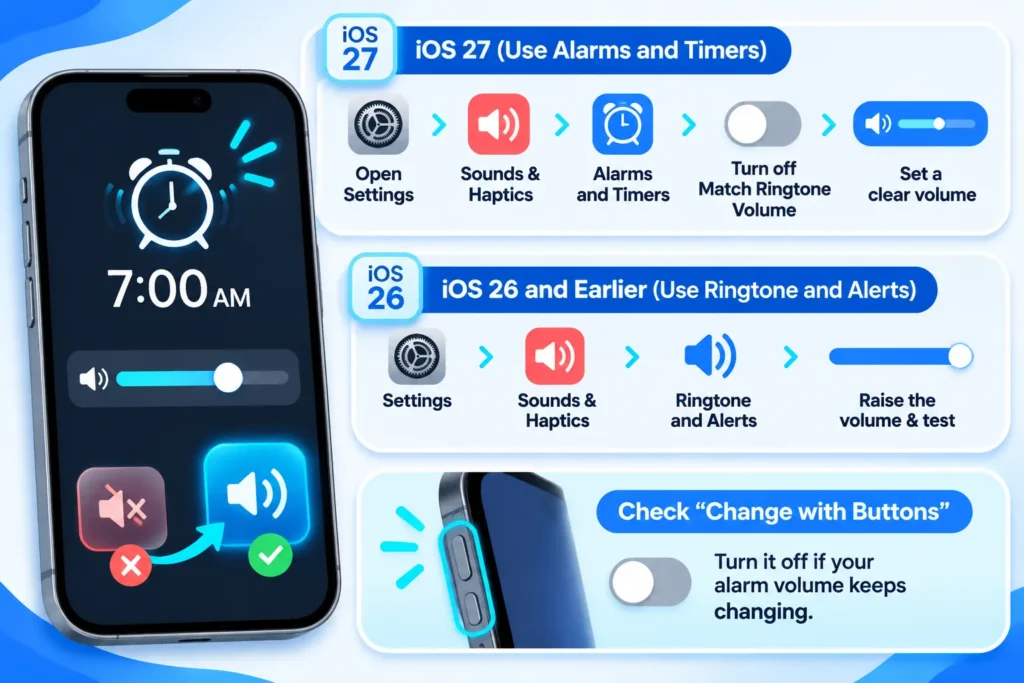
On iOS 27, Use Alarms and Timers
Apple’s iOS 27 Clock guide documents a separate volume control for regular alarms.
- Open Settings.
- Tap Sounds & Haptics.
- Find Alarms and Timers.
- Turn off Match Ringtone Volume.
- Drag the volume slider to a level you can hear clearly.
This lets you keep calls quieter while setting a louder alarm. If Match Ringtone Volume stays on, alarm volume follows the ringtone setting instead.
If you cannot find this option, check your iOS version before following instructions for a newer release.
On iOS 26 and Earlier, Use Ringtone and Alerts
Follow Apple’s alarm volume instructions: open Settings, tap Sounds & Haptics, and raise Ringtone and Alerts. Listen to the preview, then test the actual alarm.
This setting also affects other alerts. If calls become too loud, choose a suitable level rather than assuming every slider should stay at maximum.
Check Change with Buttons
Change with Buttons lets the side buttons adjust the applicable alarm or alert volume. When it is enabled, a button press can change the level you previously chose.
If your volume keeps changing, turn this option off after setting the slider. This prevents button adjustments, but it does not diagnose every cause of low sound.
Raise the Sleep Alarm’s Separate Volume
A Sleep alarm belongs to the schedule in Apple’s Health app. Apple’s wake up alarm guide shows its separate controls. Raising the regular alarm volume is not the correct way to adjust its separate slider.
- Open Clock and tap Alarms.
- Tap Change beside Sleep | Wake Up.
- Scroll to Alarm Options.
- Make sure the alarm is on.
- Adjust Alarm volume and select a sound.
- Tap Done and choose which schedule to change.
Change Next Alarm Only affects the next scheduled alarm. Change This Schedule also updates the recurring schedule. That distinction matters if the alarm sounds better tomorrow but becomes quiet again later.
For instance, a louder Monday alarm does not mean your weekday schedule was updated. Check the recurring settings before relying on Tuesday’s alarm.
Check the Sound Selected for That Alarm
Open Clock, tap Alarms, and select the affected alarm. Tap Sound and choose an audible tone if None is selected. Save your changes.
A gentle tone can be harder for you to notice than a sharper one at the same setting. Preview a few choices, then test your selection from where the phone normally sits.
If a song sounds unusually quiet, try a built in tone for comparison. That helps separate a sound selection problem from a wider volume issue.
Check the affected alarm itself. Changing one alarm’s sound does not establish that your other alarms have the same settings.
Test Attention Aware if the Volume Drops
On iPhones with Face ID, the TrueDepth camera supports Attention Aware Features. Apple’s Attention Aware guidance says this feature reduces alert volume when it detects your attention, even without Face ID enrollment.
If the sound starts loud and then drops, compare a test with this feature on and another with it off.
- Open Settings.
- Tap Face ID & Passcode and enter your passcode.
- Turn off Attention Aware Features.
- Run another test without changing other settings.
This is a check, not proof that Attention Aware caused your missed alarm. Apple does not say every quiet alarm comes from this feature.
Turning it off also changes other attention features, including keeping the screen from dimming while you look at it. Turn Attention Aware Features back on if disabling it does not change the alarm volume.
Still Quiet? Check for a Wider Sound Problem
Compare Other Speaker Sounds
Listen to the ringtone preview and another sound through the phone speaker. Disconnect headphones for this comparison so you are testing the phone itself.
If only the alarm is quiet, return to its volume and sound settings. If several sounds are weak or distorted, the issue may extend beyond Clock.
Remove a case that covers the speaker opening. Check for dirt or blockage. Apple’s speaker troubleshooting guide recommends a small, clean, dry brush with soft bristles when the speaker or receiver opening needs cleaning.
Restart and Check for Updates
For an iPhone with Face ID, follow Apple’s restart instructions:
- Hold either volume button and the side button until the power slider appears.
- Drag the slider and wait 30 seconds for the phone to turn off.
- Hold the side button until the Apple logo appears.
On iPhone SE (2nd or 3rd generation), hold the side button to show the power slider. On iPhone SE (1st generation), use the top button. Turn it back on with the same button after it shuts down.
Test the alarm after restarting. Open Settings, General, and Software Update to check for an available update.
An update may address software issues, but it is not a promised fix for your particular alarm. Record your current version and what happens during testing.
Create a new Clock alarm with a built in tone. If it works while the original does not, review the original alarm’s settings.
Check Apple Watch and Other Alarm Apps
If you use Apple Watch with your sleep schedule, review the alarm settings there too. Open the Sleep app on the watch and review the relevant schedule. Confirm the alarm is enabled, then check its sound and haptics. Apple’s Sleep guidance explains how to edit the schedule from your iPhone too.
If the watch is unresponsive, restart your Apple Watch, then check the alarm again. Restarting does not replace checking the schedule.
For another alarm app, first check its chosen sound, volume options, and scheduled time. Open Settings, then Apps, then select the app and review the permissions it requests.
Some apps depend on notifications. Others use Apple’s AlarmKit, a framework for scheduled alarms and timers. Follow the app’s instructions for the permissions it actually uses rather than assuming all apps behave like Clock.
Test that app with your usual Silent mode and Focus settings, then test Clock separately. If only the app fails, check its support page before changing system settings that already work.
Common Mistakes That Make Troubleshooting Harder
Do not change five settings before testing. You will have trouble knowing which change helped.
Silent mode and Do Not Disturb do not mute Apple’s built in alarms. You do not need to delete Sleep Focus simply because an alarm is quiet.
Connected headphones do not normally make a Clock alarm play only through AirPods. Apple says it also plays through the iPhone speaker.
In StandBy, alarm haptics are disabled. An alarm with Sound set to None therefore needs attention even if you usually rely on vibration.
Do not begin with a factory reset. Reset All Settings and Erase All Content and Settings are different actions. Ask Apple Support which step fits your situation before taking that route.
Test the Alarm Before Bed
Set an alarm for two minutes ahead. Lock the phone and place it where you normally leave it overnight. Keep your usual setup during this final check.
Listen from your normal sleeping position. Afterward, confirm that the actual morning alarm is enabled, has the correct time, and repeats on the intended days.
If it sounds clearly but you still sleep through it, volume may not be the remaining problem. Moving the phone farther from bed or using a separate alarm clock may help. For an important appointment, use an independent backup until the issue is resolved.
Frequently Asked Questions
Why is my iPhone alarm sound suddenly very low?
If one alarm suddenly sounds softer, check its selected tone and whether it is a regular or Sleep alarm. If it starts loudly and then fades, compare tests with Attention Aware on and off. Record any recent changes rather than assuming an update caused it.
How do I stop my iPhone alarm from going quiet?
Set an audible volume and turn off Change with Buttons if accidental presses keep lowering it. Save changes to the recurring Sleep schedule when applicable. Run a locked phone test after each change to see whether the setting stays consistent.
Why are my alarms suddenly so quiet?
Several quiet regular alarms point you toward their shared volume setting. If calls and other sounds are also weak, inspect the speaker opening and compare sound previews. Multiple affected alarms do not, by themselves, prove that the speaker is damaged.
Why does my iPhone alarm go off at full volume?
Lowering music volume does not necessarily lower your alarm. On iOS 27, check the Alarms and Timers slider and Match Ringtone Volume. On older iOS versions, check Ringtone and Alerts. For Sleep, lower its separate alarm slider and save the intended schedule.
Get the Volume Right Before Your Next Alarm
Start with your iOS version and alarm type. Adjust the matching slider, check the sound, and test one change at a time. If the issue continues, give Apple Support your model, software version, and test results. Those details help narrow the next step.


