

What Does Unifying Software Do?
The pairing utility links a mouse or keyboard to a particular receiver. Pairing tells the receiver which devices it should communicate with.
Three separate parts are involved:
| Part | Its job |
| Unifying receiver | Plugs into the computer and communicates with compatible devices |
| Pairing software | Adds or removes device pairings |
| Customization software | Changes supported buttons, shortcuts, scrolling, and other settings |
The old pairing utility should not be confused with Logitech Options or Logi Options+. Options+ provides customization features for supported products, including button assignments and scrolling controls. Those features depend on the device.
Do You Need Software Every Time You Use the Device?
You do not need to repeat pairing each time you start your computer. The pairing is stored with the receiver. Moving it to another compatible computer does not require pairing the same devices again.
You need a pairing tool when adding a device or connecting it to a replacement receiver. Separate software may be needed for extra controls and settings.
For example, suppose your mouse and keyboard each use a receiver. If both support Unifying, you can pair them with one Unifying receiver and free the other USB port.
Check Compatibility Before Downloading Anything
Look for the orange Unifying symbol on the receiver and device. It resembles a small star with six points. Check the model number against Logitech’s product support information if the marking is unclear. Logitech’s receiver identification guide includes pictures of the logo and receiver.
A Logitech logo alone does not confirm compatibility. A small USB receiver is not necessarily a Unifying receiver either.
Logi Bolt and Unifying use different connection technologies. Logitech confirms that Bolt and Unifying receivers are not interchangeable. Installing another app does not change that limitation.
Hardware Support and App Support Are Different
A device can work with a receiver without supporting every feature in a particular app. Logitech notes that software support depends on the product, even when the receiver supports it.
Check these details separately:
- Does the mouse or keyboard support Unifying?
- Does the pairing tool support your device and operating system?
- Does the customization app support the settings you want?
This matters when moving between Windows, mac OS, Chrome OS, and Linux. Basic keyboard input and access to customization software are different requirements.
Which Pairing Tool Should You Use Now?
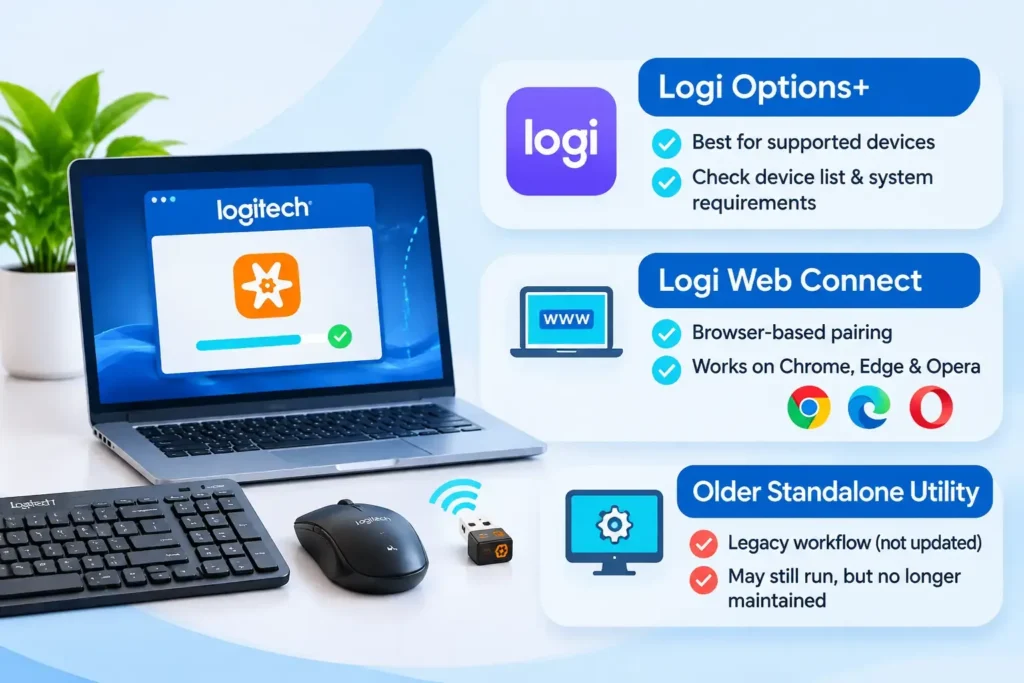
Logi Options+
Start with Logi Options+ if your device is supported. Check the supported device list and current system requirements before installing it.
Logitech’s current receiver setup guide uses Options+ to add devices through the Unifying receiver option.
Logi Web Connect
Logi Web Connect offers browser pairing for supported devices. Logitech lists current versions of Chrome, Edge, and Opera as supported browsers.
For a compatible Unifying keyboard, Logitech’s illustrated pairing instructions describe this route:
- Plug in the receiver and open Logi Web Connect.
- Choose Continue, then Select Receiver.
- Select your receiver and approve access if the browser asks.
- Choose Add Device.
- Follow the prompts to restart or prepare your keyboard for pairing.
- Test typing before finishing.
Use the instructions for your model. Unifying and Bolt devices can require different pairing actions; do not apply a Bolt keyboard’s button sequence to every Unifying keyboard.
The Older Standalone Utility
Some support articles still show the old program’s welcome screen and pairing steps. These describe a legacy workflow. They should not be read as proof that the utility still receives updates.
An installed copy may still run, but Logitech no longer maintains it. Check current product guidance before installing a legacy utility.
How to Pair a Mouse or Keyboard
For a supported device using Options+, follow this sequence:
- Plug the Unifying receiver into your computer.
- Check the device’s battery or charge level.
- Open Options+ and choose Add Devices.
- Select Unifying Receiver.
- Follow the prompts for your mouse or keyboard.
- Confirm that typing, pointer movement, or clicking works.
The app may ask you to turn the device off and back on. Follow the prompts shown for your device. Button names may vary by app version.
Keep a laptop touchpad or spare input device available while changing pairings. Removing your only working mouse or keyboard can make finishing the process difficult.
To add another compatible device, repeat the pairing process. Test both devices before putting the unused receiver away.
Troubleshoot the Problem You Actually Have
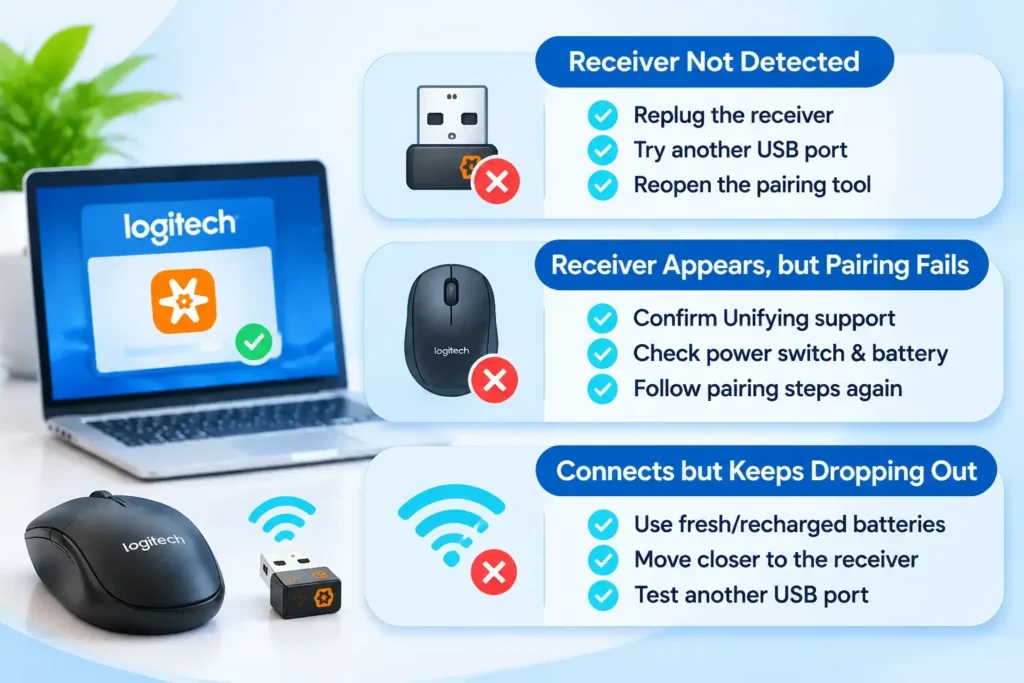
The Receiver Is Not Detected
Close the pairing tool, unplug the receiver, and reconnect it. Try another USB port, preferably directly on the computer.
Reopen the tool after reconnecting. Logitech recommends these checks when the legacy utility stops at the Next screen.
Check whether the computer detects the USB hardware at all. A missing receiver and an unpaired mouse are different problems.
The Receiver Appears, but Pairing Fails
Confirm that the device supports Unifying. Check its power switch and battery, then follow the pairing prompts again.
Logitech’s legacy pairing instructions include restarting the device and testing input before accepting the pairing. Confirm that typing or cursor movement works before finishing.
The Device Connects but Keeps Dropping Out
Try fresh batteries or recharge the device. Move it closer to the receiver and test another USB port.
Change one thing at a time. If the problem disappears after a port change, you have useful information about where to investigate next. Avoid changing software, batteries, and receiver placement together, since that makes the cause harder to identify.
Replacing a Lost Receiver and Avoiding Common Mistakes
You may be able to keep your existing mouse or keyboard after losing its receiver. Confirm Unifying support before buying a replacement, then pair the device with the new receiver. Check the receiver type against your exact device model before ordering.
Avoid these mistakes:
- Buying a Bolt receiver for a Unifying device.
- Treating every Logitech USB dongle as interchangeable.
- Downloading a driver package when the real problem is pairing.
- Expecting pairing software to change keyboard language or layouts.
- Following old firmware instructions without checking current support.
Logitech also marks its standalone Firmware Update Tool as unsupported. Check your product’s current support page for applicable update guidance.
Frequently Asked Questions
Where Can I Download Logitech Unifying Software?
Start with the official support page and check the notice for your device. Search results for “unifying software logitech” can include older instructions. Use the current recommendation rather than assuming an old installer is still supported.
What Should Windows 10 Users Know?
Older Windows 10 tutorials may show the legacy pairing app. Logitech’s Options+ installation page lists Windows 10 or later. Check the current installer requirements and your device model before downloading. An operating system match alone does not establish device support.
What Is the Logitech Unifying Multi Connect Utility?
Logitech’s historical business documentation describes this as an office setup tool for IT staff. It allowed staff to configure one receiver and then repeat the process with another. Confirm current availability with Logitech business support or your reseller before planning a deployment.
Do I Need a Logitech Unifying Receiver Driver?
Most modern operating systems install the receiver’s required drivers automatically. Pairing is a separate task that connects your mouse or keyboard to that receiver. A driver download will not make an incompatible device pair.
Why Does Logitech Unifying Receiver Pairing Fail?
The next check depends on what the tool detects. If no receiver appears, check the USB connection. If the receiver appears but the device does not, check compatibility, power, and the pairing prompts.
Can I Use Logitech Unifying Online?
Yes, for supported devices through Logi Web Connect. You still need a physical receiver and a supported browser. Browser pairing does not add Bluetooth capability to a device.
Choose the Right Tool for Your Existing Hardware
Check the device model and receiver before installing software or buying replacements. Then use the applicable pairing route and test the connection. That order helps you keep working hardware in use while avoiding outdated downloads and incompatible receivers.


