

Archived Emails in Gmail: Find & Locate
If you archived an email in Gmail and it disappeared from your Inbox, the message is usually still in your account. Gmail removes archived messages from the Inbox, but you can still find them under All Mail or by searching in:archive.
According to Google Gmail Help, archived messages remain available in All Mail and can be returned to the Inbox with Move to Inbox. An archived conversation may also return to your Inbox when someone replies to it.
The best way to find a message depends on what you remember. If you know the sender, subject, date, a phrase from the email, or the attachment type, Gmail search can narrow the results quickly.
What Does Archive Mean in Gmail?
When you archive a message in Gmail, you remove it from your Inbox without deleting it.
Gmail uses labels to organize messages. A message shown in your Inbox has the Inbox label. When you archive that message, Gmail removes the Inbox label, but the email remains in your Gmail account.
This makes Archive useful for messages you want to keep without leaving them in your main Inbox.
For example, you might archive an old receipt, a completed client conversation, a hotel confirmation, or a message you may need again later.
Does Gmail Have an Archive Folder?
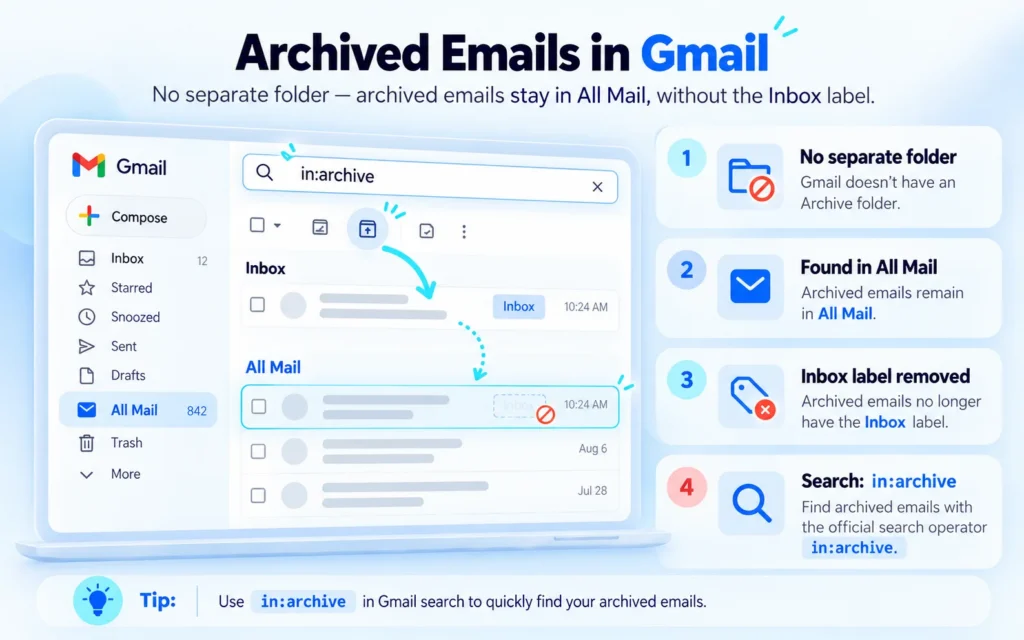
Gmail does not have a separate Archive folder like some email services.
Archived messages remain in All Mail, mixed with other mail. The main difference is that an archived message no longer has the Inbox label.
You can also search archived messages directly by entering:
in:archive
Google lists in:archive as an official Gmail search operator.
Where Are Archived Emails in Gmail?
Archived emails remain in your Gmail account. You can find them through All Mail or Gmail search.
On a computer, open Gmail, select More from the left menu, then choose All Mail.
On Android, iPhone, or iPad, open the Gmail menu and select All Mail.
If your account contains thousands of messages, search is often faster than scrolling through All Mail.
Where Are My Archived Emails in Gmail?
If you cannot find an archived message, check these points first.
- Make sure you are signed in to the Gmail account that received the message.
- Search in:archive instead of looking only in your Inbox.
- Search by sender, subject, date, or a phrase you remember from the message.
- Check your Inbox again if someone may have replied to the archived conversation.
A reply can cause an archived Gmail conversation to appear in the Inbox again.
How Do I Find Archived Emails in Gmail?
There are two main ways to find archived emails in Gmail.
Use All Mail when you want to browse messages manually.
Use in:archive when you want Gmail to show archived messages only.
If you remember something about the email, combine in:archive with another Gmail search operator.
For example:
in:archive from:alex@example.com
This searches archived mail from one sender.
in:archive subject:invoice
This searches archived messages with “invoice” in the subject.
in:archive “order confirmation”
Quotation marks tell Gmail to search for that exact phrase.
These searches can save time when your Gmail account contains years of messages.
How to Find Archived Emails on a Laptop
You can use the same steps on Windows, Mac, Chromebook, and most other computers that access Gmail through a web browser.
- Open Gmail and sign in.
- Look at the menu on the left side.
- Select More if All Mail is not already visible.
- Select All Mail.
- Browse the messages or use the search box at the top.
To show archived messages only, search:
in:archive
If you know the sender, subject, or another detail, include it in the search rather than checking messages one at a time.
For example:
in:archive from:bank@example.com
or:
in:archive subject:receipt
How to Find Archived Emails on Android
The Gmail app on Android lets you find archived mail through All Mail or search.
- Open the Gmail app.
- Tap the menu icon at the upper left.
- Select All Mail.
- Browse the messages or use the Gmail search bar.
To search archived mail only, enter:
in:archive
You can narrow the results further.
For example:
in:archive from:amazon.com
or:
in:archive has:attachment
Google Gmail Help confirms that in:archive can be used to search archived messages.
How to Find Archived Emails on iPhone or iPad
The Gmail app for iPhone and iPad also keeps archived messages available under All Mail.
- Open the Gmail app.
- Tap the menu icon.
- Select All Mail.
- Browse the messages or use Gmail search.
To show archived messages only, enter:
in:archive
If you find a message that you want back in the Inbox, select it and choose Move to Inbox.
Search Archived Gmail by Sender, Date, or File
Gmail search operators are useful when you know part of the information about a missing message.
Google supports searches based on sender, subject, date, attachments, file types, labels, and message location.
| What You Remember | Search Example | What It Finds |
| Only that it was archived | in:archive | Archived messages |
| Sender | in:archive from:alex@example.com | Archived mail from one sender |
| Subject | in:archive subject:invoice | Messages with invoice in the subject |
| Exact phrase | in:archive “order confirmation” | Messages containing the exact phrase |
| Approximate date | in:archive after:2026/01/01 before:2026/02/01 | Messages within a date range |
| Recent period | in:archive newer_than:3m | Messages newer than three months |
| Attachment | in:archive has:attachment | Archived mail with attachments |
| PDF file | in:archive filename:pdf | Archived messages with PDF files |
| Possibly in Spam or Trash | in:anywhere invoice | Messages across Gmail locations |
Find an Archived Email by Sender
If you remember who sent the email, use:
in:archive from:name@example.com
If you do not know the full address, try the sender’s name, company name, or another term you remember from the message.
Find an Archived Email by Date
If you remember roughly when the message arrived, use a date range.
For example:
in:archive after:2026/03/01 before:2026/04/01
Gmail also supports older_than: and newer_than: searches.
For example:
in:archive older_than:1y
This can help when you are looking for an archived message from more than one year ago.
Find Archived Emails With Attachments
If you know the message included a file, search:
in:archive has:attachment
If you know the file type, narrow the results:
in:archive filename:pdf
This can help when searching for invoices, contracts, receipts, resumes, tickets, or other documents.
How to Get Archived Emails From Gmail Back
Finding an archived email does not automatically move it back to your Inbox.
On a computer, select the archived message and choose Move to Inbox.
On Android, iPhone, or iPad, select the message, open the available actions, and choose Move to Inbox.
Gmail then adds the Inbox label again, so the message appears in your Inbox.
You do not have to move an archived message back to the Inbox just to read, reply to, or forward it. Archived emails remain usable while they are outside the Inbox.
Can’t Find an Archived Email? Try These Checks
A missing email is not always archived. It may be in another account, another label, Spam, Trash, or even back in your Inbox.
Check the Gmail Account
Many people use more than one Gmail account for personal, work, or school email.
Check your profile icon and confirm that you are searching the correct account.
Search Without in:archive
If in:archive shows no useful results, remove it and search for the sender, subject, or keyword by itself.
The message may still be in the Inbox or under another label.
Search Spam and Trash
If you are unsure whether a message was archived, deleted, or marked as spam, search:
in:anywhere your search terms
Google says in:anywhere searches locations that can include Spam and Trash.
Deleted Gmail messages remain in Trash for up to 30 days unless they are permanently removed sooner. After that period, they may no longer be recoverable through normal Gmail Trash.
Use Fewer Search Filters
Too many search terms can hide the message you want.
For example, this search may be too narrow:
in:archive from:alex@example.com subject:”January invoice”
Try:
in:archive from:alex@example.com
Then narrow the results after you find messages from the correct sender.
Check Whether Someone Replied
If someone replies to an archived conversation, Gmail may return that conversation to the Inbox.
If a message is no longer appearing under your archived search, search the Inbox for the sender or subject.
Gmail Archive vs Delete vs Mute
Archive, Delete, and Mute perform different actions in Gmail.
| Action | What Happens | Can You Find It Later? |
| Archive | Removes the Inbox label | Yes, through All Mail or search |
| Delete | Moves the message to Trash | Yes, until permanent deletion |
| Mute | Keeps many future replies out of the normal Inbox | Yes, through search and All Mail |
Use Archive when you want to keep a message but remove it from your Inbox.
Use Delete when you no longer want the email.
Use Mute when you want to stop an active conversation from repeatedly appearing in your Inbox.
Google notes that muted conversations behave differently from normal archived conversations. Some future messages may still appear in the Inbox in certain cases, such as when the message is sent directly to you.
If your goal is permanent mailbox cleanup, you may also want to learn about mass deleting emails in Gmail, since archiving does not remove stored messages.
Does Archiving Free Gmail Storage?
No. Archiving an email does not free Gmail storage.
The message and its attachments remain in your Google Account.
Google provides storage across services such as Gmail, Google Drive, and Google Photos, depending on your account and plan.
If storage is the problem, look for large messages instead of archiving more mail.
For example:
larger:10M
or:
has:attachment larger:10M
These searches can help you locate messages that may be using more storage.
Keep Archived Mail Easy to Find
A little organization can make archived messages easier to locate later.
Add useful Gmail labels to messages you expect to need again.
Examples include:
- Receipts
- Travel
- Clients
- Tax
- Projects
Labels do not replace Gmail search, but they give you another way to organize related messages.
If your Gmail sidebar becomes crowded, learning how to delete labels in Gmail can help clean up the label list without deleting the emails stored under those labels.
You should also check Gmail swipe settings if messages are being archived by accident. Gmail apps can use swipe actions for tasks such as Archive, so an accidental swipe may explain why a message disappeared from the Inbox.
Common Mistakes When Finding Archived Mail
| Common Mistake | Better Approach |
| Looking only in the Inbox | Check All Mail or search in:archive |
| Searching the wrong Gmail account | Confirm the active account first |
| Expecting a separate Archive folder | Remember that archived mail remains in All Mail |
| Using too many search terms | Start broad and narrow the search |
| Assuming a deleted email is archived | Check Trash or use in:anywhere |
| Thinking Archive saves storage | Delete unwanted messages if storage is the issue |
| Assuming a returned thread was never archived | A new reply may have returned it to the Inbox |
FAQs About Archived Emails in Gmail
How Do I Find Archived Emails in Gmail on iPhone?
Open the Gmail app, tap the menu, and select All Mail. You can also search in:archive to show archived messages. To restore one, choose Move to Inbox.
Where Do I Find Archived Emails on My Phone?
Open the Gmail app and select All Mail from the menu. For archived messages only, enter in:archive in Gmail search.
How Do I Find Archived Emails on Android?
Open Gmail on your Android phone, tap the menu, and choose All Mail. You can also use in:archive and add a sender, subject, or date if you need to narrow the results.
Where Are Archived Emails in Gmail on iPhone?
Archived emails are available under All Mail in the Gmail app. You can also search them directly with in:archive.
How Do I Retrieve Archived Emails in Gmail?
Find the message through All Mail or in:archive, select it, and choose Move to Inbox. This adds the Inbox label again.
Where Do I Find Archived Emails on a Laptop?
Open Gmail in your browser, choose More, then select All Mail. To show archived messages only, search in:archive.
How Do I Find and Unarchive Gmail Emails?
Search in:archive, select the message you want, and choose Move to Inbox. The message will return to your Inbox.
Are Archived Gmail Emails Deleted Automatically?
No. Archiving does not move an email to Trash. An archived message remains in your Gmail account unless you delete it or another account policy affects its retention.
Can I Search Archived Emails From Years Ago?
Yes, if the messages are still stored in your Gmail account. Search by sender, subject, keyword, or date. Gmail operators such as after:, before:, older_than:, and newer_than: can help narrow the results.
Does Archiving an Email Save Gmail Storage?
No. Archived messages still remain in your account and continue to use storage. Archiving changes where the message appears, not whether it is stored.
Final Takeaway
Archived Gmail messages are usually easy to recover once you know where to look.
Use in:archive when you want to search archived messages directly. Open All Mail when you want to browse your stored messages.
If the email is difficult to find, add the sender, subject, date, attachment type, or a phrase from the message to your search.
If you think the message may have been deleted or marked as spam, try in:anywhere.
When you find the email, choose Move to Inbox if you want it visible in your Inbox again.
Meta Description
Future Internal Link Opportunities
| Future Article Topic | Anchor Phrase Used | Section or Context |
| Is there a way to mass delete emails in Gmail | mass deleting emails in Gmail | Gmail Archive vs Delete vs Mute |
| How to delete labels in Gmail | how to delete labels in Gmail | Keep Archived Mail Easy to Find |


