

Android & Samsung Phone Tips for Everyday Use
A small change in your phone’s settings can make everyday tasks much easier. You might want to record a screen to show someone how an app behaves, move your most-used apps within thumb reach, stop an unwanted flash alert or understand why your Galaxy pauses charging before it reaches 100%.
Samsung Galaxy phones run Android, but Samsung’s One UI software uses some menus and features that differ from Google Pixel phones. Even two Galaxy models may show different options after a software update. Start with the task you want to complete, then follow the steps that match your screen. For a broader overview, see our upcoming guide to Samsung One UI features.
One quick navigation tip: on Galaxy phones with separate notification and Quick settings panels, swipe down from the top-right area to open Quick settings and from the top-left area to open notifications. On other versions, the panels may work differently.
Quick guide: Which setting should you open?
| What you want to do | Where to start |
| Record a video of your screen | Open Quick settings and look for Screen recorder. |
| Move Galaxy apps within reach | Press and hold an empty area of the Home screen. |
| Turn off the rear flashlight | Open Quick settings and tap Flashlight. |
| Stop a light that flashes for calls or texts | Search Settings for Flash notification or Flash notifications. |
| Check why charging stops early | Open Settings and look for Battery or Battery protection. |
| Find a notification you dismissed | Search Settings for Notification history. |
How to Record Your Screen on Android or Samsung Galaxy
A screen recording is useful when a screenshot does not show the step that matters. For example, if an app closes whenever you tap Save, start recording just before you tap the button. Stop the recording after the app closes so the person helping you can see what happened. For more device-specific instructions, see our upcoming guide to screen recording on Android.
Record your screen on a Samsung Galaxy
- Open Quick settings. On Galaxy phones with separate panels, swipe down from the top-right corner. On other versions, swipe down from the top of the screen as needed.
- Tap Screen recorder. If you cannot see it, swipe through the available Quick settings buttons or tap the pencil/Edit control to check whether Screen recorder can be added.
- Choose an audio option. Depending on your model, you may see options such as No sound, Media sounds or Media sounds and mic. The labels can vary.
- Tap Start recording, wait for the countdown and perform the steps you want to capture.
- Tap the Stop control when you finish. Open Gallery and look for the recording, often in an album named Screen recordings.
If you are making a tutorial, turn on Show taps and touches if your device offers that option. A visible touch indicator helps viewers see which button you selected. Record a short test and play it back before recording a longer walkthrough.
Record one app or the whole screen on a Google Pixel
On a supported Google Pixel, swipe down twice from the top of the screen and tap Screen record. If the tile is missing, tap Edit and add it if it is available. Choose the audio setting and, when offered, select whether to record a single app or the entire screen.
Choose one app when you only need to demonstrate a task inside it. Choose the entire screen when the viewer needs to follow you between apps. To finish, use the screen-recording notification or the on-screen Stop control. The recording is generally available in Google Photos or the device’s video library; the exact location can vary by software version.
What to check when a screen recording is blank or silent
- If your Home screen records normally but a streaming video appears black, the app may restrict screen capture. Repeating the recording may not bypass that restriction.
- If the video has picture but no voice, check whether you selected media audio only instead of an option that includes the microphone.
- If Screen recorder is missing, check the Quick settings editor and your phone’s model-specific support information. Some features are not available on every device.
Before sharing a recording, watch the beginning and end. Check for private information such as message previews, email addresses, account details or notifications.
Useful Samsung Galaxy Home Screen Tips
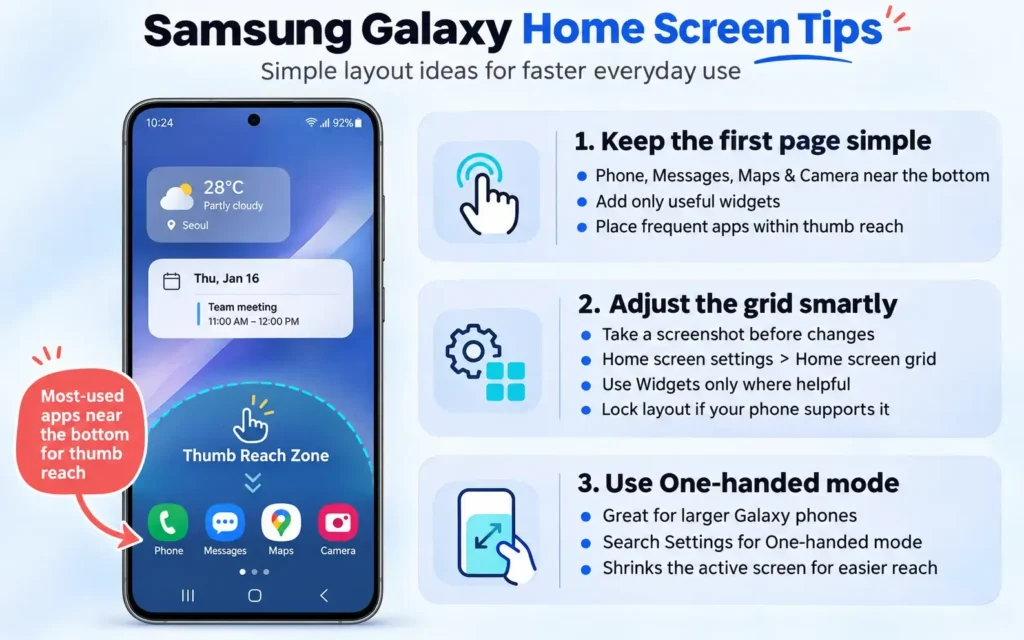
A good Home screen layout helps you find apps without repeatedly changing your grip. Hold your phone the way you normally use it and notice which part of the display your thumb can reach comfortably. Place frequently used apps in that area. You can also learn more in our upcoming guide on how to customize your Samsung Home screen.
Give your first Home screen page one clear job
For a simple everyday layout, place Phone, Messages, Maps and Camera near the bottom of the first page. Leave space for a widget only if it gives you information you regularly use, such as your next calendar event or the weather.
For a work-focused layout, keep personal apps on the first page and group email, calendar and notes on a second page. Put the apps you need most often within easy reach. A layout should save time, not simply fit the largest possible number of icons.
Change the Home screen grid without losing your layout
1. Take a screenshot of your current Home screen so you can restore the arrangement if needed.
2. Press and hold an empty area of the Home screen.
3. Open Home screen settings and look for Home screen grid. Choose one of the grid sizes offered by your device.
4. To add a widget, press and hold an empty area, tap Widgets, choose a widget and place it on the screen.
Try the new layout for a day before filling every space. A tighter grid can fit more icons but may make apps harder to find. If you want to prevent accidental changes after arranging the page, look in Home screen settings for Lock Home screen layout. The option may not appear on every model or software version.
Use One-handed mode on a larger Galaxy
If controls near the top of the screen are difficult to reach, search Settings for One-handed mode. On supported Galaxy phones, this feature reduces the active display area so you can reach more of the screen with one hand. Follow the on-screen instructions to enable and use it.
How to Turn Off the Flashlight and Flash Notifications on Android
First identify which light is bothering you. A steady beam from the back of the phone, a camera flash that blinks when a call or message arrives, and a clock that remains visible on the locked screen use different settings.
Turn off the rear flashlight
Open Quick settings and tap the active Flashlight button once. Check the back of the phone to confirm that the beam has switched off. If you use the flashlight often, keep its button on the first page of Quick settings so it is easy to find next time.
Turn off flash alerts for calls and messages
On a Galaxy, open Settings and go to Accessibility. Look under Advanced settings for Flash notification. If the rear camera light flashes, turn off Camera flash notification. If the screen flashes instead, check Screen flash notification. The exact menu path and available options vary by model and One UI version.
On supported Pixel phones, open Settings and search for Flash notifications. Review the available camera-flash and screen-flash options.
After changing the setting, ask someone to send a test message while the phone is locked. If you rely on a visual alert because you may not hear a call or notification, keep the alert that helps you and disable only the one you do not want.
Turn off a clock that stays visible after locking the phone
A dim clock or small icons on a locked Galaxy may be part of Always On Display. Search Settings for Always On Display to review when it appears or turn it off. If the entire display stays awake while you are using the phone, search Settings for Screen timeout instead. These are different features, so check which one matches what you see.
How to Find Missed Notifications on Samsung and Android
Turn on Notification history
Search Settings for Notification history and turn it on if your phone supports it. On Pixel phones, Notification history can keep dismissed notifications for a limited period (commonly the previous 24 hours) after the feature is enabled. It cannot bring back alerts that were dismissed before history was switched on. For more options, see our upcoming guide to Android notification settings.
Supported Galaxy phones also offer Notification history, although the menu location and behavior can vary. If you dismissed an alert before enabling history, open the app that sent it to check whether the information is still available there.
Fix the Galaxy swipe gesture and notification panel
On supported Galaxy phones, you may be able to choose whether notifications and Quick settings appear together or in separate panels. Open Quick settings, tap the pencil or Edit control, then look for Panel settings. If a Together option is available, select it and test your usual swipe gesture. Menu labels and availability depend on your One UI version.
If a lock-screen notification shows only an icon, review the lock-screen notification style and content-visibility settings. A full preview can be convenient at home, while hiding message details can help protect private information in public or at work.
Samsung Battery Tips: Why Your Galaxy Stops Charging at 80 Percent
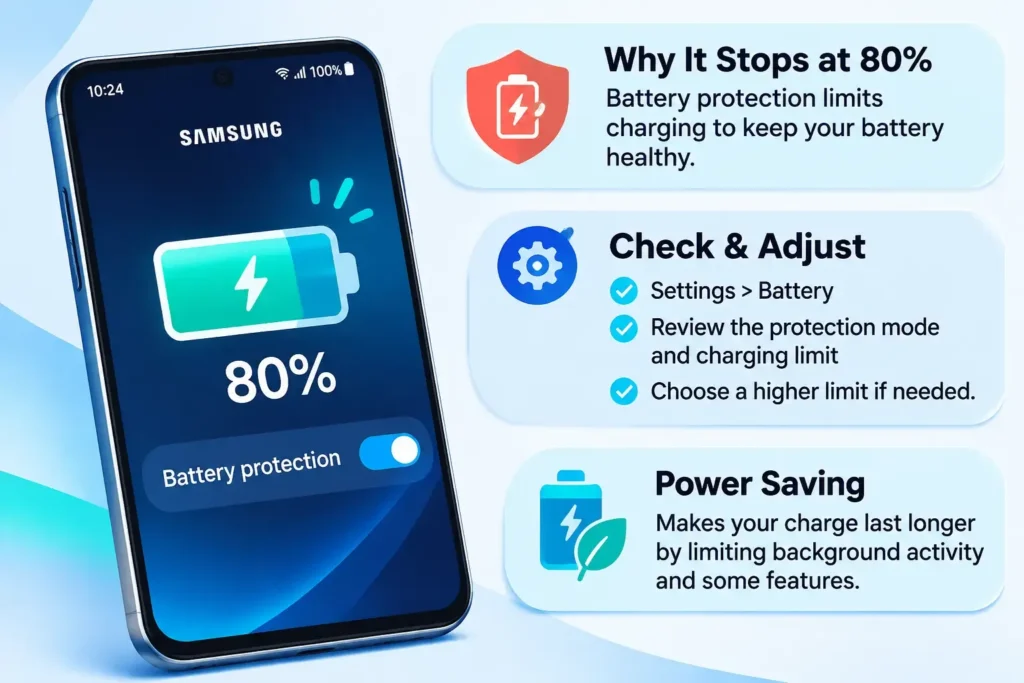
If your Galaxy repeatedly stops charging at 80% or 85%, check Battery protection before assuming the charger is faulty. Samsung phones may offer battery-protection settings that limit charging to help reduce the time the battery spends at a full charge. The available modes and limits depend on the model and software version. Our upcoming guide to Samsung battery protection settings will explain the available charging modes in more detail.
Check Battery protection
1. Open Settings and go to Battery. On some versions, you may need to open Battery protection or a similarly named battery-care option.
2. Review the selected protection mode and the charging limit shown on your phone.
3. If you need a higher charge for a long day or trip, choose an available setting that suits your needs. Review the options shown on your own device rather than assuming every Galaxy has the same controls.
Some Galaxy versions also offer adaptive or sleep-based charging behavior that adjusts when the phone finishes charging overnight. Read the description shown in Settings before changing the option.
Understand Battery protection and Power saving
Battery protection manages how the phone charges. Power saving helps the charge already in the battery last longer by limiting selected background activity or features. Use Power saving when you need to extend battery life away from a charger.
If your battery drains faster than expected, open Settings and review battery usage by app. A long video call, navigation session or an app running in the background can have different causes. Check the usage details before uninstalling apps or changing several settings at once.
Useful Samsung Galaxy Shortcuts and Tricks
Open Camera or another feature with the Side button
On supported Galaxy phones, open Settings, select Advanced features and then Side button. Under Double press, choose Camera or another action offered by your device. Test the shortcut once so you know how it behaves before relying on it. Available actions vary by model and software version.
Use Calendar and Messages in split-screen view
Open Calendar, then open the Recent apps screen. Tap the Calendar app icon above its preview and look for Open in split screen view. Select Messages for the other half of the display. Drag the divider to give either app more space. If the split-screen option is not available, the app or device may not support that arrangement.
Set up a bedtime routine with Modes and Routines
- Open Settings and select Modes and Routines. Choose Routines and tap the plus button to create a routine.
- Under If, choose the condition that should start the routine, such as a time period.
- Under Then, choose the actions you want, such as changing sound or display settings.
- Test the routine with a start time a few minutes ahead. Check what happens when it starts and when it ends, then adjust the schedule.
A short test helps you catch an unwanted change before the routine runs overnight. Available conditions and actions can differ by device. See our upcoming Samsung Modes and Routines guide for more automation ideas.
Choose a keyboard that fits the way you type
If you write in more than one language, open Settings, select General management and then Samsung Keyboard settings. Look under Languages and types to review the languages and keyboard layouts available. You usually do not need to change your phone’s entire display language just to add another keyboard language.
If you already use a particular layout, such as Nudi for Kannada typing, check whether a compatible keyboard app supports that layout. A phonetic keyboard works differently: you type a word using the sounds represented by English letters. Check the app’s developer and permissions before installing a third-party keyboard, because keyboard apps may process sensitive text. Our upcoming Nudi keyboard layout guide will cover compatible typing options.
What to Do When a Samsung Setting Is Missing
A setting may be missing because the phone model, Android version, One UI version or wireless carrier does not support it. First identify your device’s software before following instructions written for another Galaxy.
- Open Settings and select About phone to check the model name or model number.
- Open Software information to check the Android version and One UI version.
- Use the Settings search box to search for the feature by name, such as Flash notification, One-handed mode or Battery protection.
- If a Quick settings button is missing, open the panel editor and check whether the button can be added.
These checks answer two different questions: does your phone support the feature, and is its shortcut simply hidden? Change one setting at a time, then repeat the task that led you to the menu.
Frequently Asked Questions
Where can I find Android and Samsung phone tips on Reddit?
Galaxy owners share setup ideas and troubleshooting experiences in communities such as r/samsunggalaxy. Search for your exact model and the task you want to complete, such as a notification-panel setting. Give more weight to posts that identify the phone model and One UI version, and verify instructions against the manufacturer’s support information before changing important settings.
Which Samsung phone tricks are useful for an Android beginner?
Start with two simple changes: set a double press of the Side button to open Camera if your Galaxy supports it, and keep Flashlight on the first page of Quick settings. Try each shortcut once and confirm that it works on your phone. You can explore Home screen widgets and notification settings after you are comfortable with those basics.
How can I check whether a phone trick from Reddit still works?
Compare the post date, phone model and One UI version with your own device. Search Settings for the feature and check the manufacturer’s support page. Before changing a Home screen layout or routine, take a screenshot of the current setup so you can restore it if needed. Avoid installing an app or profile just because a post promises a hidden feature.
Do I need an APK for Android phone hacks and tricks?
No. The tips in this guide use built-in phone settings where supported. An APK is an Android application package used to install an app. Installing apps from unknown or untrusted sources can expose your device and personal information to risk. Check the Quick settings editor or Settings search before downloading an app to replace a missing built-in control. For safer app downloads, read our upcoming guide to Android app installation safety.
Which Android tips and tricks should I revisit in 2026?
After a major software update, check how you open notifications, where the Screen recorder button appears, which charging limit is active and whether your favorite shortcuts still work. Test a short screen recording, review Notification history and check Battery protection. Menu names and features can change between Android and One UI releases, so use the options displayed on your own phone.
Final Tips for Making Your Android or Samsung Phone Easier to Use
You do not need to change every setting at once. Start with the task that causes the most friction: make screen recording easier to find, arrange your Home screen around the apps you use, review unwanted flash alerts or check your battery-protection limit. Test each change before moving on to the next one.
Because Android and One UI menus vary by device and software version, use Settings search when a path looks different. For model-specific instructions, confirm the steps with Samsung or Google support. A few small, tested adjustments can make your phone easier to use every day.


