

Smart Home Apps, Interfaces & Voice Control | A Practical Guide
Smart home apps, interfaces, and voice control give you different ways to manage lights, locks, cameras, thermostats, and routines. The right setup depends on the devices you already own, the phones your household uses, and how much control you want. This guide compares five leading platforms, explains app, voice, automation, and physical controls, and helps you choose a setup that fits your home.
For a straightforward setup, Google Home, Amazon Alexa, Apple Home, or SmartThings may cover everyday needs. Home Assistant suits people who want deeper customization and are comfortable maintaining a home server. In every case, verify that the exact device features you need work in your chosen app; a compatibility badge does not guarantee that every setting will be available.
What Do Smart Home Apps and Interfaces Do?
A smart home app connects compatible devices to a phone or tablet. You can use it to switch on lights, adjust a thermostat, check a camera, lock a door, or create a routine. An interface is any way you control the home. It may be a phone app, voice assistant, wall panel, remote, or physical switch.
An automation is different. It runs an action after a schedule, sensor, or other trigger. For example, a motion sensor may turn on a hallway light without anyone asking. Most homes use more than one control method. A person might use a phone to check a camera, a voice command to dim a light, and a button to turn everything off before bed.
A simple smart home diagram can show the path: a person gives a command, an app or controller passes it to a compatible device, and the device responds. Some commands travel through the home network. Others rely on an internet service. The path depends on the product and setup.
Four Ways to Control a Smart Home
App control
App control works well when you need to see a device status or adjust a setting. A phone app can show whether a lock is closed or let you change a thermostat while away. Remote access may require an internet connection, account, subscription, or home controller. Read the product details to see which features need a paid plan.
Voice control
Voice control is useful when your hands are busy. You can ask a compatible assistant to change a light, play music, or start a routine. It may be less reliable when a room is noisy, a device has a confusing name, or the internet connection is down. Voice also is not the right choice for every task. A switch or phone screen may be clearer for a lock or alarm.
Automations
Automations handle repeated actions without a spoken command. A schedule can turn porch lights on at sunset. A presence setting can change the home state when people leave or return. A sensor can turn on a light when someone enters a room. The available triggers and actions depend on the app, device, and account.
Physical controls
Physical controls include wall switches, buttons, remotes, and touch panels. They help when voice is inconvenient or a phone is not nearby. Keep a simple way to control key lights and other important devices if an app or network stops responding.
Which Smart Home Apps Are Worth Considering?
The best app is usually the one that works with your existing devices and feels clear to everyone who will use it. Google Home supports a wide range of compatible devices, but compatibility does not mean every device exposes the same controls. Check the exact product listing and the platform’s supported-device information before buying.
Google Home
Google Home brings compatible devices together in its app, with voice control and automations. Google’s Gemini for Home features are rolling out to eligible users and devices; availability can vary by country, language, and feature. Check Google’s current availability information before buying hardware for a specific capability.
Amazon Alexa
Alexa connects supported devices in the Alexa app, and routines can combine smart-home actions with music or other tasks. Routines can start from a voice phrase, schedule, or supported device trigger. Check the feature requirements for the specific Echo model, device, and service you plan to use.
Apple Home
Apple Home is a natural fit for households that already use iPhone, Apple Watch, HomePod, or Apple TV. The Home app and Siri can control compatible HomeKit and Matter accessories. Remote access and some Matter or Thread setups require a compatible home hub, so check the accessory and hub requirements before purchase.
Samsung SmartThings
SmartThings can suit Samsung appliance owners and households combining supported devices from different brands. Its supported-device list varies by region, and some Zigbee, Z-Wave, or LAN-connected products require a compatible hub. Confirm the exact model and functions in the app before buying.
Home Assistant
Home Assistant is designed for people who want detailed automations and are comfortable with setup and troubleshooting. Many integrations support local control, but this depends on the device and integration. You also need hardware to run Home Assistant; remote access can use its cloud service or a self-managed option. Check current documentation for the devices and voice features you plan to use.
Start with the Devices You Own
Make a short list of your phone, speakers, cameras, lights, and appliances. Then check each product against the app you want to use. If several platforms support the device, compare the features that matter to you, such as camera history, thermostat settings, or lock status. This is more useful than choosing an app based on a general label like “works with smart home.”
Smart Home App Comparison
Use this table as a starting point. Local control and feature availability depend on the device, controller, account, and internet connection, so verify your exact setup before buying.
| Platform | Best fit | Setup and automation | Compatibility, local control, and cost checks |
| Google Home | Google and Nest households that want one mainstream app | Easy to start; everyday controls and routines, with feature depth varying by device. | Broad support, including supported Matter devices. Local features vary by product and controller. Check whether Nest hardware, subscription, or account features are required. |
| Amazon Alexa | Echo owners who want voice routines and a wide range of compatible products | Easy to start; routines combine smart-home actions with schedules and supported triggers. | Check exact Alexa compatibility, device triggers, Echo requirements, and any service plan. Cloud-linked features may depend on internet access. |
| Apple Home | Households already using iPhone, Apple Watch, HomePod, or Apple TV | Easy for Apple users; scenes and automations for compatible accessories. | Look for HomeKit or Matter support. A home hub is required for remote access and some Matter or Thread use; verify model requirements. |
| Samsung SmartThings | Samsung appliance owners and households with a supported mix of brands | Moderate setup; automations and controls depend on the product and hub. | Check regional compatibility. Some Zigbee, Z-Wave, LAN, or Matter devices need a compatible hub, which adds hardware cost. |
| Home Assistant | DIY users who want detailed automations and more local control | Most setup effort; highly customizable, but you maintain the server and integrations. | Many integrations support local control, but not all. You need always-on hardware; remote access can use an optional cloud service or a self-managed setup. |
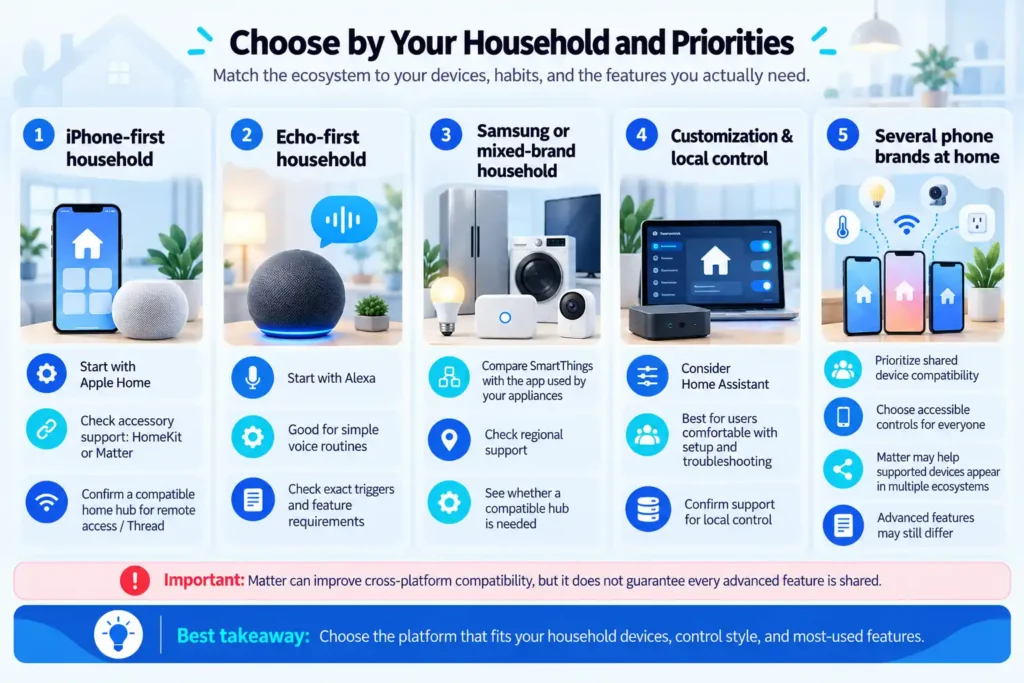
Choose by Your Household and Priorities
iPhone-first household
Start with Apple Home if the accessories you want support HomeKit or Matter. Confirm whether remote access or Thread requires a compatible home hub.
Echo-first household
Start with Alexa if your household already uses Echo devices and wants simple voice routines. Check exact device triggers and feature requirements.
Samsung or mixed-brand household
Compare SmartThings with the app already used by your appliances. Check regional support and whether your devices need a compatible hub.
Customization and local control
Consider Home Assistant if you are comfortable maintaining hardware and troubleshooting integrations. Confirm that your most important devices support local control.
Several phone brands at home
Prioritize shared device compatibility and accessible controls. Matter may help supported devices appear in multiple ecosystems, but it does not guarantee every advanced feature is shared.
How to Build a Smart Home with Alexa
To create a smart home with Alexa, first check that your device works with Alexa. Follow the manufacturer’s setup instructions, then connect the account or device in the Alexa app. Give devices clear names, such as “Kitchen lamp” or “Hallway light.” Clear names make voice commands easier to remember.
Next, create a routine in the app. For example, a “Goodnight” routine might turn off selected lights and adjust a compatible thermostat. Review the actions before saving, particularly if the routine affects a lock or alarm.
Test the routine while you are home, using a short voice command and confirming that each action works as intended.
What Does Matter Compatibility Mean?
Matter is a smart home standard designed to help compatible devices work across supported platforms. A Matter label can make it easier to set up a device in more than one ecosystem, such as Apple Home or Google Home. It does not mean that every advanced feature will appear in every app.
Matter devices use a local connection, but a compatible controller is needed for remote access when you are away. Some devices also require a Thread border router or another supported component. Read the product setup details and confirm that your controller supports the device type.
When comparing smart home hubs and controllers, check what each one supports, which devices it can control locally, and whether it works with your preferred app. Do not assume every hub supports every wireless protocol. Wi-Fi, Thread, Zigbee, and Z-Wave have different roles, and some products need a bridge to connect to a platform.
What Makes a Smart Home Interface Easy to Use?
A smart home interface should make common tasks easy to find. Devices grouped by room are often easier to manage than a long list of product names. Favorites can keep frequently used lights, cameras, and locks close at hand. A clear status indicator should show whether a light is on, a door is locked, or a routine is active.
Shared access matters too. If family members, guests, or caregivers use the home, make sure they can use the controls they need without sharing the owner password. For accessibility, keep more than one way to control important devices. Voice can help some people, while a large button, phone widget, or wall switch may work better for others.
A phone app is not the only possible interface. Some systems also offer tablet dashboards, watch controls, wall panels, or remotes. Choose the options that household members will use. A screen with dozens of buttons is not helpful if people cannot quickly find the ones they need.
Privacy and Voice Control
Smart speakers and phones need microphone access for voice commands. Review the device privacy settings, recording controls, and voice history options. If you do not want a microphone active in a room, check whether the device has a mute control or use an app or switch instead.
Privacy concerns differ by device type. In a 2025 survey of 401 U.S. smart home users, participants viewed voice assistants as the most problematic category among the device types studied. This was one U.S. study, not a measure of every household experience, but it shows why privacy controls deserve a place in setup decisions.
Use a strong, unique password for your smart home account. Turn on two-step verification if the service offers it. Give other household members their own access when possible, and remove access when it is no longer needed. Check whether camera clips or voice history are stored locally or online, and learn how to delete them.
Troubleshooting Smart Home Apps and Devices
If a device appears in its manufacturer app but not in your main home app, check that both apps use the right account. Some products must first be set up in the manufacturer app, then linked to the platform. Check that the device and phone are on the expected network, and install available device updates.
If a voice command fails, confirm that the device is online and assigned to the right room. Try a shorter command and a clearer device name. If the device was recently added or changed in another app, refresh or sync the linked devices. Google also advises checking the linked account and syncing devices when a connected product does not appear.
For routines that run inconsistently, check the trigger, schedule, permissions, and state of every device in the routine. Test each action on its own before rebuilding the full routine. When you need smart home support, start with the manufacturer’s instructions for the exact model. App menus and features can change, so instructions for a different model may not solve the problem.
Common Setup Mistakes to Avoid
Buying a device based on a logo without checking the exact features it supports can lead to frustration. A camera might connect to an app but lack the video history or alerts you want. A smart plug may support voice commands but not energy reports. Check the feature list, not just the platform name.
Other common mistakes include assuming Matter removes the need for a controller, giving every device a similar name, and relying only on voice control for important tasks. Create a backup way to use lights and key devices. Test what happens if one device in a routine is offline.
If you are choosing smart switches and smart controls, consider who will use them and what should still work when a phone or speaker is unavailable. A standard wall switch may be easier for guests than a voice command, while an app can offer more detailed settings.
Frequently Asked Questions
What is the best app to control all my smart home devices?
There is no app that controls every device and every feature. Start with products you own, then compare their supported functions in Google Home, Alexa, Apple Home, SmartThings, or Home Assistant. Matter can help compatible devices work across platforms, but advanced features may still depend on the manufacturer’s app.
What are the best voice control devices for a smart home?
Choose a speaker or display from the platform you plan to use, such as an Amazon Echo for Alexa, a Google Nest device for Google Home, or a HomePod for Apple Home. Check language support, device compatibility, microphone controls, and feature availability in your region.
Can I control smart home devices if the internet goes down?
Sometimes. Devices that communicate locally through a compatible hub or controller may continue to respond on your home network, but cloud-dependent devices, remote access, and some voice features can stop working. Check offline behavior and keep a physical control for essential lights and equipment.
Do smart home apps cost money?
Many platform apps offer basic control without a monthly fee, but cameras, cloud video history, advanced alerts, remote access, or optional services may have separate charges. Check current plan and hardware requirements before buying.
Conclusion
Choose the platform around the people in your home and the devices you already own. Check exact compatibility, controller and subscription requirements, and offline behavior before buying. Keep a physical way to control essential devices, and test routines before relying on them.


