

Roku Troubleshooting: Apps, Remote & AirPlay
A Roku problem is easier to fix when you first identify what has stopped working. One streaming app failing is different from every app failing. A physical remote problem also needs a different fix from an iPhone that cannot find your Roku through AirPlay.
Start by testing the affected feature instead of resetting everything. If one app fails, open another app. If the Roku mobile app cannot find your device, check local network access. If AirPlay and the mobile app both fail to find the same Roku, check your home network more closely.
This Roku Troubleshooting: Apps, Remote & AirPlay guide covers the most useful checks in the order a home user should try them.
Find the Roku Problem Before Changing Settings
Use this table to narrow down the problem before changing several settings at once.
| What you see | What to check first |
| One streaming app does not work | Test another title and another app |
| All streaming apps fail | Check the Roku network connection |
| Physical remote does not respond | Check remote type, batteries, and pairing |
| Roku mobile app cannot find the device | Check Wi Fi and mobile app access |
| AirPlay cannot find Roku | Check compatibility, Wi Fi, and AirPlay |
| AirPlay and mobile app both fail | Check local network communication |
Roku recommends testing another title when one movie or show will not play, then testing another streaming app if the entire app has trouble. This helps separate a service problem from a Roku or network problem.
Fix Roku Apps That Are Not Working
If only one app has a problem, do not start with a factory reset.
Open another streaming service first. If Netflix fails while YouTube and The Roku Channel work normally, the problem is more likely related to Netflix, its account, or its service.
If several apps fail, open:
Settings > Network > About
Check the network status. Roku also provides a connection check that can help identify internet or Wi Fi problems. Roku lists service interruptions, weak Wi Fi, router issues, Roku restarts, app reinstalls, and app updates among its current troubleshooting steps.
Restart Roku Before Reinstalling an App
Open:
Settings > System > Power > System restart
Some Roku devices may place System restart directly under the System menu.
You can also disconnect the Roku from power, wait several seconds, reconnect it, and allow it to fully restart.
If only one app still crashes, fails to load, or opens to a black screen, check that app for an update before removing it.
Remove and Reinstall the Problem App
Highlight the affected app on the Roku Home screen and press the Star button. Select Remove app, confirm the removal, then install the app again.
Do this only when the problem appears limited to that app.
If Netflix displays a specific network error, the NW 2 5 Netflix code may need more focused connection checks than a normal Roku restart.
Hulu can also display app-specific errors. A Hulu error code P DEV320 should be investigated separately if the rest of your Roku apps work normally.
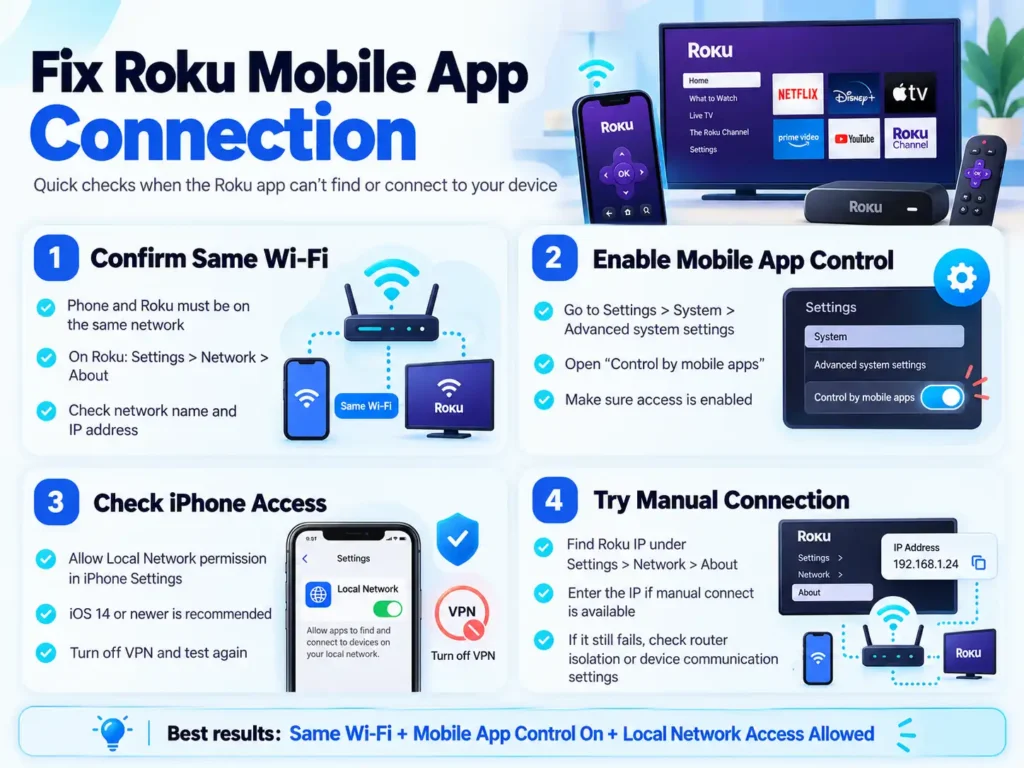
Fix the Roku Mobile App Connection
If you have a Roku app not finding the device on the same network problem, confirm that the phone and Roku are connected to the same Wi Fi network.
On Roku, open:
Settings > Network > About
Check the network name and IP address.
Then open:
Settings > System > Advanced system settings > Control by mobile apps
Make sure mobile app control has not been disabled. Current Roku guidance uses this menu when the official Roku mobile app cannot connect to a Roku TV or streaming player.
Check iPhone Local Network Access
For a Roku app not working on iPhone, check the Roku app permissions in iPhone Settings and make sure Local Network Access is allowed.
Roku currently lists iOS 14.0 or newer as a requirement for its remote app troubleshooting guidance. The phone and Roku also need to be on the same Wi Fi network.
A VPN can also interfere with local device discovery. Turn the VPN off briefly and test the connection again.
Try a Manual Connection
If automatic discovery fails, find your Roku IP address under:
Settings > Network > About
If the Roku mobile app provides the manual connection option, enter that address instead of waiting for automatic discovery.
If the manual connection also fails, check whether your router is preventing devices on the local network from communicating.
Fix a Physical Roku Remote
First, identify the remote you have.
A Roku Simple Remote has no voice button and uses infrared. It needs a clear line of sight to the Roku device. A Roku Voice Remote has a microphone or magnifying glass button and uses wireless pairing on supported devices.
Roku Simple Remote Not Responding
Replace the batteries with a fresh matching pair.
Make sure nothing blocks the front of the Roku player.
Point the remote directly toward the Roku and test it from a reasonable distance.
If the Roku player is hidden behind the TV or inside a cabinet, move it so the infrared signal has a clear path.
Roku Voice Remote Will Not Pair
Restart the Roku first.
If the remote has a pairing button, press and hold it for about five seconds until the status light flashes.
For supported voice remotes without a pairing button, press and hold Back + Home for about five seconds to enter pairing mode.
If the remote still behaves incorrectly, Roku also provides a remote restart procedure. The exact steps depend on whether the remote uses replaceable batteries or has a rechargeable battery.
If navigation works but the TV power or volume controls do not, check for a Roku software update and run the TV control setup again. CEC settings on the television can also affect some power and volume functions.
Stop Using a Roku Remote That Feels Hot
Do not continue testing a remote that becomes unusually hot.
Roku says to stop using it immediately. If the batteries are also hot, do not remove them. Place the remote on a hard, nonflammable surface and allow it to cool before handling it again.
Fix Roku AirPlay Problems
For Roku AirPlay not working, start with three checks.
Your Roku must support AirPlay 2.
The Roku and Apple device should be connected to the same wireless network.
AirPlay should be turned on under:
Settings > Apple AirPlay and HomeKit
These are also Roku’s first current checks when a compatible device does not appear in the AirPlay menu.
Check Roku and Apple Compatibility
On Roku, open:
Settings > System > About
This shows the Roku model and software version.
AirPlay support depends on the Roku model and Roku OS version. Roku currently maintains a compatibility list for supported Roku TVs, Streambars, Streaming Sticks, Express models, Premiere devices, and Roku Ultra models.
Apple also recommends checking for software updates, confirming that both devices use the same Wi Fi network, restarting the devices, and checking Home app restrictions when AirPlay does not work.
Roku Appears but AirPlay Will Not Connect
Restart the Roku and the Apple device.
Confirm they are still connected to the same network.
Open Settings > Apple AirPlay and HomeKit on Roku and confirm that AirPlay is turned on.
Temporarily disable a VPN if one is active.
If another compatible Apple device is available, test AirPlay from it. If one Apple device works and another does not, focus on the settings of the device that fails.
Video Plays but There Is No Sound
Check the volume and mute settings on the television, receiver, and Apple device.
If AirPlay works for video but not audio, this is different from a device discovery problem. Check the audio destination and connected sound equipment before changing Roku network settings.
When AirPlay and the Roku App Both Fail
When AirPlay and the Roku mobile app both fail to see the same Roku, the local network deserves closer attention.
Use this quick diagnostic table:
| AirPlay | Roku app | Area to check |
| Fails | Works | AirPlay settings or compatibility |
| Works | Fails | Mobile app access or phone settings |
| Fails | Fails | Local network or router |
| Works | Works | Discovery is functioning |
A past Roku Reddit discussion describes a case where both AirPlay and the iPhone Roku app failed to discover a Roku Ultra even though the devices appeared to use the same wireless network. Community reports can reveal useful patterns, but current Roku and Apple documentation should guide the actual fix.
Check for guest Wi Fi, device isolation, client isolation, VPN use, or router settings that prevent devices from communicating locally.
Do not factory reset the router just to test this. A normal power restart is a safer first check.
Common Roku Troubleshooting Mistakes
- Factory resetting too early. Test apps, network access, remote settings, and AirPlay before erasing the Roku.
- Reinstalling every app. If only one service fails, focus on that service first.
- Assuming Wi Fi means local access works. Two devices can have internet access while local device discovery is restricted.
- Treating AirPlay as Bluetooth pairing. Roku’s AirPlay troubleshooting focuses on compatibility, AirPlay settings, and the wireless network.
- Ignoring who manages a subscription. Roku may process some charges while the streaming provider manages the subscription.
Roku Billing and Support
For Roku customer service billing questions, first check the subscriptions connected to your Roku account.
Current Roku guidance says subscriptions purchased through Roku can be reviewed at my.roku.com/subscriptions if you subscribed directly through another streaming provider, that provider normally manages the subscription.
There is also an exception worth knowing. Roku’s current support information says Disney+, Hulu, and Sling TV manage their own subscriptions even when Roku processes the billing.
Before contacting support, collect your Roku model, Roku OS version, affected app name, remote type, error message, and a short description of what still works. That makes troubleshooting more precise.
Frequently Asked Questions
Why is Roku AirPlay not working?
If you searched Roku AirPlay not working, first check AirPlay compatibility, confirm both devices use the same Wi Fi network, and make sure AirPlay is turned on in Roku settings. Then update and restart both devices.
Why is the Roku app not finding my device?
For a Roku app not finding device on same network issue, confirm both devices are on the same Wi Fi, check mobile app control on Roku, review phone permissions, and temporarily disable any VPN.
Why is the Roku app not working on iPhone?
Allow Local Network access for the Roku app, confirm your iPhone and Roku use the same Wi Fi network, and make sure the phone meets Roku’s current iOS requirements.
Why is one Roku channel not working but other apps are?
If other apps work normally, test several titles in the affected app. The problem may involve that streaming service, your account, an outdated app, or the installation rather than the Roku itself.
What if Roku apps are not working today?
Test at least two different apps. If only one fails, check that provider for a service interruption. If several fail, check the Roku network connection and restart the device.
Can Reddit help with Roku TV AirPlay problems?
A Roku TV AirPlay not working Reddit search can reveal problems other users have seen, but older fixes may no longer apply. Confirm any technical change against current Roku or Apple instructions.
Can I connect the Roku app to a TV with no remote?
A Roku app not connecting to a TV with no remote can be difficult if the Roku is not already connected to the same network. The mobile app can control a Roku it can discover, but an offline or reset device may require a compatible physical remote.
Where do I get Roku customer service billing help?
Check your Roku subscriptions and purchase history first. If another streaming provider manages the subscription, contact that provider instead. Roku’s current billing guidance explains which company handles different subscription types.
Conclusion
Start Roku troubleshooting by identifying whether the problem affects one app, several apps, the physical remote, the mobile app, or AirPlay.
Test another streaming service before reinstalling apps. Check local network access when the mobile remote cannot find Roku. Identify whether you have a Simple Remote or Voice Remote before troubleshooting the physical remote. For AirPlay, check compatibility, Wi Fi, and the Roku AirPlay setting first.
If AirPlay and the Roku mobile app both stop discovering the same device, investigate local network communication before repeating app-specific fixes.


