

How to Mass Delete Emails in Gmail
A crowded Gmail inbox can take a long time to clean if you delete messages one page at a time. Gmail gives you a faster option on a computer by letting you select every conversation in an inbox, category, or search result.
To mass delete emails in Gmail, open Gmail on a computer, select the messages on the current page, then choose the option to select all conversations in that view. Click the Trash icon to remove them. You can also use Gmail search to delete messages by sender, date, category, size, or read status.
How to Mass Delete Emails in Gmail on a Computer
For a large cleanup, Gmail on a computer gives you more control than the mobile app.
Follow these steps:
- Open Gmail in your web browser and sign in.
- Open Inbox, Promotions, All Mail, or another category.
- Click the Select checkbox above the message list.
- Gmail selects the messages shown on the current page.
- Look for the notice above the message list.
- Click the option to select all conversations in that inbox, category, or search result.
- Click the Trash icon.
Google gives an example where the first 50 conversations are selected, followed by an option to select all 2,000 conversations in the Inbox.
Before deleting a large group, review the results. A quick check can prevent important receipts, account notices, work messages, or personal emails from being removed by mistake.
How to Delete More Than 50 or 100 Gmail Emails
The Select checkbox may only choose the messages visible on the current page.
That does not always mean every matching message has been selected.
After selecting the first page, look above the email list for a second option that lets you select all conversations in the current view.
Google may show wording similar to:
- Select all 2,000 conversations in Inbox.
- Click that option before pressing Delete.
- If you skip this step, Gmail may only delete the first visible batch.
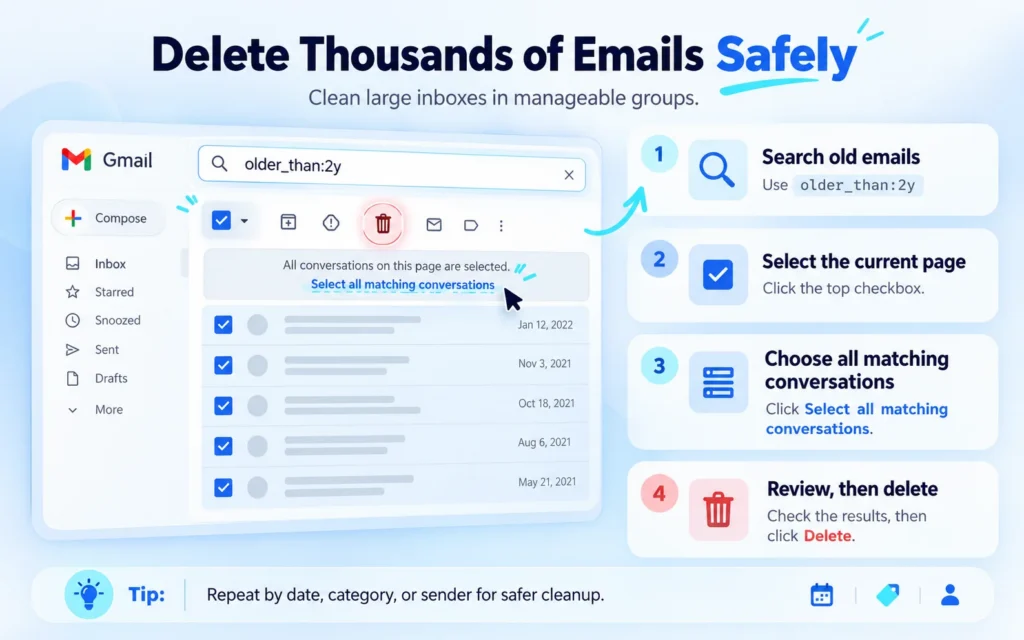
How to Delete Thousands of Emails in Gmail
If your mailbox contains thousands of old messages, it is often safer to clean them in useful groups instead of deleting everything at once.
For example, search:
- older_than:2y
- This finds messages older than two years.
- You can then select the current page, choose all matching conversations, review the results, and delete the group.
For a very large mailbox, you can repeat the process for different dates, categories, or senders. Smaller groups are also easier to review before deletion.
Delete Specific Emails With Gmail Search
Gmail search operators let you narrow the cleanup to messages you no longer need.
Google supports searches based on sender, date, category, read status, attachment type, message size, archive status, and other criteria. Search operators can also be combined.
Delete Emails From One Sender
To find messages from one sender, search:
from:name@example.com
Review the results, select all matching conversations, then delete them.
This is useful for newsletters, store alerts, automated notices, and companies that have sent you many messages over time.
Delete Old Gmail Emails
To find messages older than one year, use:
older_than:1y
For messages before a fixed date, use:
before:2025/01/01
You can also search within a date range:
after:2024/01/01 before:2025/01/01
Gmail supports before:, after:, older_than:, and newer_than:for date-based searches.
Delete Thousands of Unread Emails
Search:
is:unread
Review the results before selecting every message.
Unread emails may still include payment receipts, travel details, account alerts, or work messages.
If you want to keep the emails but clear the unread count, learning how to mark all emails as read in Gmail may be a better option.
Delete Promotional Emails
Search:
category:promotions
To focus on older promotions, combine it with an age filter:
category:promotions older_than:6m
This lets you remove older marketing emails while keeping newer offers or messages you may still need.
Gmail also supports categories such as Social, Updates, Forums, Reservations, and Purchases.
Delete Large Emails and Attachments
If your goal is to free storage, large attachments may be a better target than thousands of small text emails.
Search:
has:attachment larger:10M
Google recommends this search for finding Gmail messages with attachments larger than 10 MB.
Gmail Search Operators for Email Cleanup
| What you want to find | Gmail search |
| Messages from one sender | from:name@example.com |
| Messages older than one year | older_than:1y |
| Messages before a date | before:2025/01/01 |
| Unread messages | is:unread |
| Read messages | is:read |
| Promotions | category:promotions |
| Social messages | category:social |
| Messages with attachments | has:attachment |
| Messages larger than 10 MB | larger:10M |
| Archived messages | in:archive |
These operators are supported in Gmail search.
If you use Archive often, it can also help to know where archived emails are in Gmail before deciding whether old messages should be deleted.
How to Mass Delete Emails on the Gmail Mobile App
The Gmail mobile app works differently from Gmail on a computer.
On Android, touch and hold a message, tap Select all, then tap Delete. Google says Gmail selects up to 50 messages by default. You can scroll back to the top and use Select all again to select another group.
For a mailbox with thousands of messages, a computer is usually easier because Gmail web can select all conversations in a category or search result.
Why Gmail Will Not Select All Emails
If the option to select all matching conversations does not appear, first make sure you are using Gmail in a desktop browser.
Another issue may appear after a search. Some Gmail Community users and Product Experts have reported that changing search results from Most Relevant to Most Recent brings back the option to select all matching conversations. This is a community-reported workaround rather than an official Gmail Help instruction.
If Gmail becomes slow during a large cleanup, use a narrower search.
For example, clean one year, sender, or category at a time instead of trying to remove many years of messages in one action.
What Happens After You Delete Gmail Emails
Deleted messages move to Trash.
Google says a deleted Gmail message can normally be recovered from Trash for up to 30 days. After 30 days, it is permanently deleted. You can also permanently delete it sooner by emptying Trash.
To restore a message, open Trash, select the message, and move it back to your Inbox or another location.
Be careful with drafts. Google states that a discarded or deleted draft cannot be recovered from Trash.
Does Deleting Gmail Emails Free Storage?
Yes, deleting emails can free Google Account storage, especially if the messages contain large attachments.
A personal Google Account includes up to 15 GB of storage shared across Gmail, Google Drive, and Google Photos.
If storage is your main concern, focus first on messages with large attachments and empty Trash after confirming you no longer need those messages.
Google notes that storage totals may take time to update after a large cleanup. Its storage help page says large changes can sometimes take up to 48 to 72 hours to appear accurately.
Common Mistakes When Deleting Gmail Emails
One common mistake is assuming the first Select checkbox includes every message. Check for the second option that selects all conversations in the current category or search.
Another mistake is deleting a broad search result without reviewing it first. A search such as is: unread may include messages you still need.
Do not confuse Archive with Delete. Archived mail stays in Gmail. Deleted mail moves to Trash.
After cleaning your inbox, you may also want to review old organization rules and learn how to remove Gmail labels that you no longer use.
Frequently Asked Questions
Is there a way to mass delete emails in Gmail?
Yes. On Gmail for desktop, select the messages on the current page, then choose the option to select all conversations in that view. Click the Trash icon when you are ready to delete them.
People searching for how to mass delete Gmail emails or how to mass delete emails on Gmail are looking for the same basic process. The desktop version is usually the easiest choice for large batches.
How do I delete 10,000 emails at once in Gmail?
Use Gmail on a computer. Search for the group you want to remove, select the current page, then choose all conversations that match the search. For a very large mailbox, splitting the cleanup by date, sender, or category makes the results easier to review.
How do I delete thousands of unread emails in Gmail?
Search for unread emails, review the results, select the current page, then choose all matching conversations. Add a date filter if you only want to remove older unread mail.
For example:
is:unread older_than:1y
How do I delete thousands of promotional emails in Gmail?
Search:
category:promotions
If you only want older promotions, use:
category:promotions older_than:6m
Review the results, select all matching conversations, then click Delete.
How do I delete all emails in Gmail at once?
Open Gmail on a computer and choose All Mail or the category you want to clear. Select the current page, click the option to select all conversations, then click Delete.
Review the selection carefully before deleting your entire mailbox.
Can I recover Gmail emails after deleting them?
You can normally recover deleted messages from Trash for up to 30 days. Messages are permanently deleted after that period or sooner if you manually delete them forever.
Clean Up Your Gmail Inbox Safely
For a large Gmail cleanup, the desktop site gives you the most control. Search operators can narrow thousands of messages to old mail, promotions, unread messages, specific senders, archived mail, or large attachments.
If Gmail only selects the first page, look for the option to select all conversations in the current view. Review the results before deleting anything, and empty Trash only when you are sure the messages are no longer needed.


