

How to Mark All / Read All Emails in Gmail
To mark all unread emails as read in Gmail, open Gmail on a computer and search for is:unread. Select the checkbox above the results, click Select all conversations that match this search, and choose Mark as read.
You can change the read status of messages without opening each one. This does not delete, read, or summarize their contents.
How to Mark All Gmail as Read on a Computer
Desktop Gmail lets you select messages across multiple pages. Check which Google account is open before starting.
- Open Gmail in your browser.
- Enter is:unread in the search bar and press Enter.
- Click the checkbox above the message list.
- Click Select all conversations that match this search in the notice above your results.
- Choose Mark as read from the toolbar. Check the More menu if needed.
- Confirm the action if Gmail asks.
The first checkbox selects the current page. The additional link expands your selection to all matching conversations. Google explains this distinction in its bulk message selection instructions.
Example: If you have 3,000 unread messages but the notice says 50 conversations are selected, only one page is selected. Use the additional link before applying the change.
Mark Only Your Inbox as Read
Search for in:inbox is:unread to select unread inbox messages only.
This is useful when you want to clear your inbox’s unread count while keeping unread archived messages unchanged. Review the results, then follow the desktop steps above.
Mark Emails as Read on Android
The Gmail Android app supports selecting multiple messages.
- Open Gmail and choose the correct account.
- Search for is:unread.
- Tap a sender’s profile image to select a message.
- Tap Select all at the top.
- Scroll down and tap the selection box again to include more messages.
- Tap the Mark as read envelope icon.
Google’s Android instructions describe scrolling and selecting again to include additional messages. The first selection may not cover your entire mailbox.
For a large backlog, desktop Gmail avoids repeated scrolling through mobile batches.
Mark Emails as Read on iPhone or iPad
These steps apply to the Gmail app. Apple Mail has different controls.
- Open Gmail and select your account.
- Search for is:unread.
- Tap the profile image beside a message.
- Tap Select all.
- Scroll down and repeat the selection for additional messages.
- Tap Mark as read.
Google’s iPhone and iPad guide confirms that additional messages may require scrolling and reselection. Select all should not be treated as a promise that every message in the account is selected.
Choose Which Unread Emails to Include
Gmail search operators help you narrow the selection by location, sender, age, or category.
| Messages you want to select | Gmail search |
| Unread messages | is:unread |
| Unread inbox messages | in:inbox is:unread |
| Unread Promotions messages | category:promotions is:unread |
| Unread messages older than six months | older_than:6m is:unread |
| Unread messages from one sender | from:alex@example.com is:unread |
| Unread messages including Spam and Trash | in:anywhere is:unread |
Replace the example address with the sender you need. Check the results before applying a bulk action.
A regular search excludes Spam and Trash. Add in:anywhere when you want to include those locations. Google’s search operator reference explains these filters.
Archived messages can still be unread. If you are looking for where archived emails are in Gmail, open All Mail. Google’s archive guide explains that archiving removes messages from the inbox while keeping them in your account.
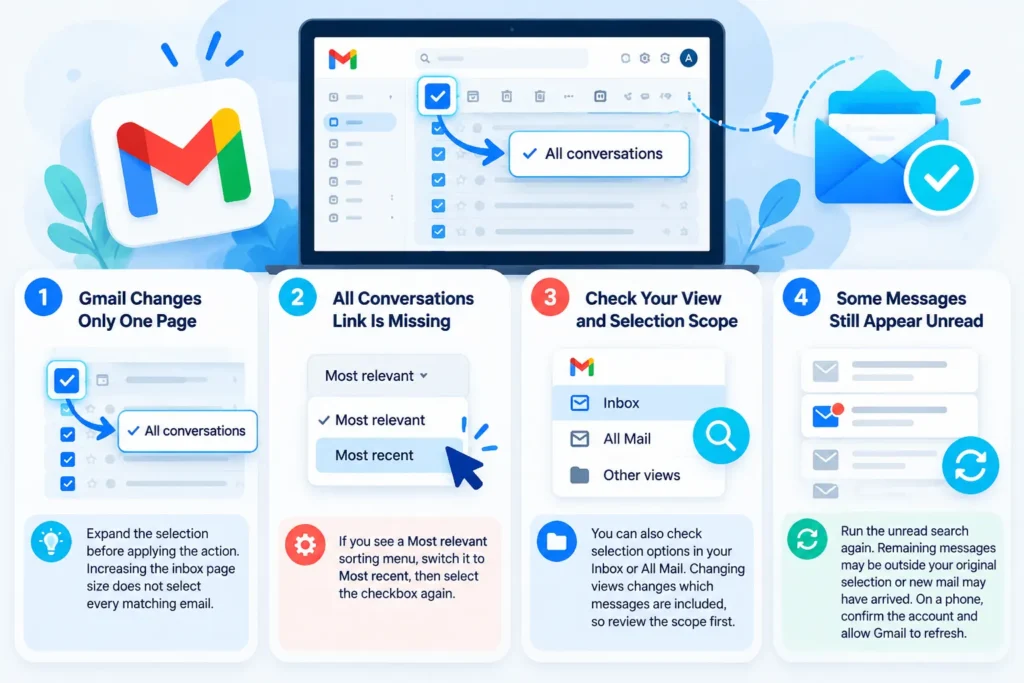
Fix Problems With Selecting All Emails
Gmail Changes Only One Page
Return to step four of the desktop instructions and expand the selection before applying the action. Increasing your inbox page size does not select every matching conversation.
The All Conversations Link Is Missing
If your search results show a Most relevant sorting menu, switch it to Most recent, then select the checkbox again.
Several users in this Gmail discussion about the missing selection link report that this helped. It is a user reported workaround, not a guaranteed fix for every account.
You can also check selection options in your inbox or All Mail. Changing views changes which messages are included, so review the scope first.
Some Messages Still Appear Unread
Run the unread search again. Remaining messages may fall outside your original selection, or new mail may have arrived.
On a phone, confirm the account and allow Gmail to refresh. Changing messages in one account does not change messages in another.
Automatically Mark Selected New Emails as Read
A filter can mark routine messages as read when they arrive. Use this for messages you want to keep but do not need to review immediately.
- On desktop, open Show search options in the search bar.
- Enter the sender’s address or another specific condition.
- Preview the results to check what matches.
- Return to the search options and choose Create filter.
- Select Mark as read.
- Apply the rule to existing matches if wanted, then create the filter.
- Choose narrow conditions so messages requiring a reply retain their unread status.
To change the rule later, open Settings, See all settings, then Filters and Blocked Addresses. Google’s filter instructions cover creating, editing, and removing rules.
Common Mistakes to Avoid
- Expecting more storage. Changing read status does not remove emails or attachments.
- Choosing the wrong scope. Inbox, Promotions, All Mail, and search results can contain different groups of messages.
- Using is:read to reverse the entire change. This search also finds messages you read earlier. Marking every result unread will not restore the previous mix of statuses.
Frequently Asked Questions
How do I mark all 1000 emails as read on Gmail?
Use the desktop method above with is:unread. Confirm that all matching conversations are selected before choosing Mark as read. Use in:inbox is:unread if you want to affect only your inbox.
How do I select all 3000 emails in Gmail?
Open the inbox, label, or search results containing those emails. Select the top checkbox, then the additional selection link. Gmail may display a conversation count rather than a message count when emails are grouped into threads.
Why can’t I mark all as read in Gmail?
Check whether you selected only a desktop page or a mobile batch. If the desktop selection link is missing, see the sorting workaround in the troubleshooting section. Also confirm the account and search criteria.
How do I delete 10,000 unread emails in Gmail?
To mass delete emails in Gmail, search for is:unread on desktop, review the results, select every matching conversation, and click Delete.
Check important threads first. Google’s deletion guidance states that messages in Trash are permanently deleted after 30 days. Emptying Trash sooner removes that recovery window.
How to read all emails on Gmail without opening them?
Use bulk selection to mark messages as read. This removes their unread status without opening each email. To understand their contents, you still need to read them.
Can I undo marking all emails as read?
Choose Undo if Gmail offers it immediately afterward. Otherwise, select the affected messages and choose Mark as unread. Select carefully so you do not change unrelated messages.
Check Your Selection Before Applying Changes
Use desktop Gmail for a large backlog and the mobile app for smaller batches. Before applying a change, confirm your account, search criteria, and selected messages.


