

How to Delete Labels in Gmail: Complete Step-by-Step Guide
Managing emails becomes difficult when your Gmail account is filled with old, unused, or unnecessary labels. While Gmail labels are useful for organizing messages, too many categories can make your inbox sidebar confusing and harder to manage.
If you created labels for old projects, clients, newsletters, or personal tasks that you no longer need, removing them can help keep your Gmail account organized.
The process is simple and safe because deleting a Gmail label does not delete the emails connected with it. Gmail only removes the category, while your messages remain available in your account.
In this guide, you will learn how to delete labels in Gmail on desktop and mobile devices, how Gmail labels work, what happens after removing a label, and how to manage your inbox more effectively.
Quick Answer: How Do You Delete a Label in Gmail?
To delete a label in Gmail, open Gmail on your computer, find the label from the left sidebar, click the three dots next to the label name, select Remove label, and confirm the action.
Deleting a label removes only the label itself. Your emails will stay available in Gmail under All Mail, search results, or any other labels attached to those messages.
What Are Gmail Labels and Why Do Users Delete Them?
Gmail labels are categories that help users organize and manage emails. Instead of moving messages into separate folders, Gmail uses labels as tags that can be added to emails.
One email can have multiple labels at the same time.
For example, an email from a client could have:
- Work label
- Project label
- Important label
The same message can appear under different categories without creating duplicate copies.
Many Gmail users create labels for:
- Personal emails
- Work projects
- Clients
- Receipts
- Newsletters
- Travel plans
Over time, some labels become unnecessary. You may complete a project, change jobs, or create duplicate labels by mistake.
Removing unused labels helps you maintain a cleaner Gmail sidebar and makes it easier to find important messages.
Gmail Labels vs Folders: What Is the Difference?
Many users search for Gmail folders because other email services use folders. Gmail works differently because it uses labels.
Understanding this difference helps prevent mistakes when organizing emails.
| Gmail Labels | Traditional Folders |
| One email can have multiple labels | One email usually stays in one folder |
| Labels work like tags | Folders work like storage locations |
| Emails remain available in All Mail | Moving emails may change location |
| Better for flexible organization | Better for simple sorting |
When you remove a Gmail label, you are only removing the tag attached to messages. The emails themselves remain in your account.
How to Delete Labels in Gmail on Desktop
The desktop version of Gmail provides the easiest way to manage and remove labels.
Follow these steps:
Step 1: Open Gmail
Open Gmail in your browser and sign in to your Google account.
If you use multiple Gmail accounts, confirm that you are signed into the correct account before deleting a label.
Step 2: Find the Label You Want to Delete
Look at the left sidebar where your Gmail labels appear.
If you cannot find the label:
- Scroll down the sidebar.
- Click More.
- Look for the label you want to remove.
Step 3: Open Label Options
Move your mouse over the label name.
Click the three dots that appear beside the label.
This opens the label management menu.
Step 4: Remove the Label
Select:
Remove label
Gmail will ask you to confirm the action.
Click confirm, and the label will be deleted.
Your emails will remain safe.
How to Delete a Label in Gmail Using Settings
Another way to remove Gmail labels is through Gmail settings. This method is helpful if you want to review multiple labels together.
Follow these steps:
- Open Gmail.
- Click the gear icon in the top right corner.
- Select See all settings.
- Open the Labels tab.
- Find the label you want to remove.
- Click Remove next to the label.
- Confirm the deletion.
The Labels section gives you better control when managing many custom categories.
How to Delete Gmail Labels on Android
The Gmail Android app has limited label management options compared with the desktop version. Some users may not find a direct option to delete custom labels inside the app.
If you cannot remove a label from the Gmail app, use Gmail through a mobile browser.
Steps:
- Open Chrome or another browser.
- Visit Gmail.
- Sign in to your account.
- Enable desktop mode if needed.
- Open Gmail settings.
- Go to the Labels section.
- Remove the unwanted label.
You can still use the Gmail app for applying labels, searching emails, and managing messages.
For users who manage many contacts and email workflows, learning how to create a group in Gmail can also help improve communication and organization.
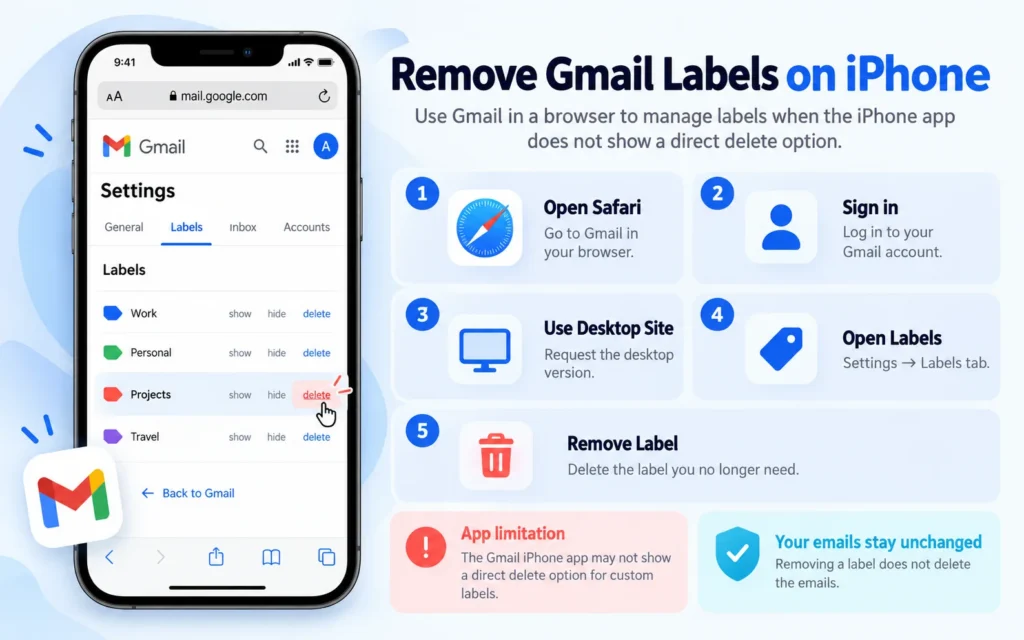
How to Remove Gmail Labels on iPhone
Many iPhone users search for: How do I remove a label in Gmail on my iPhone?
The Gmail app on iPhone does not always provide a direct option to delete custom labels. The easiest method is to manage labels through Gmail in a browser.
Follow these steps:
- Open Safari or another browser.
- Visit Gmail.
- Sign in.
- Request the desktop version of Gmail.
- Open Settings.
- Select the Labels tab.
- Remove the label you no longer need.
Your emails will remain unchanged after removing the label.
Does Deleting a Gmail Label Delete Emails?
One of the biggest concerns users have before removing a label is whether their emails will disappear.
The answer is no. Deleting a Gmail label does not delete the emails connected with it.
Gmail labels work like tags attached to your messages. When you remove a label, Gmail only removes that category. The original emails stay in your account.
For example, if you have a label called “Travel Plans” and delete it, the emails under that label will still be available through:
- Inbox
- All Mail
- Gmail search results
- Other labels attached to those emails
This difference is important because many users confuse Gmail labels with folders. A folder-based email system may move messages from one location to another, but Gmail labels only organize how you view and find emails.
Before removing a label, always make sure you are deleting the category and not the actual messages.
How to Remove a Label From Multiple Emails in Gmail
Sometimes you do not want to delete a label completely. Instead, you may only want to remove a label from selected emails.
For example, you may have hundreds of emails with a Project A label and want to remove that tag while keeping the messages.
Follow these steps:
- Open Gmail.
- Search for the emails or select them manually.
- Click the Label icon at the top.
- Find the label you want to remove.
- Uncheck the label.
- Click Apply.
The selected emails will no longer have that label, but they will remain available in your Gmail account.
This method is useful when you are reorganizing your inbox but do not want to remove the entire label.
How to Delete Multiple Labels in Gmail
If your Gmail sidebar contains many unused labels, you may want to remove several of them.
Currently, Gmail does not provide a single option to delete all custom labels at once. You need to remove unwanted labels individually.
The easiest method is through Gmail settings.
Steps:
- Open Gmail on your computer.
- Click the Settings icon.
- Select See all settings.
- Open the Labels tab.
- Review your custom labels.
- Click Remove beside the labels you no longer need.
Before deleting multiple labels, review them carefully.
Some labels may be connected with Gmail filters that automatically organize incoming messages.
Removing a label connected with a filter may affect how future emails are categorized.
How to Delete Nested Labels in Gmail
Gmail allows users to create labels inside other labels. These are called nested labels.
For example:
Clients
→ Website Projects
→ Marketing Projects
This structure helps businesses and professionals organize large numbers of emails.
To delete a nested label:
- Open Gmail.
- Click the Settings icon.
- Select See all settings.
- Open the Labels tab.
- Find the nested label you want to remove.
- Click Remove.
Removing a nested label will not delete the emails connected with it.
If you still need the category later, you can create a new label and organize your emails again.
Can You Recover a Deleted Gmail Label?
Once you remove a Gmail label, Gmail does not provide a direct restore option for that exact label.
However, your emails are not deleted.
If you need the same organizational system again, you can create a new label and apply it to your emails.
For example:
Before:
Clients → Website Design
After deleting:
Create a new label called Clients and organize messages again.
Keeping a simple label structure makes it easier to maintain your Gmail account over time.
Why Can’t I Delete Some Gmail Labels?
Not every Gmail label can be removed.
Some labels are created by Gmail and are required for normal email functions.
Examples include:
- Inbox
- Sent
- Drafts
- Spam
- Trash
- All Mail
These are system labels, and Gmail does not allow users to permanently delete them.
If you do not want to see certain labels, you may be able to hide them instead.
Can Google Workspace Users Delete Gmail Labels?
Google Workspace users may have additional settings controlled by their organization.
If you use Gmail through work or school, an administrator may apply certain restrictions to your account.
For example:
- Some settings may be managed by your organization.
- Certain features may have limited access.
- Label management options may depend on account permissions.
If you cannot remove a label from a business Gmail account, check your Google Workspace settings or contact your administrator.
How to Hide Gmail Labels Instead of Deleting Them
Deleting is not always the best option.
Sometimes you only want a cleaner Gmail sidebar while keeping your labels for future use.
Gmail allows you to hide labels without removing them.
To hide a label:
- Open Gmail.
- Click Settings.
- Select See all settings.
- Open the Labels tab.
- Choose the visibility option you prefer.
Available options may include:
- Show
- Hide
- Show if unread
Hiding labels is useful for categories you still need but do not want visible every day.
Common Mistakes When Managing Gmail Labels
Managing labels incorrectly can make your Gmail organization harder. Here are some mistakes to avoid:
- Confusing Labels With Emails
- Removing a label does not remove messages.
- However, deleting emails manually will move those messages to Trash.
- Always check whether you are removing a label or deleting an email.
- Creating Too Many Labels
- Creating separate labels for every small category can make Gmail harder to manage.
For example, instead of creating:
- Client Invoice January
- Client Invoice February
- Client Invoice March
Create one broader label:
- Invoices
- Then use Gmail search to find specific messages when needed.
- Deleting Labels Connected With Filters
- Gmail filters can automatically apply labels to incoming emails.
Before removing a label:
- Open Gmail Settings.
- Go to Filters and Blocked Addresses.
- Check whether any filters use that label.
If a filter depends on a deleted label, update the filter settings to avoid future organization problems.
Removing Important Work Labels
If you use Gmail for business, removing client or project labels without checking can make your workflow harder.
For important categories, consider hiding the label instead of deleting it.
Best Practices for Managing Gmail Labels
Deleting unnecessary labels is one part of keeping your Gmail account organized. A good label system helps you find important emails faster and reduces inbox clutter.
Follow these practices to create a cleaner Gmail workflow.
Use Fewer, More Useful Labels
Many users create too many labels and make their inbox harder to manage.
Instead of creating a separate label for every small category, focus on broader groups.
Examples:
- Clients
- Projects
- Finance
- Personal
- Receipts
- Important Documents
A simple structure is usually easier to maintain than dozens of small labels.
Combine Labels With Gmail Filters
Gmail filters can automatically organize incoming messages by applying labels based on specific rules.
For example:
You can create a filter that automatically adds a Receipts label whenever you receive an email from an online store.
Filters can help you:
- Sort emails automatically
- Save time
- Keep important messages organized
- Reduce manual work
Review Your Labels Regularly
Your email needs change over time.
A label that was useful last year may no longer be relevant today.
Review your Gmail labels every few months and remove categories that you no longer use.
Regular cleanup helps maintain a simple and efficient email system.
Keep Important Emails Easy to Find
Removing unnecessary labels is only one part of Gmail organization.
You can also improve your workflow by learning how to read all emails on Gmail efficiently, especially when reviewing large inboxes or managing old messages.
Gmail Label Management: Quick Comparison
| Action | What Happens | Safe? |
| Delete a label | Removes the category but keeps emails | Yes |
| Remove a label from emails | Removes the tag from selected messages | Yes |
| Delete an email | Moves the message to Trash | No |
| Hide a label | Removes it from view but keeps it available | Yes |
| Delete system labels | Not allowed by Gmail | Not available |
This table helps you understand the difference between organizing emails and deleting messages.
Frequently Asked Questions
How do I delete labels in Gmail?
To delete labels in Gmail, open Gmail on your computer, find the label in the left sidebar, click the three dots next to the label name, select Remove label, and confirm the action.
Your emails will remain available because removing a label does not delete the messages.
How do I delete a label in Gmail without deleting emails?
You can delete a label without deleting emails by removing the label itself instead of deleting the messages.
Gmail keeps your emails available in All Mail, search results, or other labels attached to those messages.
How do I remove a label in Gmail on my iPhone?
The Gmail iPhone app may not always show a direct option to delete labels.
To remove a label:
- Open Gmail through a browser.
- Use desktop mode.
- Open Gmail Settings.
- Go to the Labels section.
- Select Remove next to the label you no longer need.
How do I delete folders in the Gmail app on my iPhone?
Gmail does not use traditional folders. It uses labels.
To remove a folder-like category in Gmail, manage your labels through Gmail settings and remove the label you no longer need.
How do you delete folders from Gmail?
Gmail folders are actually labels.
To delete one:
- Open Gmail.
- Find the label.
- Open the label options.
- Select Remove label.
Your emails will stay in your Gmail account.
How do I delete my labels?
You can delete your custom labels from Gmail settings.
Open:
Settings → See all settings → Labels → Remove
Only custom labels can be removed. Gmail system labels cannot be permanently deleted.
Does deleting a Gmail label delete the emails inside it?
No.
Deleting a Gmail label only removes the category attached to messages. Your emails remain available unless you delete them separately.
Can I delete default Gmail labels?
No.
Default Gmail labels such as Inbox, Sent, Drafts, Spam, and Trash cannot be deleted because they are part of Gmail’s core email system.
Can I delete multiple Gmail labels at once?
Gmail does not currently provide a single option to remove all labels together.
You need to delete custom labels individually from Gmail settings.
Why does my deleted Gmail label still appear?
If a removed label still appears, refresh Gmail and check your settings again.
In some cases, filters, account synchronization, or browser caching may delay the update.
Final Thoughts
Keeping your Gmail account organized becomes easier when you regularly remove labels you no longer need.
Learning how to delete labels in Gmail helps you clean your sidebar, reduce confusion, and create a better email management system.
Remember that deleting a label only removes the category. Your emails remain safe unless you delete them separately.
For most users, the best approach is to keep a simple label structure, use Gmail filters when needed, and review old categories regularly.
A clean Gmail setup makes it easier to find important messages and manage your inbox with less effort.


