

WhatsApp Number: How It Works & How to Find It
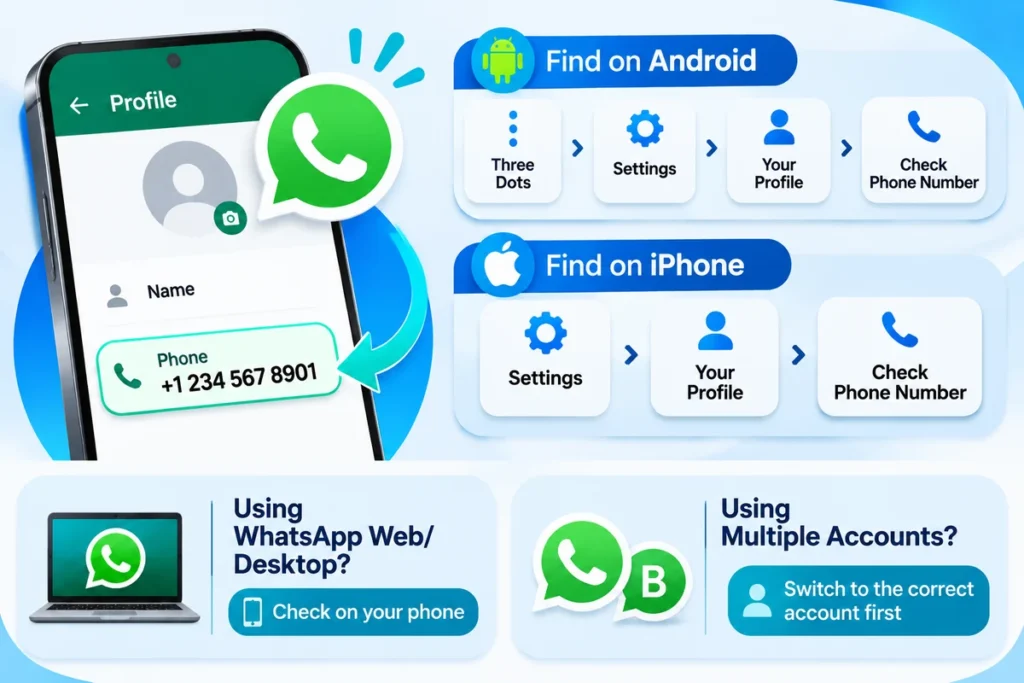
Your WhatsApp number is the phone number registered to your WhatsApp account. To find it, open WhatsApp, go to Settings, and tap your name or profile photo. Look for the Phone field in your profile.
If you use several phone lines, check the account before giving someone your contact details.
Checking inside WhatsApp helps you share the right number and avoid confusion when changing phones. Here is how to find it on your device, understand what it does, and control how you share it.
What Is My WhatsApp Number?
WhatsApp does not assign you a separate telephone number when you create a standard account. It uses a number you already control and register with the service.
For example, if you registered your personal mobile number, that is your WhatsApp number. If you registered another eligible number you control, your account uses that number instead.
Several details in your profile serve different purposes:
| Detail | What it means |
| Phone number | The number registered to your account |
| Display name | The name you choose for your profile |
| Username | An optional way to connect, where available |
| Registration code | A temporary code used to verify your number |
Your display name is not proof of identity. Someone can choose a familiar name or photo, so confirm unexpected requests through a contact method you already trust.
How Can I Find My WhatsApp Number?
Check your profile inside WhatsApp first. You do not need a number lookup website or a paid service.
Menu placement can vary with app updates. The goal is to reach your own profile, not a contact’s details or the Change number screen.
Find Your Number on Android
- Open WhatsApp on your Android phone.
- On the main Chats screen, tap the three dots at the top right.
- Select Settings.
- Tap your name or profile photo at the top.
- Read the number shown in the Phone field.
The Phone field shows the number for the account you have open. WhatsApp’s official instructions direct you to your profile to check it. WhatsApp instructions for checking and changing your number
Find Your Number on iPhone
- Open WhatsApp on your iPhone.
- Tap Settings in WhatsApp. If your app shows your profile picture instead of a Settings tab, tap that picture.
- Tap your name or profile photo to open your profile.
- Read the number in the Phone field.
These steps refer to settings inside WhatsApp, not the iPhone Settings app.
Read the full number, including its country code. Do not confuse your About text, display name, or username with the registered phone number.
Check WhatsApp Web or Desktop
If you are using WhatsApp on a computer, open the linked account on your phone and follow the Android or iPhone steps above. This gives you one clear route to the registered number without depending on which profile fields your computer version displays.
Your computer’s own network or phone settings will not identify the account linked to WhatsApp.
You also cannot use WhatsApp Web or Desktop to change your registered number. That action belongs in the phone app. WhatsApp limits on changing a number from linked devices
Check the Correct Account
If you use multiple accounts, switch to the one you want to check before opening its profile. Personal WhatsApp and WhatsApp Business may use different numbers, too.
For example, your phone could use a personal line for calls while WhatsApp Business uses a work number. The app’s profile tells you which account you are sharing.
How Does WhatsApp Work With Your Phone Number?
WhatsApp, owned by Meta, lets you send messages, share files, and make voice or video calls through an internet connection. Your registered number connects those activities to your account.
Does WhatsApp Use Your Phone Number?
Yes. WhatsApp uses a phone number when registering your account. You must be able to complete the required verification for that number.
During standard registration, you select your country and enter your number. Depending on the options offered, WhatsApp may verify it through SMS, a phone call, or another supported method.
A registration code is different from your optional two step verification PIN. The first helps confirm access to the number. The PIN adds another account security check. Never give either code to someone who contacts you asking for it. WhatsApp registration and two step verification
Messages and Calls Use Internet Data
WhatsApp messages are not ordinary SMS texts. Calls made inside WhatsApp use WiFi or mobile data rather than your carrier’s regular voice calling service.
If you live in the US and call family abroad, the conversation uses internet data on both ends. Mobile data limits and roaming fees can still apply. Using WhatsApp does not cancel charges from your carrier.
Check that you are placing the call inside WhatsApp. Dialing the same person through your phone’s regular calling app follows your carrier’s rates. Age UK guide to WhatsApp calls and data costs
Usernames Are Different From Phone Numbers
WhatsApp announced username reservations in June 2026 and said the feature would roll out gradually. A username is different from your profile’s display name and registered number.
Where username messaging is available, it can let someone contact you without receiving your phone number. Check the options and notices in your own app rather than assuming every US account has the same features. WhatsApp announcement about username availability
Is Your WhatsApp Number the Same as Your Mobile Number?
Yes, if you registered the mobile number you currently use. It may differ if you registered a work line or kept an earlier number on the account.
WhatsApp states that an account is tied to its registered phone number, not a particular SIM card or SIM slot. WhatsApp guidance on multiple numbers and accounts
After Changing a SIM or Adding an eSIM
Inserting a new SIM does not, by itself, transfer your WhatsApp account to the new number. Your profile can continue showing the number you registered earlier.
For example, you might keep your US WhatsApp number while using a local data SIM during a trip. However, if WhatsApp asks you to verify your account again, access to your registered number becomes important. WhatsApp guidance on using a travel SIM
Do not cancel an old phone line before considering whether you still need it for account verification.
On a Phone With Two Lines
A phone with two lines may use one for calls and another for data. Neither setting tells you which number WhatsApp registered.
For example, a regular call might show your personal line while a WhatsApp message comes from your work account. Check each app separately before sharing either contact.
What If You Cannot Find Your WhatsApp Number?
Start with the situation that matches yours. Deleting the app is not a useful first step when you only need to read your account details.
You Cannot Find Settings or the Phone Field
Return to WhatsApp’s main screen and look for Settings or your profile icon. Make sure you are opening your own profile rather than a chat or contact page.
If the layout differs from older instructions, check for an update through Apple’s App Store or Google Play. On a computer, use the phone app if your profile does not show the number.
Your Profile Shows an Old or Unexpected Number
First, confirm which account or app you opened. If the number belongs to an old line, review the mobile number section above before starting an account change.
An old number on a familiar account does not automatically mean someone else accessed it. If you also notice unfamiliar linked devices or other signs of account misuse, review account security separately.
You Are Logged Out or Lost Your Phone
The profile method requires access to a signed in account. Without it, an old phone bill or carrier account may help you identify numbers you owned, but does not prove which one WhatsApp used.
A trusted contact may be able to check the number in an existing conversation with you, if it is visible. This identifies a possible registered number; it does not restore access to that number or account.
For account access, follow WhatsApp’s official recovery process. Do not share registration codes with a third party offering to retrieve your number. WhatsApp account recovery instructions
How to Share Your WhatsApp Number Correctly
Share the number shown in your account, including the country code. This matters when someone outside the United States adds you.
US Number Format and Example
A US number uses country code +1, followed by the three digit area code and seven digit local number.
For illustration, +1 202 555 0147 shows the format. It is a fictional example, not a working WhatsApp contact. NANPA reserves the 555 0100 through 555 0199 range for fictional use. NANPA guidance on fictional phone numbers
| Part | Example | Meaning |
| Country code | +1 | Used by the US and other numbering plan members |
| Area code | 202 | Part of the national phone number |
| Local number | 555 0147 | Fictional subscriber number in this example |
A +1 prefix alone does not prove that someone lives in the United States. A phone number is not a reliable way to establish someone’s present location.
Share a Chat Link or Contact QR Code
WhatsApp’s click to chat feature lets someone open a conversation without first saving your number. A phone number based link contains your full international number using digits only, without spaces, parentheses, or a plus sign. WhatsApp click to chat instructions
Before publishing a link, check that it points to the intended personal or business account. A number embedded in a public link is not private.
A contact QR code serves a different purpose from the login QR code shown when linking a computer. Share your contact details deliberately, and only link devices you own or trust.
Who Can See Your WhatsApp Number?
The answer depends on whether username privacy is active for your account and whether the other person already has your number saved.
Group Privacy With and Without a Username
WhatsApp’s general privacy guidance says members of ordinary groups can see each other’s numbers. Communities have separate rules, so an announcement space and a group inside that community should not be treated as the same thing. WhatsApp group and community privacy
The newer username guidance describes an exception. When you have an active username, people who have not saved your number see your username instead, including in group chats. People who already saved your number can still see it. WhatsApp username visibility rules
Username features are still rolling out. Reserving a name is not the same as having username messaging active. Check the feature’s status in your app before relying on it to keep your number private.
Changing your profile photo, About, or last seen settings does not activate username privacy. Read the description of the specific setting you are changing.
Sharing a Number Still Leaves a Copy
If you type your number into a message, hiding it on your profile will not remove that text from the conversation. The recipient already has the details you sent. WhatsApp advice on sharing information safely
Before sending private details, consider whether WhatsApp notifies someone about screenshots, but do not rely on alerts to keep those details private. Only send information you are comfortable letting the recipient keep.
Changing Your Number or Moving to a New Phone
Changing your registered number and moving your chat history are separate tasks.
For a number change, use Settings, Account, then Change number on your phone. Follow the prompts for your old and new numbers, contact notifications, and verification. Your new number must meet the verification requirements.
If you are also moving between Android and iPhone, follow the official transfer instructions for that direction. Do not assume a Google Account backup can restore directly through iCloud. WhatsApp’s Android to iPhone guidance says to change the number on the old Android device first if you are changing both. WhatsApp guidance on moving chats to iPhone
When keeping your number, use the supported phone transfer process and check your messages before wiping the old device. Confirming the registered number is only one part of a successful move.
Common Mistakes to Avoid
- Checking only your cellular settings. They may show a line that is not registered with WhatsApp.
- Using Change number to look up your number. Read your profile first; changing account details is a separate action.
- Sharing only a local number. Include the country code for international contacts.
- Confusing a contact QR code with a login code. A login code links a device; it is not a way to share your number.
- Confusing names with numbers. Display names, usernames, and registered numbers have different roles.
- Treating a familiar profile as verified identity. Confirm unusual requests before sending money or private details.
Frequently Asked Questions
Can I locate a WhatsApp number?
You can find your own registered number in WhatsApp’s profile settings. Another person’s number may appear in their chat information, depending on the context and privacy features. A name or bio alone does not reliably reveal a private number. Finding a number also does not reveal someone’s physical location.
What is an example of a WhatsApp number?
A US format example is +1 202 555 0147. The +1 is the country code, followed by a ten digit national number. This example is fictional. A real number must be registered with WhatsApp before someone can reach that account through it.
Is your WhatsApp number the same as your mobile number?
Usually, yes. WhatsApp uses the mobile number you registered, which may be your personal or work line. It does not create a new telephone number for you. Check the Phone field in your profile to confirm which line the account uses.
Why would someone use a WhatsApp number?
People use it to connect with friends, relatives, coworkers, or businesses through WhatsApp messages and calls. It can be useful for international conversations and group chats. Someone giving you a WhatsApp number may be sharing their regular mobile number, rather than a separate line.
Check Your Profile Before Sharing Your Number
Open your WhatsApp profile, confirm the registered number, and include its country code when sharing it. If you use several accounts or recently changed your SIM, check the intended account first. That small check helps prevent messages from going to the wrong number.


