

Home Automation Design, Setup & Infrastructure
This US guide is based on manufacturer documentation and standards guidance. The household example is illustrative. No hands on installation testing or independent technical review is claimed.
A smart home should solve everyday problems. Lights can respond to movement. A thermostat can follow your schedule. A water sensor can warn you about a leak before you discover a wet floor.
Those results depend on planning. Devices need suitable power, reliable connections and controls that everyone can use. Buying products first often leaves homeowners with separate apps, missing features and routines that fail.
What Does Home Automation Design Include?
Home automation design connects three parts: what you want the home to do, how devices communicate and how people control them.
Remote control means you perform an action through an app or button. A scene runs several actions together. Automation responds to a trigger, such as motion, time or a door opening.
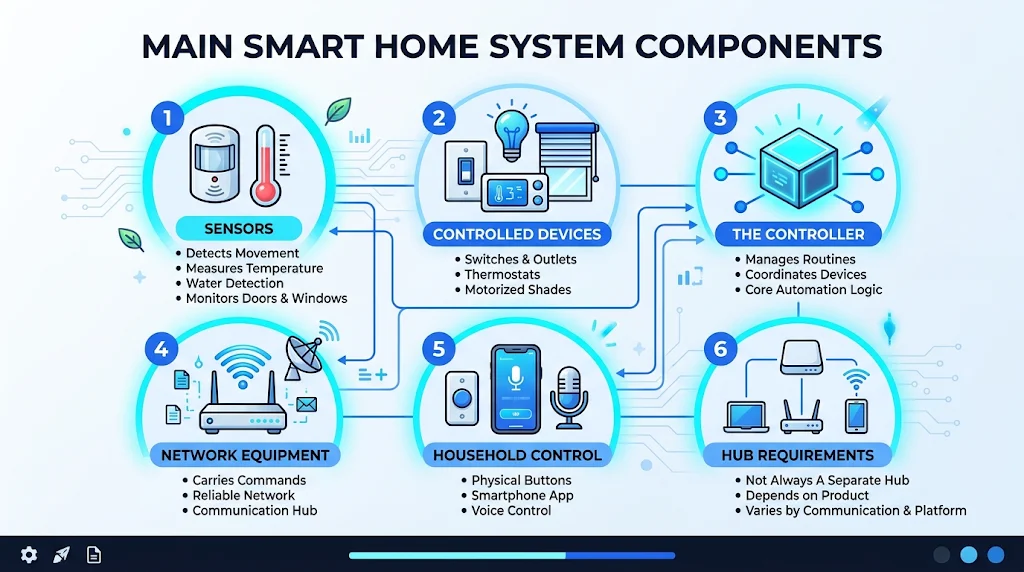
The Main System Components
Most systems use some combination of:
- Sensors that detect movement, temperature, water or open doors.
- Controlled devices, such as switches, thermostats and shades.
- A controller that manages supported devices and routines.
- Network equipment that carries commands.
- Buttons, apps or voice interfaces for household control.
Not every device needs a separate hub. Requirements depend on the product, communication method and platform.
Start with a Room by Room Plan
Good smart home system design begins with specific problems. “Automate the house” is too broad. “Turn on the hallway light when someone walks through at night” is clear enough to plan and test.
List your priorities before choosing products. HVAC means heating, ventilation and air conditioning.
| Area | Household need | Possible solution | Planning check |
| Entry | See visitors | Video doorbell | Power, coverage and recording fees |
| Hallway | Light nighttime trips | Motion sensor and lighting control | Placement and manual override |
| Living room | Control several lamps | Smart plugs and a scene button | Load ratings and compatibility |
| HVAC | Follow an occupancy schedule | Compatible thermostat | Wiring and equipment support |
| Laundry | Detect leaking water | Water sensor | Alert delivery and battery access |
Keep ordinary controls available. Guests should not need your phone to turn on a light. Household members should know how to override a routine.
Match the Plan to Your Property
A new build allows cable routes, electrical boxes and equipment locations to be planned before walls close.
An existing home may suit wireless sensors and selected switch replacements. Check wiring before ordering controls.
Renters usually benefit from portable bulbs, plugs, sensors and buttons. Get permission before replacing fixtures, locks or electrical devices.
Choose Your Platform and Control Architecture
Home automation system design should account for both today’s devices and the work needed to maintain them.
A central controller manages many functions. Separate systems may handle lighting, HVAC and security, with selected connections between them. A hybrid approach combines both.
Choose based on supported features, household needs and your comfort with configuration.
| Platform and controller | Connections and added hardware | Local operation and limitation |
| Apple Home with HomePod mini | WiFi and Thread built in. Zigbee and Z Wave need a compatible bridge or separate integration. | Supported accessory control and hub automations can run locally. Siri and remote services need internet. Only supported device features appear in Home. |
| Google Home with Nest Hub, second generation | WiFi and Thread built in. No direct Zigbee or Z Wave device pairing. | Matter commands use the home network. Google warns automations can depend on internet and service availability. A local connection does not guarantee an offline routine. |
| Home Assistant with Green | Ethernet connection; no built in Zigbee, Thread or Z Wave radios. Add ZBT 2 for either Zigbee or Thread, or a supported Z Wave adapter. | Local integrations and local triggers can run without internet. Cloud integrations still need their services. Configuration and backups remain the owner’s responsibility. |
| Lutron Caséta with Smart Hub | Ethernet to router and Clear Connect radio to supported lighting and shades. Pico remotes can control compatible devices directly. | Wall controls and paired Pico remotes work without internet. App and external service functions have separate dependencies. Caséta is a lighting and shade system, not a general device hub. |
Compare Fees and Choose a Suitable Platform
Apple Home and basic Google Home device control do not require a platform subscription. Camera storage and other paid services are separate. Caséta offers a free app; dealer support and connected third party services may cost extra.
Home Assistant requires no subscription for local control. Optional Nabu Casa remote service was listed at $6.50 monthly or $65 annually for US customers before tax. Confirm the US rate at checkout because regional pricing pages can differ.
Choose Apple Home if your household already uses Apple devices and the required accessories are supported. Google Home suits familiar app and voice control, provided you accept service dependencies. Home Assistant suits owners willing to maintain detailed local routines. Choose Caséta for dedicated lighting control and connect it to a broader platform only where needed.
For a large renovation with integrated AV, shades and security, compare professional proposals against the same written brief. Ask which functions stay local and which need dealer support.
Understand Matter, Thread and Other Connections
Matter is a device communication standard maintained by the Connectivity Standards Alliance. It is not a wireless radio.
Thread is a low power networking technology. A Thread border router connects its network to the home’s IP network. A Matter controller manages supported Matter devices. One product may perform both roles.
A bridge can expose supported devices from another system to a platform. It does not automatically make every feature available.
| Connection | Common use | What to check |
| Ethernet | Controllers, cameras and access points | Cable route and port availability |
| WiFi | Cameras, appliances and plugs | Supported bands and coverage |
| Thread | Supported sensors, locks and controls | Border router and platform support |
| Zigbee | Sensors, buttons and lighting | Compatible coordinator, the radio that manages the Zigbee network |
| Z Wave | Locks, sensors and controls | US region hardware and hub support |
A compatibility logo is the start of your check. Confirm that the platform supports the feature you need, such as energy readings, dimming or lock access management.
Wired or Wireless Home Automation?
Wireless home automation often suits finished homes because devices can be added without opening walls. However, wireless devices still need power, useful placement and a supported control system.
Wireless automation also creates maintenance tasks. Battery sensors need accessible mounting positions. Powered devices that extend a mesh network must remain powered.
For home automation, wireless connections must match both the devices and the controller. Identify the radio used, the required hub and the features available in your chosen app.
Build a Reliable Home Automation Network
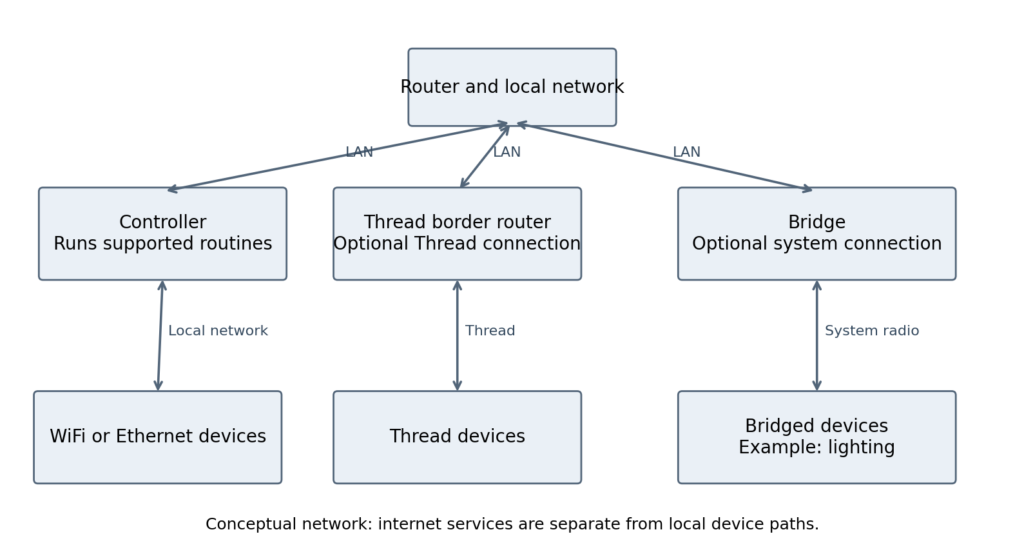
The controller sends commands through the required connection. A bridge links supported devices from another system. The Thread branch and bridge are optional. Devices can combine roles, so the boxes do not always represent separate purchases.
The home automation network must reach the places where equipment will operate. A speed test beside the router does not prove coverage at a garage door or upstairs camera.
Plan Coverage Before Adding Equipment
Mark device locations on a floor plan. Test coverage there with doors closed.
Place access points where they can serve occupied areas. Avoid hiding wireless equipment inside metal cabinets.
Mesh WiFi can help when cabling is difficult. Where practical, Ethernet backhaul is the wired link that carries traffic between access points and the router. Extenders may help specific coverage problems, but they should not replace a considered network plan.
Many smart devices require 2.4 GHz WiFi. Read each product’s requirements before changing router settings.
Preserve Device Discovery
Matter uses local IPv6 communication. Home Assistant also requires multicast discovery traffic, which lets devices announce themselves to other equipment on the local network. Guest networks or isolated network segments can prevent devices from finding one another.
Network segmentation means dividing a network into separate groups. It can limit access, but devices still need suitable routing and discovery rules. For a basic setup, follow the platform’s network guidance before introducing advanced segmentation.
Local IPv6 requirements do not mean every device needs public internet access through IPv6.
Plan Power for Fixed Equipment
Power over Ethernet, or PoE, carries power and data to supported devices through one cable. Check the camera or access point’s required PoE standard and the switch’s available power budget.
A battery backup can keep selected networking equipment running briefly. Runtime depends on its capacity and connected load. It cannot keep unprotected lights, HVAC or other household circuits operating.
Electrical Home Automation Needs Careful Checks
Electrical home automation involves more than finding a switch that fits the wall plate.
Before ordering controls, have the wiring, load and installation requirements checked. The Electrical Safety Foundation International recommends a qualified, licensed electrician for home electrical work.
Check Switches, Dimmers and Loads
Smart home electrical planning should confirm:
- Whether the device requires a neutral wire.
- Whether the box has enough space.
- Whether the circuit uses multiple switch locations.
- Whether the control supports the connected load.
- Whether the bulbs support the proposed dimming method.
A ground wire cannot substitute for a neutral.
Some Lutron Caséta dimmers work without a neutral, while other models require one. Check the specific model and supported load rather than assuming every product in a range has the same requirements.
A smart house electrical plan must match circuit voltage, box space and load ratings.
Do not use an ordinary lighting dimmer to control a ceiling fan motor unless it is designed for that purpose.
Check HVAC and Shade Requirements
Thermostats must match the heating and cooling equipment. A system may require a common wire, a power accessory or its original equipment controller.
ENERGY STAR certified smart thermostats are assessed using field data for energy savings. Actual household savings still depend on climate, equipment, settings and previous use.
Motorized shades also need a power plan. Decide between supported battery, outlet powered or wired options before finishes make access difficult.
Plan Infrastructure Before Walls Close
Home building automation is easier to coordinate while drawings and cable routes can still change.
Ask the builder, electrician and low voltage installer to agree on equipment locations and responsibilities.
Prepare a Cable and Equipment Schedule
Plan connections for access points, cameras, television areas, doorbells and other fixed equipment.
Bring important data cables to an accessible location with power, ventilation and room for maintenance. Record both ends of each cable.
CEDIA’s wiring guidance covers Ethernet, PoE, speaker cables and control wiring as parts of smart home infrastructure. Select cable types and routes for the actual equipment and applicable installation rules.
Consider spare conduits where later cable replacement would be difficult. Keep shade motors, power supplies and control equipment serviceable.
Photograph cable routes before drywall installation. Store drawings and test records with the project documents.
Coordinate Controls with Interior Design
Check keypad height, sensor views and speaker locations before installation.
A hidden sensor cannot help if furniture blocks detection. An attractive equipment cabinet becomes a problem if heat builds up or service access is restricted.
Set Up Your System in Seven Steps
1. Finalize the requirements and budget.
2. Prepare the network and controller, then update supported software.
3. Install a small pilot in one room.
4. Pair devices and give them clear names such as “Hall Lamp.”
5. Set appropriate household access and retain ownership accounts.
6. Test routines, exceptions and manual controls.
7. Save pairing codes, device records and backups before expanding.
Create Routines That Fit Real Life
Useful smart home automations address a clear task and include exceptions.
A hallway routine could detect motion after sunset, turn on a low light level and switch off after a delay.
That same rule may need a longer delay when someone is cleaning. A manual override prevents the sensor from repeatedly changing the lighting.
Geofencing should account for everyone who lives there. One person leaving does not mean the home is empty.
Budget for Equipment and Ongoing Costs
Separate controller costs from devices, infrastructure, labor and subscriptions.
Home Assistant currently lists Green at a recommended US price of $199 before tax. Optional Nabu Casa service costs $6.50 monthly or $65 annually before local sales tax. Local Home Assistant operation does not require that subscription.
A Complete US Household Planning Example
Consider an existing two bedroom home with dependable WiFi and an available Ethernet port. The owners want hallway lighting, two lamp controls and a laundry leak alert. They prefer local routines and are comfortable maintaining Home Assistant.
The plan uses Green with a ZBT 2 adapter configured as a Zigbee coordinator. Select supported Zigbee plugs, a motion sensor, a water sensor and a button. Confirm exact model support in the chosen integration before ordering. The diagram above shows optional Thread and bridge paths; this pilot needs neither.
| Selected component | Quantity | Unit price or allowance | Total |
| Home Assistant Green | 1 | $199 published MSRP | $199 |
| Connect ZBT 2 | 1 | $49 published MSRP | $49 |
| Supported Zigbee lamp plugs | 2 | $25 allowance | $50 |
| Supported Zigbee motion sensor | 1 | $30 allowance | $30 |
| Supported Zigbee water sensor | 1 | $25 allowance | $25 |
| Supported Zigbee scene button | 1 | $25 allowance | $25 |
| Equipment subtotal | $378 | ||
| Contingency allowance | $60 | ||
| Planned equipment total | $438 |
Green and adapter prices are manufacturer recommendations. The other amounts are illustrative allowances, not product offers. The total excludes tax, shipping, subscriptions, new cabling and professional labor.
First connect Green to the router by Ethernet and configure the adapter for Zigbee. Pair the plugs near the controller, then move them to the hallway lamp and living room lamp. Keep supported routing plugs powered. Install the motion sensor where it sees hallway movement and the water sensor beside the washer.
Create a motion routine that turns on the hallway lamp after sunset and turns it off after two minutes without movement. Use the button for manual lamp control. A leak should create an alert in the local dashboard. Remote phone alerts need working internet and the required notification service.
Acceptance requires ten successful motion trials, button operation by both owners and a wet sensor test performed according to its instructions. Repeat the motion and button checks with internet disconnected but the router powered. Confirm recovery after restarting Green. Keep records of expected and observed behavior; these are proposed tests, not reported results.
If the pilot passes, expand one room at a time. Check coverage again after moving routing devices or changing furniture.
Decide When to Hire a Professional
Pairing portable plugs and bulbs is different from altering electrical wiring or designing a security system.
Ask each installer:
- Which functions work without internet?
- Who owns the accounts and configuration?
- Which equipment needs subscriptions?
- What happens after a power outage?
- What documents and backups will I receive?
- What does ongoing support cost?
CEDIA offers a directory for finding member integrators. Still check local licensing, project references and the written scope.
Test Reliability Before Expanding
A working app screen is not a complete acceptance test.
| Test | What to verify |
| Normal operation | Devices respond from installed locations |
| Internet outage | Required local functions still operate |
| Controller restart | Devices and routines recover |
| Manual control | Buttons and switches remain usable |
| Household access | Users have correct permissions |
| Alert delivery | Local and remote alerts behave as expected |
Where safe, disconnect only the internet connection while leaving the home network powered. Record which routines, voice functions and notifications stop working.
Test power recovery through appropriate controls and professional procedures. Check whether lights restore their previous state or turn on unexpectedly.
Avoid Common Setup Mistakes
Buying everything before choosing a platform creates avoidable returns. Verify one device from each category first.
A smart bulb may become unavailable when someone turns off its power at the wall. Plan suitable household controls.
A camera notification does not replace a monitored alarm service. Understand what each security product provides.
Do not connect heaters, cooking appliances or other hazardous loads to smart plugs without explicit manufacturer support for the intended use.
Use unique passwords, supported account verification and current firmware. Avoid exposing controller ports directly to the internet without a properly designed access method.
Schedule battery checks and backups. Remove installer access that is no longer needed, and review manufacturer support before replacing devices.
Frequently Asked Questions
What Is Home Automation?
Home automation uses connected controls, sensors and software to perform household tasks. It can follow schedules, respond to events or run scenes. Remote app control alone does not make every action automatic.
Which Home Automation Devices Should I Buy First?
Start with a device that solves one useful problem. Lighting controls, compatible plugs and leak sensors are common choices. Confirm power, platform support and the feature you need before buying several.
What Home Automation Solutions Suit an Existing Home?
Wireless sensors, portable controls and selected switch replacements can suit finished homes. Use wired connections where access is practical. The right combination depends on wiring, coverage and household needs.
How Should I Compare Home Automation Companies?
Compare written scope, licensing, references, account ownership and support terms. Ask for demonstrations of required features and outage behavior. Make sure proposals include the same installation and service tasks.
Does Home Automation Work Without the Internet?
Some locally controlled devices and routines do. Cloud integrations, remote access and certain voice or notification services may stop. The home network and required controllers must remain powered.
Do Smart Switches Need a Neutral Wire?
Many do, but some models do not. Requirements depend on the control and connected load. Have the wiring checked and follow the exact manufacturer instructions.
Start with One Useful, Tested Routine
Choose a household problem, check the required infrastructure and install a small pilot. Confirm ordinary controls, outage behavior and recovery before adding rooms.
Keep the final device plan, account records and backups accessible.


