

Smart Home Automation Systems & Platforms
A smart home should make daily tasks easier. Lights can turn on when you enter a room. A thermostat can follow your schedule. A sensor can warn you about water under the sink.
The hard part is choosing products that work together and keep working when something changes.
Smart Home Automation Systems & Platforms connect devices and manage the rules that control them. The right setup depends on your existing products, your budget, and how much time you want to spend managing it.
This guide compares major platforms, explains compatibility, and shows how to build useful automation in a US home. Recommendations are based on manufacturer documentation and stated capabilities, rather than claimed hands on testing.
What Is a Smart Home Automation System?
A home automation system connects devices so they can respond to schedules, sensor readings, or other events. It usually includes devices, a control platform, and a network.
Smart Home and Automation: What Is the Difference?
A connected device lets you control something through an app or another interface. Automation makes that device act when a set event occurs.
Turning on a lamp from your phone is remote control. Having the lamp turn on when motion is detected after sunset is automation.
Platforms, Hubs, and Controllers Explained
A platform is the software environment where you manage devices and create rules. Google Home, Apple Home, and Home Assistant are examples.
A hub is a physical device that may run automation software, connect wireless devices, or perform both tasks.
A controller manages devices using a supported standard. A Matter controller, for example, manages Matter accessories.
How Automation Rules Work
Most rules contain three parts:
- Trigger: Something happens, such as a door opening.
- Condition: A requirement is checked, such as whether it is dark.
- Action: A device responds, such as turning on the entry light.
Conditions prevent unwanted actions. Without a darkness condition, the light might turn on every time the door opens.
Smart Home Platforms Compared
Start with the devices and actions you need. Then compare platforms that support them.
The table below describes suitable starting points. Actual capabilities depend on the controller, device model, integration, and software version.
| Platform | Verified controller example | Radios and practical limit |
| Google Home | Nest Hub 2nd generation | WiFi and Thread; no built in Zigbee or Z Wave radio. Device types and actions must be supported. |
| Amazon Alexa | Echo Hub | WiFi, Thread, Zigbee and Bluetooth; Matter support. No Z Wave radio. Online skills can add cloud dependencies. |
| Apple Home | HomePod mini | WiFi, Thread and Bluetooth; Matter controller. No Zigbee or Z Wave radio. Check accessory features in Apple Home. |
| SmartThings | Aeotec Smart Home Hub 2 | Zigbee, Thread and Matter support. Do not assume the Z Wave radio of older hubs is present. Local rules require local features throughout. |
| Home Assistant | Home Assistant Green | Ethernet host; Zigbee, Thread and Z Wave need suitable additional hardware. Configuration and recovery remain your responsibility. |
| Homey | Homey Pro | WiFi, Bluetooth, Thread, Zigbee, US Z Wave and infrared; Matter support. Manufacturer cloud integrations still need internet. |
A Shortlist Based on Your Priorities
For an Apple household, start with Apple Home if your accessories expose the controls you need. For simple voice routines in an Echo household, start with Alexa.
For detailed local automation, compare Home Assistant with Homey Pro. Home Assistant offers more configuration choices; Homey offers visual Flow tools and several built in radios. Neither makes a cloud device local automatically.
For whole home lighting, shades and AV with ongoing support, compare professional Control4 and Crestron Home proposals. For mixed sensor setups, include SmartThings and verify the hub model.
Platform Fees and Optional Services
Basic Google Home, Alexa, Apple Home and SmartThings device control should be budgeted separately from premium services, camera recording and monitoring plans. Check the chosen feature and provider before paying for a plan.
Home Assistant software does not require a subscription. Home Assistant Link is an optional paid service for remote access, offsite backups and supported voice integrations; regional prices apply. Homey Pro includes Advanced Flow without an extra charge. Paid backup options and device vendor services are separate. Control4 service terms depend on the installation.
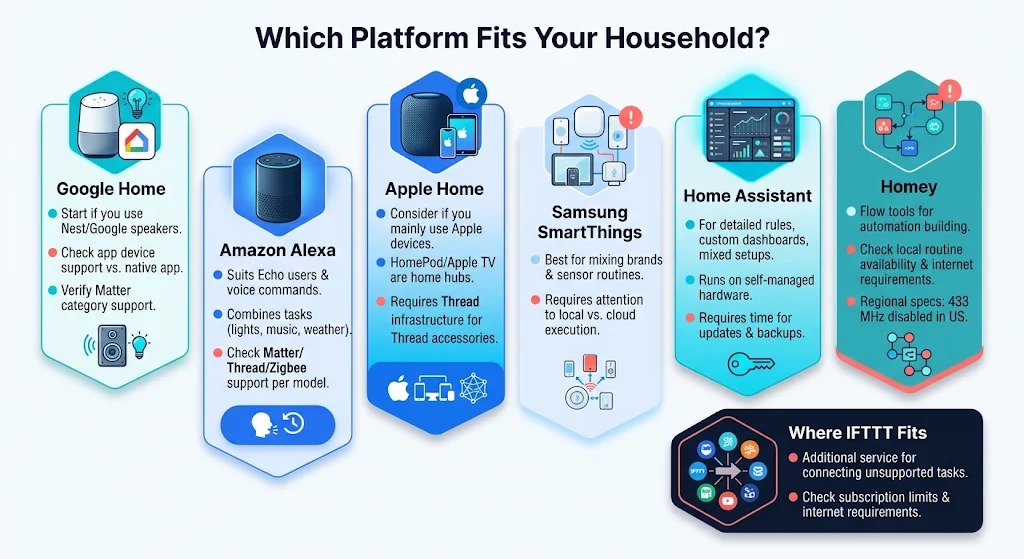
Which Platform Fits Your Household?
Google Home
Google Home is a sensible place to begin if you already use Nest products or Google speakers.
Check whether the app supports the exact devices and actions you need. A device that appears in the app may offer fewer controls than its manufacturer app.
Google also states that not all Matter device types are fully supported. Verify the supported category before purchasing an accessory.
Amazon Alexa
Alexa suits households that already use Echo devices and want voice commands alongside routines.
Amazon describes routines that combine tasks such as controlling compatible lights, playing music, and providing weather information.
Compare the exact Echo model before buying. Matter controller support, Thread support, and Zigbee support are separate capabilities. Also check whether a routine needs a manufacturer account or an online service.
Apple Home
Apple Home is worth considering when the household mainly uses Apple devices.
Apple identifies supported HomePod and Apple TV products as home hubs. Thread enabled Matter accessories need suitable Thread infrastructure, such as a supported hub or third party border router.
Samsung SmartThings
SmartThings can suit homes that combine several brands and want routines based on sensors.
Local execution requires attention. Samsung says every device feature and service in a rule must support local execution for that rule to run locally. Otherwise, it runs in the SmartThings Cloud.
Home Assistant
Home Assistant suits readers who want detailed rules, custom dashboards, and control over a mixed device setup.
It runs on hardware you manage. Home Assistant Green provides a ready made host, but buyers still need to check the hardware required for Zigbee or Thread devices.
Plan time for updates, backups, and troubleshooting. Choose it because you need its capabilities and can manage the system, rather than because a review calls it the universal winner.
Homey
Homey offers Flow tools for building automation. Compare Homey Pro models, available radios, and the apps that support your devices.
Homey explains that local routines can continue without internet, while integrations using a manufacturer cloud service may stop working.
US buyers should check regional specifications. For example, Homey states that 433 MHz transmission is disabled on relevant products in the United States.
Where IFTTT Fits
IFTTT can connect supported services and devices through applets. It may help with a task that your main platform cannot perform.
Treat it as an additional service. Check subscription limits, supported actions, and internet requirements before relying on it for a routine.
Understand Compatibility Before Buying
“Compatible” should answer a specific question: can this device perform the action you need through your chosen platform?
Matter and Thread Are Different
Matter is a standard developed through the Connectivity Standards Alliance to help products from different brands work together.
Thread is a wireless networking technology. A Thread border router connects the Thread network to the home’s IP network.
Matter devices can use supported IP networks, including WiFi or Thread. Not every Matter device needs a Thread border router.
Matter support also does not guarantee that every advanced feature appears in every app. Manufacturer settings may still require the original app.
Zigbee, Z Wave, and Device Bridges
Zigbee and Z Wave devices need a compatible radio or hub. A bridge can connect supported devices to another platform, but it does not automatically expose all features.
Check regional versions, particularly for Z Wave products. Buy hardware intended for the US market.
For lighting, also check electrical requirements. Lutron sells dimmers with different neutral wire requirements and explains that load compatibility varies. Use the instructions for the exact model.
Have a qualified electrician handle work beyond your skills.
Local vs. Cloud Control
Local control means a command or rule can operate within the home. Cloud control uses an online service.
One system can contain both.
A local motion sensor and local light may operate during an internet outage. A routine that also needs an online weather reading might not.
| Function | What to verify |
| Local lighting rule | Devices, controller, and rule execution all support local operation |
| Voice request | Whether recognition and the requested action need internet |
| Remote access | Home connection, account access, and service availability |
| Phone notification | Internet and the relevant notification service |
| Camera recording | Local storage versus cloud recording requirements |
An internet outage differs from a power cut. A battery sensor may stay active while its hub or controlled device loses power.
A backup power supply can help selected equipment, but it cannot keep every appliance operating. Retain physical controls and a documented recovery plan.
Practical Smart Home Automations
Useful smart home automations solve a clear problem. Start with tasks that are easy to test.
| Example | Trigger | Condition | Action |
| Entry lighting | Motion detected | Room is dark | Turn on light |
| Bedtime scene | Button pressed | None required | Dim lights and adjust approved settings |
| Garage alert | Door remains open | Time limit exceeded | Send a notification |
| Leak warning | Water detected | Sensor available | Sound an alert and notify household |
| Temperature schedule | Scheduled time | Household preference | Adjust compatible thermostat |
Lighting That Respects Manual Choices
A hallway light can switch off after no motion is detected. A reading room needs more care because someone may sit still.
Use a longer delay or suitable presence sensing. Add a way to pause the rule so it does not repeatedly undo a person’s manual setting.
Heating and Cooling
Schedule temperature changes around normal household use. Check equipment compatibility before buying a smart thermostat.
Savings depend on your previous settings, climate, rates, equipment, and behavior. Avoid treating a thermostat as a guaranteed bill reduction.
Security and Leak Alerts
Begin with notifications for open doors, unlocked doors, or water detection.
Automatic locking or water shutoff needs more testing. Consider guests, sensor failures, and access requirements. A notification may be the better first step.
Automation should support suitable safety equipment and professional monitoring where needed.
How to Automate Smart Home Devices
Build one routine before buying devices for every room.
Worked Example: A Hallway Motion Light
This planning walkthrough is an original example, not a reported hardware test. Use a platform that supports the sensor state, lighting action and conditions below.
- Choose a compatible motion sensor and dimmable light. Confirm both appear as usable devices in the automation editor.
- Name them “Hall motion” and “Hall light.” Check wireless coverage at their final locations.
- Set motion as the trigger. Add a darkness condition, using a supported light reading or sunset condition.
- Set the action to turn on the light at a comfortable brightness.
- Create an off rule after two minutes without motion, if the platform supports that timing. Treat two minutes as a starting setting.
- Add a supported manual override or pause control. Test continued motion, daylight, manual use and restart recovery.
Check internet outage behavior separately. A rule that runs locally should not silently rely on an online condition. Record the final settings and extend the delay if the light switches off during normal use.
A Compatibility Checklist You Can Reuse
For each purchase, record the exact US model, wireless standard, controller, integration method, required trigger, required action, cloud dependency and recurring fee. Mark each field as confirmed before ordering.
For Matter devices, check local IPv6 support and device discovery settings. Google notes that missing IPv6 support can cause control problems even when setup initially appears successful.
Can You Build a Fully Automated Smart Home?
A fully automated smart home can manage many routine actions. It still needs human decisions, physical controls, and maintenance.
A fully automated home may adjust lights, shades, temperature, and alerts based on schedules or sensors. It cannot reliably predict every change in household plans.
A fully automated house also needs exceptions. Guests may keep different hours. A child may need a light left on. Someone working late may not want the bedtime scene.
Give household members a simple way to override automation. Keep wall switches, approved manual controls, and clear instructions available.
Good home automation system design starts with daily activities, device locations, network coverage, and fallback controls. Buying products comes after those decisions.
What Does Home Automation Cost?
The app price is only one part of the budget. Count the hardware and services needed to complete your intended tasks.
Compare the Same Device Bundle
Define a bundle before comparing systems. For example, compare a controller, two lighting devices, two sensors, and a thermostat across suitable options.
Otherwise, a basic speaker setup may look cheaper than a system that includes several rooms of equipment and installation.
Verified US Hardware Price Examples
Prices checked October 7, 2026. These are manufacturer listings or MSRP, not a complete installed system. Tax, shipping and discounts can change the final price.
| Hardware | Published US price | What the price includes |
| HomePod mini | $129 | Apple home hub with Thread; accessories sold separately. |
| Home Assistant Green | $199 MSRP | Host, power supply and Ethernet cable; additional radios cost extra. |
| Homey Pro | $449 | Controller with the radios listed above; optional Ethernet adapter is $29. |
An existing supported controller may reduce your starting cost. A Homey Pro plus its optional Ethernet adapter totals $478 before tax and connected devices. This is a hardware comparison, not a claim that these products offer identical functions.
Example Ownership Budget
The following amounts are illustrative planning figures in US dollars. They are not current product quotes.
| Expense | Example amount |
| Controller and required radio | $150 |
| Two lighting devices | $60 |
| Two sensors | $50 |
| Thermostat | $150 |
| Initial hardware total | $410 |
| Optional service at $8 monthly | $96 yearly |
| First year with that service | $506 |
This example excludes tax, shipping, installation, and future purchases.
If the same service remained at $8 monthly for three years, hardware plus service would total $698.
Include Ongoing Costs
Ask about camera storage, remote access, monitoring, backups, replacement batteries, and support.
For professional installations, request an itemized quote and written support terms.
DIY or High End Smart Home Systems?
DIY platforms suit readers who can choose compatible products and manage setup.
High end smart home systems may suit larger projects that coordinate lighting, shades, audio, video, climate, and several control interfaces.
When Professional Installation Helps
Consider an integrator when the project involves extensive wiring, many rooms, custom AV control, or a household that wants ongoing technical support.
Control4 describes personalized systems installed and supported through professional integrators. Crestron Home also provides an integrator configuration environment.
Questions to Ask an Integrator
Request clear answers about:
- What works without internet.
- Installation and recurring costs.
- Account ownership and administrator access.
- Changes you can make yourself.
- Support response times.
- Documentation, backups, and transfer when selling the home.
Control4 distinguishes local operation from features provided through Connect. Confirm which services and charges apply to your proposed system.
Privacy, Security, and Maintenance
Connected devices need attention throughout their useful life.
Protect Accounts and Equipment
Use unique passwords and enable additional account verification where available. Update the router, platform, and device software.
The Federal Trade Commission recommends changing default credentials, using encryption, installing updates, and enabling two factor authentication where supported.
Give household members only the access they need. Review accounts when someone moves out or no longer needs access.
Plan for Recovery and Service Changes
Keep backups and recovery instructions. Store pairing codes securely.
Before buying, check the manufacturer’s update policy, cloud requirements, and options if the service closes.
Network separation can improve access control, but poor configuration can break device discovery. Follow your platform’s networking guidance rather than isolating devices at random.
Common Mistakes to Avoid
Buying devices before choosing the platform. You may end up with several apps and limited shared automation.
Assuming every feature transfers between platforms. Basic controls may work while advanced settings remain in the original app.
Creating competing rules. Two platforms controlling the same thermostat or light can produce confusing results.
Ignoring other household members. A setup that only its creator understands becomes hard to live with.
Automating sensitive actions too quickly. Test alerts and manual controls before adding automatic locking or shutoff.
Skipping maintenance records. Device names, account details, backups, and support information reduce future troubleshooting time.
Frequently Asked Questions
How Do I Compare Smart Home Automation Platforms?
Smart home automation systems & platforms reviews should identify tested hardware, supported actions, cloud dependencies, costs, and maintenance needs.
Use the same device bundle and intended routines for every comparison. Check controller radios, supported actions, offline behavior, first year costs and maintenance. Reviews should state whether their conclusions come from testing or documentation.
What Is the Best Smart Home System in 2026?
The best smart home system in 2026 depends on your devices and priorities.
Start with Apple Home for a compatible Apple household, Alexa for Echo based voice routines, and Google Home for an existing Nest setup. Compare Home Assistant for detailed local rules, Homey Pro for visual Flows and several radios, and SmartThings for supported mixed device routines. Choose from required actions, not a universal ranking.
What Is the Best Professional Home Automation System?
There is no single best professional home automation system for every project.
Compare suitable Control4 or Crestron Home proposals alongside the installer’s experience, documented design, support terms, and total cost. Ask for demonstrations of the tasks your household needs.
Which Home Automation System Brands Should I Compare?
Major home automation system brands and platform providers include Google, Amazon, Apple, Samsung, Homey, Control4, and Crestron.
Home Assistant is another important option. Device brands such as Lutron, Philips Hue, Aqara, and Schlage may form part of your setup, depending on compatibility.
Which Home Automation Devices Should Beginners Buy?
Useful home automation devices include smart plugs, lighting controls, motion sensors, contact sensors, leak sensors, and compatible thermostats.
Choose devices for one defined task. A sensor and light that work together can be more useful than several unrelated gadgets.
What Are Useful Home Automation Examples?
Common home automation examples include lights that respond to motion after dark, bedtime scenes, thermostat schedules, garage door alerts, and leak warnings.
Start with a task you repeat often. Add conditions and manual overrides so the routine fits normal household behavior.
Do I Need a Hub?
Not every setup needs a separate hub. Some devices connect through WiFi and online accounts.
Other devices need a controller, bridge, or compatible radio. Check the full requirements for your chosen models.
Can I Combine Multiple Platforms?
Yes, supported integrations can let one platform manage automation while another provides an interface or voice control.
Keep each routine in one clearly identified place. Check shared features, permissions, and cloud requirements before linking systems.
Choose a Platform and Start Small
List your existing devices and the tasks you want to automate. Check compatibility, required hardware, and recurring costs.
Then build one routine and test it under normal use and failure conditions.
The right setup is one your household understands, can override, and can maintain as devices and needs change.


