
What Is Home Automation? A Beginner’s Guide
Home automation uses schedules, sensors, and rules to make household devices perform tasks automatically. A porch light can turn on at sunset. A thermostat can adjust when everyone leaves. A water sensor can send an alert when it detects a leak.
You can start with one device and one useful task. A full house of connected products is optional. The right setup depends on your daily habits, budget, and the amount of maintenance you are willing to handle.
This guide explains how the technology works, what you need, and how to build a small setup that makes sense for a US household.
What Is Home Automation System?
Home automation systems are combinations of devices and controls that carry out household tasks according to set rules. Some manage a single lamp. Others connect lighting, heating, locks, and window shades.
The Four Main Parts of an Automation System
The basic parts are:
- Devices: Products that do something, such as bulbs, switches, thermostats, or locks.
- Sensors: Products that detect changes, such as motion, temperature, water, or an open door.
- Controllers: Hardware or software that manages devices and runs rules.
- Connections: The wired or wireless paths that carry messages between components.
Domestic automation is another name for home automation. Connected household products are also part of the Internet of Things, or IoT.
Smart Homes, Remote Control, and Automation
Understanding what a smart home is helps explain the difference. Connected devices give a home smart features. Automation tells those devices when to act without a fresh command from you.
| Control method | Everyday example | Trigger |
| App control | Tap your phone to switch on a lamp | Your tap |
| Voice control | Ask a speaker to dim the lights | Your spoken command |
| Automation | Lights turn on when motion is detected after dark | A rule and sensor reading |
A smart home automation system can support all three methods. Keep ordinary controls available so guests and family members can use the home without learning an app.
How Does Home Automation Work?
An automation follows a rule. Most rules contain a trigger, an optional condition, and an action.
Triggers, Conditions, and Actions
The trigger starts the rule. It might be a time, sensor reading, button press, or change in household presence.
A condition decides whether the action should happen. For example, motion should turn on a hallway light only after dark.
The action is the result. The light turns on, a shade closes, or your phone receives an alert. Google Home uses similar building blocks in its routines, although available options depend on the device and routine type.
A Hallway Lighting Example
Suppose you want a dim light when someone walks toward the bathroom at night.
| Rule component | Example setting |
| Trigger | Hallway sensor detects motion |
| Condition | Time is between 10 p.m. and 6 a.m. |
| Action | Turn the hallway light on at 20% brightness |
| Off timer | Turn it off after five minutes without motion |
| Manual control | Keep a usable switch or button |
Choose a platform that supports the sensor, dimming, and timing rules. Check whether repeated motion restarts the timer. Otherwise, the light might switch off while someone is still using the hallway.
Scenes and Routines
Scenes and routines are related terms. A scene usually applies saved settings to several devices. A routine may contain several actions. Names and behavior vary across platforms.
Types of Home Automation
One useful way to compare systems is by where their rules run. This is a planning aid, rather than an official list of three universal types.
| System type | Processing location | Internet requirement |
| Local | Hardware in your home | Supported rules can run offline |
| Cloud | Provider servers | Internet and provider service required |
| Hybrid | Local hardware and online services | Depends on the feature |
Home Assistant runs on hardware in your home. It offers a visual interface for many setup tasks, so basic use does not require coding. Some connected integrations still depend on outside services.
Do not assume a device is local because it uses WiFi. WiFi describes its network connection, not where its decisions happen. Ask whether schedules, sensor rules, and app controls work when the internet connection fails.
Home Automation Devices and Everyday Uses
Useful automation in homes starts with a recurring need.
Common Devices, Uses, and Buying Checks
The table below connects each device to a useful task and the checks to make before buying.
| Device | Common use | Buying check |
| Smart bulb | Dim a bedroom lamp at bedtime | Bulb base, brightness, platform support |
| Smart switch | Control several ceiling lights | Wiring, neutral wire, load type |
| Smart plug | Schedule a suitable table lamp | Electrical rating and appliance behavior |
| Motion sensor | Trigger hallway lighting | Coverage and controller support |
| Smart thermostat | Schedule heating and cooling | HVAC support and wiring |
| Door sensor | Report an open exterior door | Battery life and alert options |
| Smart lock | Provide controlled guest access | Door fit and backup access |
| Leak sensor | Detect water near a washer | Alarm and alert support |
| Motorized shade | Close window coverings on a schedule | Window fit and power supply |
Robot vacuums and irrigation controllers can also follow schedules. Cameras and video doorbells add viewing and alerts, but recording or advanced detection may require subscriptions.
What a Smart Plug Can and Cannot Do
A smart plug switches power. It does not add every function to an appliance. A coffee maker that needs a button press after power returns may not start brewing. Avoid controlling heaters or other high-load appliances unless both manufacturers allow that use.
Benefits and Limits to Consider
Convenience, Comfort, and Accessibility
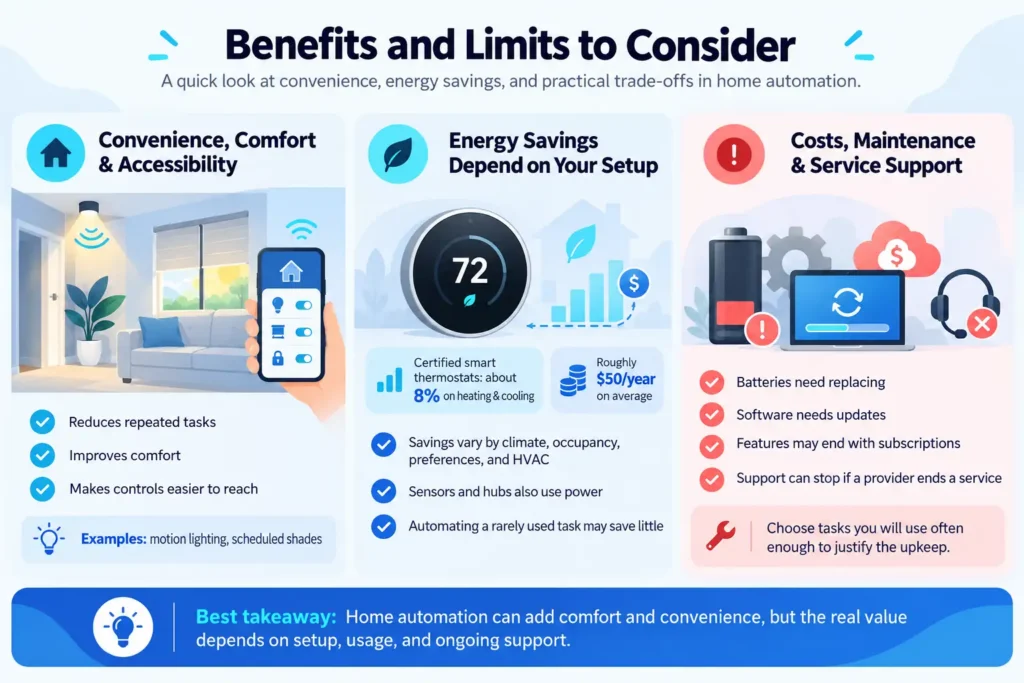
Automation can reduce repeated tasks, improve comfort, and make controls easier to reach. Motion lighting can help when your hands are full. Scheduled shades can limit afternoon glare.
Energy Savings Depend on Your Setup
Energy savings depend on the equipment and how you use it. ENERGY STAR reports that certified smart thermostats save about 8% on heating and cooling bills, or roughly $50 annually, on average. Climate, occupancy, preferences, and HVAC equipment affect the result.[3]
Sensors and hubs also consume power. Buying equipment to automate a rarely used task may provide little financial benefit.
Costs, Maintenance, and Service Support
Costs and upkeep are the main trade-offs. Batteries need replacing. Software needs updates. Devices may lose features when a subscription ends, or a provider stops supporting a service. Choose tasks you will use often enough to justify that work.
Choose a Platform and Check Compatibility
A platform lets you manage compatible devices and create rules. Common options include Apple Home, Google Home, Amazon Alexa, Samsung SmartThings, and Home Assistant.
Start with the phones, speakers, and controllers already in your household. Then check whether the platform supports your intended rule. A product that allows voice control may not expose every sensor reading or action you need.
Philips Hue, Lutron, Aqara, and other brands offer their own systems or integrations. Compatibility depends on the exact model, controller, and connection method. Brand names alone are not enough.
Which Home Automation Platform Should You Choose?
Choose the platform that supports your household and your exact rule. The table summarizes practical starting points, not a ranking of the platforms. Hardware, device support, and internet requirements vary by model and feature.
| Platform | Useful starting point | Check before buying |
| Apple Home | Households already using iPhones and Apple devices | Compatible accessories and a supported home hub for automations; Thread hardware where required. |
| Google Home | Households already using Google Home or Nest products | Whether the intended device exposes the starter, condition, and action your routine needs. |
| Amazon Alexa | Households already using Echo devices or Alexa | Routine triggers and actions for each device; built-in hub capabilities vary by Echo model. |
| Samsung SmartThings | Households combining supported devices through IF/THEN routines | Supported integrations and whether your chosen devices require a SmartThings-enabled hub. |
| Home Assistant | Households prioritizing customizable rules and supported local control | Dedicated host hardware, compatible integrations, maintenance, and any required radio adapters. |
For one scheduled lamp, the manufacturer app may be enough. For several brands, choose a shared platform before purchasing. If offline operation is your priority, identify which integrations are local and test the actual rule with the internet disconnected; a platform name alone does not prove offline reliability.
Quick Platform Decision Summary
- Choose Apple Home if your household already uses Apple devices and you want to manage compatible accessories in the Home app. Confirm the required home hub and Thread support before buying.
- Choose Google Home if you already use Google Home or Nest and its available starters, conditions, and actions cover your intended rule.
- Choose Amazon Alexa if you already use Echo devices and your accessories support the routine you need. Check the exact Echo model before relying on a built-in hub.
- Choose SmartThings if you want to combine supported devices with IF/THEN routines. Check integrations and hub requirements for each device.
- Choose Home Assistant if customizable rules and supported local control are your priorities, and you are comfortable maintaining a dedicated host.
Matter and Wireless Connections Explained
Matter is a device communication standard developed through the Connectivity Standards Alliance. It helps supported products work across compatible platforms. It uses existing connections such as WiFi, Ethernet, and Thread.
| Technology | Main role | Required equipment |
| WiFi | Home network connection | Router; controller if required |
| Thread | Low-power mesh connection | Border router to reach the home network |
| Zigbee | Connects compatible devices through a mesh | A compatible hub or coordinator |
| Z Wave | Radio connection between devices | Controller matching the US frequency |
| Matter | Defines how supported devices communicate | A compatible Matter controller |
For Matter over Thread, the controller and border router perform different roles. One product may contain both. Matter over WiFi does not require a Thread border router.
Matter support does not promise that every brand feature appears in every app. Check support for your exact device type and required actions.
Do You Need a Hub or Smart Speaker?
Some devices run schedules through their own app without a separate hub. Zigbee and Z-Wave products generally need compatible controller hardware. Matter requirements depend on your platform and connection type.
A speaker is optional unless it provides a controller feature you need. Apple documents which HomePod and Apple TV models support Home Hub functions and Thread connections.
Your Compatibility Checklist
Before buying, check five things: the model, supported platform, required controller, available automation actions, and any paid features.
Home Automation for Beginners: Your First Setup
1. Pick One Task
Choose a low-risk task with an obvious benefit. A lamp that follows a schedule is easier to test than an automatic door unlocking rule.
Renters can start with bulbs, plugs, and removable sensors. Ask the landlord before changing wiring, locks, or permanent fixtures.
2. Check the Network and Installation
Test network coverage where the device will sit. Follow the manufacturer’s setup instructions, including any 2.4 GHz WiFi requirement. Do not replace your router just because of its age if it still meets your needs.
Check that the device fits your outlet, fixture, or HVAC system. For US purchases, confirm voltage, plug type, and a recognized safety certification where applicable, such as UL or ETL listing.
Use qualified help for unfamiliar electrical work. Wire color alone does not confirm a safe connection.
3. Pair and Label the Devices
Install the required app, add the device, and apply available updates. Use clear names such as “Hallway Lamp” instead of a model number.
Save setup codes and recovery information securely. Place sensors where they detect the intended event rather than nearby activity.
4. Create and Test One Rule
Set the trigger, condition, and action. Run the rule manually, then test the actual trigger several times.
For motion lighting, check daytime behavior, repeated motion, and the off timer. Confirm that a family member can still control the light. If local operation matters, briefly disconnect the internet while keeping the home network powered and test again.
5. Expand After It Works Reliably
Use the setup for several days before adding devices. Ask other household members whether it helps or causes interruptions. Adjust one setting at a time so you can identify what changed.
Worked Beginner Setup: A Scheduled Table Lamp
This manufacturer-documented example is a setup recipe, not a firsthand product test. It uses a Tapo P125M smart plug, an existing compatible table lamp, a phone with the Tapo app, and a working 2.4 GHz Wi-Fi network. TP-Link documents scheduling, auto-off, and local control for this model.
Keep the lamp’s own switch on so restoring power lights it. Pair the plug using the manufacturer’s instructions, name it “Evening Lamp,” then add an on schedule at 7 p.m. and an off schedule at 11 p.m. Select the intended days and confirm the app’s time settings. Basic on/off scheduling does not dim the lamp; dimming needs suitable additional equipment.
| Test | What to check |
| Manual control | The plug button and app both switch the lamp on and off. |
| Schedule | Set a near-term test time first; confirm both on and off events. |
| Internet loss | Keep Wi-Fi and device power on, disconnect internet, and check local control and scheduled behavior separately. |
| Power restoration | Confirm the plug’s configured power-on state and whether the lamp returns as expected. |
| Household use | Check that another household member can control the lamp and the schedule does not interrupt normal use. |
Record the model, firmware, rule settings, actual purchase cost, test date, and results. If a test fails, fix that behavior before relying on the schedule. These checks make the example reproducible without assuming results that have not been measured.
How Much Does Home Automation Cost?
There is no single starter price. One scheduled bulb costs less than a sensor system that requires new controller hardware. Existing equipment can reduce your total.
Upfront and Ongoing Costs
Build a budget from current prices for these items:
| Cost category | What to budget for |
| Equipment | Devices, sensors, and any controller |
| Installation | Electrician, HVAC technician, or mounting work |
| Services | Recording, monitoring, or remote access fees |
| Maintenance | Batteries and possible replacement devices |
| Network changes | Extra coverage or backup power if needed |
Starter Configurations: Historical MSRP and Current Displayed Prices
The table separates the P125M’s historical launch MSRP from IKEA US prices displayed on October 3, 2026. The $19.99 P125M figure comes from TP-Link’s January 30, 2023 announcement and is not a current checkout quote.
IKEA displayed $9.99 for the KAJPLATS kit and $139.99 for DIRIGERA when checked; these prices can change. The configurations show how controller requirements change the budget. Taxes, delivery, lamp fixtures, existing networking equipment, and installation are excluded. These are examples, not product rankings.
| Configuration | Equipment price reference | What the budget includes |
| Scheduled table lamp | Historical launch MSRP: $19.99 (January 30, 2023) | One plug with an existing lamp and router; historical MSRP, not a verified current checkout price. |
| IKEA lighting with an existing suitable controller | $9.99 displayed October 3, 2026 | KAJPLATS E26 white-spectrum bulb and remote; suitable Matter controller and Thread border router already owned. |
| IKEA lighting with a new DIRIGERA hub | $149.98 calculated from displayed prices on October 3, 2026 | $9.99 kit + $139.99 DIRIGERA hub; verify app/routine requirements and availability before ordering. |
The $9.99 IKEA kit alone provides remote-controlled lighting; it is not a complete scheduled automation system. IKEA lists Matter over Thread and a border router requirement for phone control. Using DIRIGERA and the IKEA Home smart app adds documented automatic lighting options. If you already own suitable hardware, verify that it supports the intended routine before assuming a new hub is needed.
Check your utility’s current thermostat rebate rules before purchasing. Compare the full cost of an installed system, including monthly service fees and contract terms, with a smaller setup you manage yourself.
Privacy, Security, and Outage Planning
Protect Accounts and Household Data
Use unique account passwords and enable two-factor authentication when available. Update device and router software. Review camera storage, microphone settings, location permissions, and household access.
NIST’s consumer IoT guidance treats cybersecurity as a product-wide issue, including connected components and services. Before buying, look for clear update support, data protection information, and a way to report security problems.
Keep cameras out of private spaces unless their use is necessary and agreed upon. Remove access for former household members and guests who no longer need it.
Internet Outages, Power Failures, and Backup Controls
An internet outage and a power outage are different. Local rules may survive the first. Powered bulbs, routers, and controllers stop during the second unless their power is backed up. Battery sensors alone cannot keep the full system running.
Keep physical controls and backup access. Household routines should not replace required smoke alarms or be your only means of emergency protection. Google specifically warns against using its routines for safety or security-critical purposes.
Common Mistakes and Simple Checks
Buying several brands before checking compatibility often leads to extra apps or missing functions. List the exact rule you need first, then choose devices that support it.
Another common problem is switching off power to a smart bulb. Once power is cut, it cannot receive commands. Choose controls that suit how your household uses the room.
Troubleshooting Common Problems
Use these checks to narrow down the cause before resetting a device.
| Symptom | Check first |
| Device appears offline | Power, sensor battery, network coverage |
| Rule never starts | Trigger support, conditions, permissions |
| Light turns off too soon | Timer behavior and sensor placement |
| Rule runs twice | Duplicate routines in different apps |
| Remote access fails | Internet, controller status, service requirements |
Check the manufacturer’s status page before resetting everything. A service outage will not be fixed by deleting and pairing each device again.
Frequently Asked Questions
What Are Some Home Automation Examples?
Examples include porch lights turning on at sunset, motion-triggered hallway lighting, shades closing during afternoon glare, and leak alerts. Each needs supported devices and a rule that matches the task.
What Is the Easiest Way to Start Home Automation?
Choose one suitable table lamp and a compatible smart plug. Pair the plug, create an on/off schedule, and test its button, app control, and actual schedule before expanding.
Do I Need a Hub for Home Automation?
Not always. Some Wi-Fi products run basic schedules through their own app. Zigbee and Z-Wave devices generally need compatible controller hardware. Matter requirements depend on the platform and whether the device uses Wi-Fi or Thread.
Can Different Smart Home Brands Work Together?
Yes, when the exact models support a shared platform or compatible standard. Matter can improve interoperability, but it does not guarantee that every brand feature appears in every app. Check the particular actions and sensor triggers you need.
Can Home Automation Work Without Internet?
Supported local rules can run without internet while the required network and controllers remain powered. Cloud rules, remote access, and some integrations need online services. Test the individual feature rather than assuming the whole system is offline capable.
Can Renters Use Home Automation?
Yes. Plugs, suitable bulbs, and removable sensors are common starting points. Obtain permission before changing permanent wiring, fixtures, or locks, and retain ordinary controls for other household members.
Are There Monthly Fees for Home Automation?
Basic schedules may have no recurring service fee, depending on the product. Camera recording, monitoring, cloud features, or optional remote-access services can add charges. Check free features, paid features, and cancellation effects before purchasing.
Does Home Automation Require Coding?
Many beginner setups use app menus and visual rule editors. Coding can enable advanced customization, but it is not necessary for a basic lamp schedule or many supported sensor rules.
Start With a Useful Task
Good automation for home use fits the people who live there. Choose one recurring task, check compatibility, and test the result under normal conditions and expected failures.
A small setup that works every day is a better starting point than a large collection you cannot easily manage.


