

iPhone Safety Features: SOS & Block No Caller ID
Your iPhone can help you contact emergency services and manage unwanted calls. But finding the right settings can be confusing, especially when your phone suddenly displays SOS or keeps receiving calls from hidden numbers.
Emergency SOS helps you call for help during an emergency. If your iPhone says SOS Only, it usually means your regular cellular network is unavailable. To manage No Caller ID calls, you can silence unknown callers, use call screening, or ask your carrier about anonymous call blocking.
Here’s how these iPhone safety features work and how to choose the right settings.
Quick Guide: Find the Right iPhone Setting
To stop accidental emergency calls: Open Settings > Emergency SOS and review the button calling shortcuts.
If your iPhone says SOS Only: Check coverage, toggle Airplane Mode, restart your phone, and contact your carrier if the issue continues.
To reduce No Caller ID calls: Go to Settings > Apps > Phone and review Screen Unknown Callers, or ask your carrier about anonymous call filtering.
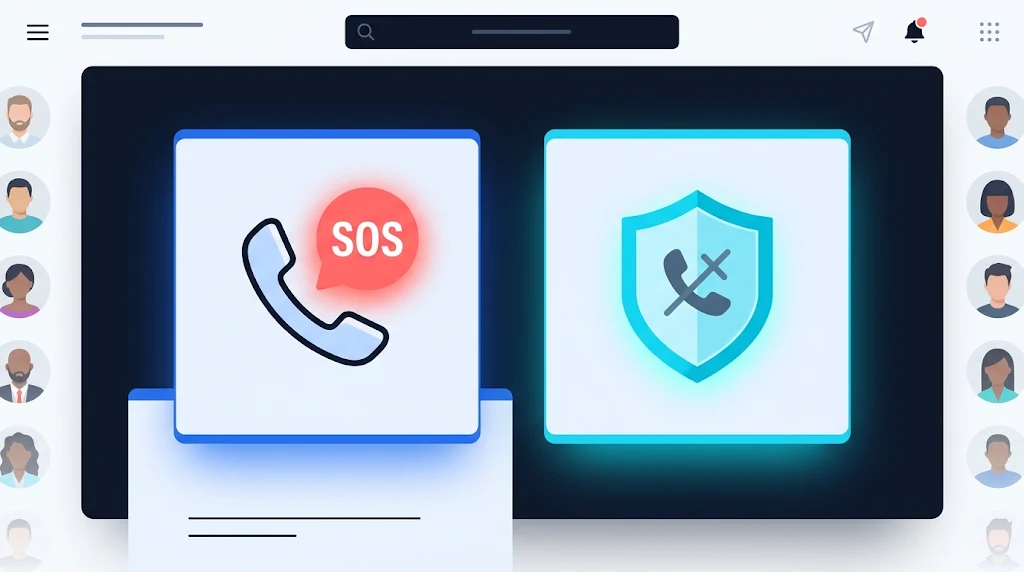
What Does SOS Mean on iPhone?
SOS on an iPhone can refer to Emergency SOS or the SOS Only status. They have different purposes.
What Is Emergency SOS?
Emergency SOS is an Apple safety feature that lets you quickly contact emergency services. In the United States, your iPhone can use it to call 911.
You can start an emergency call using the side and volume buttons. Your iPhone can also notify your emergency contacts after the call if you have added them.
Emergency SOS is useful when you cannot unlock your phone or open the Phone app normally.
What Does SOS Only Mean?
If SOS or SOS Only appears in your iPhone’s status bar, your phone cannot connect to its usual cellular network. It may still be able to place emergency calls through another available network.
You might see this message when:
- Your carrier has a temporary outage.
- You are outside your carrier’s coverage area.
- Your SIM or eSIM has a connection problem.
- Your phone has trouble connecting to a cellular network.
SOS Only does not mean your iPhone has automatically called 911.
| Emergency SOS | SOS Only |
| A feature for contacting emergency services | A cellular connection status |
| Can be activated using iPhone buttons | Appears when normal cellular service is unavailable |
| May alert emergency contacts | Does not automatically alert contacts |
| Has adjustable calling shortcuts | Requires cellular troubleshooting |
How to Set Up and Use Emergency SOS on iPhone
Apple provides several ways to contact emergency services. The available options depend on your iPhone model and settings.
Make an Emergency SOS Call
On an iPhone with Face ID:
- Press and hold the side button and either volume button.
- Wait for the Emergency Call slider and countdown to appear.
- Drag the Emergency Call slider to call immediately, or continue holding the buttons until the countdown ends.
- Release the buttons when the emergency call starts.
If enabled, pressing the side button five times quickly can also start an Emergency SOS countdown.
Important: Do not test Emergency SOS by making a real 911 call. Check the settings instead. If you accidentally reach an emergency operator, stay on the line and explain what happened.
Add Emergency Contacts and Medical ID
Emergency contacts can receive a notification and your available location after an Emergency SOS call.
To add them:
- Open the Health app.
- Tap your profile picture.
- Select Medical ID.
- Tap Edit.
- Find Emergency Contacts and add a trusted person.
- Choose your relationship and save the changes.
You can also add medical conditions, allergies, and medications to your Medical ID.
Consider enabling Show When Locked so emergency responders can view the information without unlocking your phone.
How to Turn Off SOS on iPhone
Official Apple reference: https://support.apple.com/guide/iphone/contact-emergency-services-iph3c99374c/27/ios/27
If you searched for turn off sos on iphone, the solution depends on whether you want to prevent accidental emergency calls or remove SOS Only from the status bar.
Turn Off Automatic Emergency SOS Calling
You can disable the button shortcuts that start an emergency call.
- Open Settings.
- Tap Emergency SOS.
- Turn off Call with Hold and Release.
- Turn off Call with 5 Presses.
You may see additional options depending on your iPhone model.
These changes help prevent accidental calls when you press the buttons. They do not disable your ability to call 911 manually.
Think carefully before changing these settings, especially if you rely on quick access to emergency assistance.
How to Fix an iPhone Stuck in SOS Only Mode
Apple troubleshooting: https://support.apple.com/en-us/120000
You cannot remove SOS Only by switching off Emergency SOS. You need to restore your cellular connection.
Try these fixes in order.
1. Check your location and cellular coverage
Move somewhere with better reception. If other phones using the same carrier have no service, your network may be experiencing an outage.
2. Turn Airplane Mode on and off
Open Settings and enable Airplane Mode for at least 15 seconds. Turn it off and check whether your cellular signal returns.
3. Restart your iPhone
Restarting can resolve temporary network connection problems.
4. Check for a carrier settings update
Connect to WiFi, then open Settings > General > About. If a carrier update is available, follow the prompt.
5. Check your SIM or eSIM
Open Settings > Cellular and check whether your cellular line is enabled. If your line is missing or cannot connect, contact your carrier.
6. Check for an iOS update
Open Settings > General > Software Update.
If SOS Only remains after these steps, contact your cellular provider. Avoid deleting your eSIM unless your carrier tells you to do so.
Can Emergency SOS Work Without Cellular Service?
Sometimes, yes.
When your usual carrier is unavailable, your iPhone may still connect to another supported cellular network for an emergency call.
Certain iPhone models also support Emergency SOS via satellite.
Apple offers this feature on supported iPhone 14 models and later, in eligible regions. It can help you contact emergency services when cellular and WiFi coverage are unavailable.
To use satellite emergency assistance, you generally need to:
- Attempt an emergency call.
- Follow the option to contact emergency services by satellite if it appears.
- Answer the emergency questions displayed on your iPhone.
- Follow the onscreen directions to establish a satellite connection.
- Continue the conversation with emergency responders.
Satellite availability depends on the country, region, device, and surrounding conditions. An open view of the sky improves your chances of connecting.
An Apple Watch also provides safety features. On supported models, Fall Detection can help contact emergency services after a serious fall if you remain unresponsive.
What Does No Caller ID Mean on iPhone?
No Caller ID means the caller’s phone number is not being displayed to you.
Some people hide their numbers for privacy. Others may use withheld Caller ID when making unwanted calls.
There is an important difference between No Caller ID and an unknown caller.
No Caller ID: The caller’s number is hidden, so you cannot see which number to block.
Unknown caller: The number may be visible but isn’t saved in your contacts.
This distinction matters because Apple’s tools for screening unsaved numbers are not the same as blocking only hidden numbers.
How to Block No Caller ID Calls on iPhone
Apple call controls: https://support.apple.com/guide/iphone/screen-and-block-calls-iphe4b3f7823/ios
If you want to block No Caller ID calls on your iPhone, several options can reduce interruptions. However, iPhones do not offer a universal built in setting that guarantees blocking every hidden number while allowing all other unsaved callers through.
Method 1: Silence Unknown Callers
Apple lets you silence calls from numbers that are not saved in your contacts.
On current iOS versions:
- Open Settings.
- Tap Apps.
- Select Phone.
- Find Screen Unknown Callers.
- Choose Silence.
Your iPhone will silence calls from unsaved numbers. Calls may go to voicemail depending on your carrier and voicemail setup.
The downside: You may miss calls from a doctor, delivery driver, employer, or anyone whose number you haven’t saved.
On older iOS versions, look for Silence Unknown Callers in the Phone settings.
Method 2: Use iPhone Call Screening
Apple unknown caller guidance: https://support.apple.com/en-us/111106
Call Screening can help you decide whether to answer an unfamiliar number.
On supported software:
- Open Settings.
- Select Apps.
- Tap Phone.
- Find Screen Unknown Callers.
- Select Ask Reason for Calling.
Your iPhone asks unfamiliar callers to identify themselves and explain why they’re calling before your phone rings. You can review their response before deciding whether to answer.
This may be more useful than silencing every unsaved number.
Call Screening is not guaranteed to identify someone using a hidden number. It also does not work in every situation, including while roaming.
Apple states that screening turns off for 24 hours after you call emergency services.
Method 3: Block a Specific Phone Number
If a caller’s number is visible, you can block it directly.
- Open the Phone app.
- Find the call in your call history.
- Tap the number or its information button.
- Scroll down.
- Select Block Caller.
You can manage blocked contacts through your iPhone settings.
On current iOS versions, Apple also provides blocked contact controls under Privacy & Security.
Blocking a visible number does not guarantee that calls from the same person with hidden Caller ID will stop.
Method 4: Ask Your Carrier to Block Anonymous Calls
Your mobile carrier may provide additional options for unwanted calls.
Contact AT&T, Verizon, T Mobile, or your cellular provider and ask:
- Can you reject calls with withheld Caller ID?
- Is anonymous call blocking available on my wireless plan?
- Can your spam protection service help with repeated private calls?
- Will the service affect legitimate calls from unsaved numbers?
Carrier options differ. Some services focus on suspected spam rather than every private number.
Third party caller identification apps may also help identify certain incoming calls, but they cannot reliably reveal every intentionally hidden number.
Which Call Blocking Method Works Best?
The right choice depends on whether you want fewer interruptions or need to receive calls from unfamiliar numbers.
| Method | What it does | Main limitation |
| Silence Unknown Callers | Silences calls from unsaved numbers | Can silence legitimate calls |
| Call Screening | Asks unfamiliar callers why they are calling | Availability and behavior vary |
| Block Caller | Blocks a specific visible number | Cannot directly select a hidden number |
| Carrier filtering | Applies available network filtering rules | Depends on your provider |
| Focus Mode | Limits which calls can interrupt you | Does not block anonymous callers at the network level |
For example, if you’re waiting for a call from a medical office, Call Screening may be more suitable than silencing all unsaved numbers.
You can also use Settings > Apps > Phone to review unknown caller filtering and spam settings.
If you receive unwanted FaceTime calls, check the separate FaceTime settings. If FaceTime is not working on your iPhone, investigate its connection and activation settings before assuming call filtering is responsible.
What If No Caller ID Calls Keep Coming?
Repeated private calls can become frustrating, especially when someone continues calling after you’ve blocked their visible number.
Start by reviewing your screening settings and asking your carrier about anonymous call controls.
If the calls involve harassment or threats:
- Keep a record of dates and times.
- Save threatening voicemails and messages.
- Avoid sharing personal information with unidentified callers.
- Report the problem to your carrier.
- Contact the appropriate authorities if you receive threats or feel unsafe.
- Call blocking tools cannot stop every unwanted call.
Common Mistakes to Avoid
Blocking a number and expecting every private call to stop
Someone may hide their Caller ID when calling again. Blocking the original visible number does not necessarily stop calls made without displayed caller information.
Using Silence Unknown Callers without checking voicemail
Important callers may still leave messages. Review voicemail and filtered calls regularly.
Confusing SOS Only with Emergency SOS
SOS Only is a network status. Turning off Emergency SOS shortcuts won’t fix it.
Trusting apps that promise to reveal every private number
No ordinary iPhone app can reliably expose every withheld Caller ID. Be careful about apps requesting unnecessary access to contacts or call information.
Frequently Asked Questions
What Does Someone See If You Block Their Number on an iPhone?
Apple does not send a notification telling someone you’ve blocked their number. Their calls won’t ring on your iPhone, but they may still be able to leave voicemail without you receiving a notification. They may suspect they’re blocked, but the call’s behavior alone is not reliable proof.
Why Did I Get an Emergency SOS on My iPhone?
Your iPhone may have started an Emergency SOS countdown because the side and volume buttons were held or the side button was pressed repeatedly. If the phone only displays SOS at the top of the screen, that usually indicates a cellular connection issue rather than an emergency call.
Is It Possible to Block No Caller ID Calls on iPhone?
You can silence or screen unfamiliar calls using Apple’s Phone settings. However, iPhone does not provide a universal option that blocks every hidden number while leaving all other unsaved numbers unaffected. Ask your carrier whether more selective anonymous call blocking is available.
Does *67 Still Work on iPhone?
Yes. In the United States, carriers such as AT&T and Verizon support dialing *67 before a phone number to hide your Caller ID for a single outgoing call.
For example, you can dial *67 followed by the full ten digit number. This does not block incoming calls or reveal private callers. Carrier restrictions apply, and Caller ID blocking does not work for 911 or certain toll free numbers.
Does Emergency SOS Notify My Emergency Contacts?
It can. After an emergency call, your iPhone may send your location to the emergency contacts saved in Medical ID, unless you cancel the notification process. Location sharing depends on availability and your device’s settings.
Conclusion
Your iPhone offers useful tools for personal safety and call privacy, but each has a different purpose.
Emergency SOS helps you contact emergency services. SOS Only tells you there is a cellular connection problem. Call screening and silencing features help reduce unwanted calls, though they cannot guarantee that every anonymous caller is blocked.
Check your emergency contacts, review your Phone settings, and choose call filtering options that fit your daily needs. A few minutes spent reviewing these settings can make your iPhone easier to use when something unexpected happens.


